
🎯 How to Use CTAs with Sites
👉 Create and override calls to action when publishing collections as sites
What are Calls to Action in Content Camel?
In Content Camel, you can define standard CTAs to be used and reused by users when they publish collections as sites. This makes it really simple and seamless to deliver the right CTA at the right time -- and to override the default CTA on a site that would default to the publishing user's contact information.
A couple of ideas and use-cases for CTAs on sites:
Set up a site with event-related content for any live events that your team is attending. Define a team-wide scheduling link and add that CTA to the site
Personalization would be off, attach the CTA defined for the event
Set up CTAs as part of a sequence in the logical next step in your sales pipeline. Clearly name the CTAs, so sales reps no what to attach and when
Personalization would be on, reps attach the CTAs depending on stage of their deal
Set up a customized partner CTA with partner-specific contact information (scheduling link or site).
Personalization is off, partner CTA attached to partner collection of resources published as a site
Defining CTAs in Content Camel
You'll want to go to Account Settings -> CTAs:

There, you can define standard CTAs that anyone on the team can use when publishing sites:
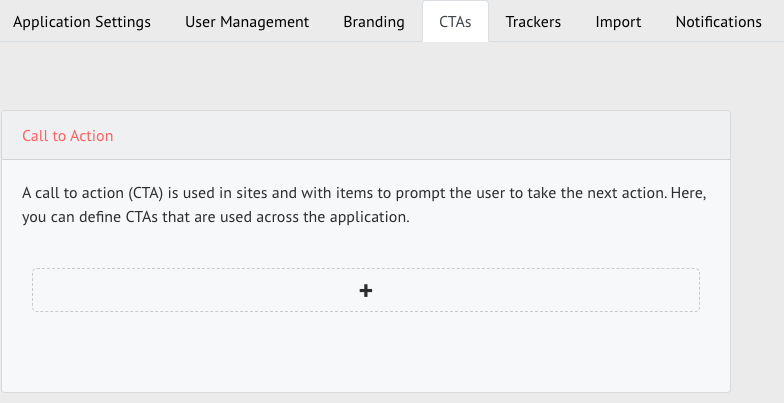
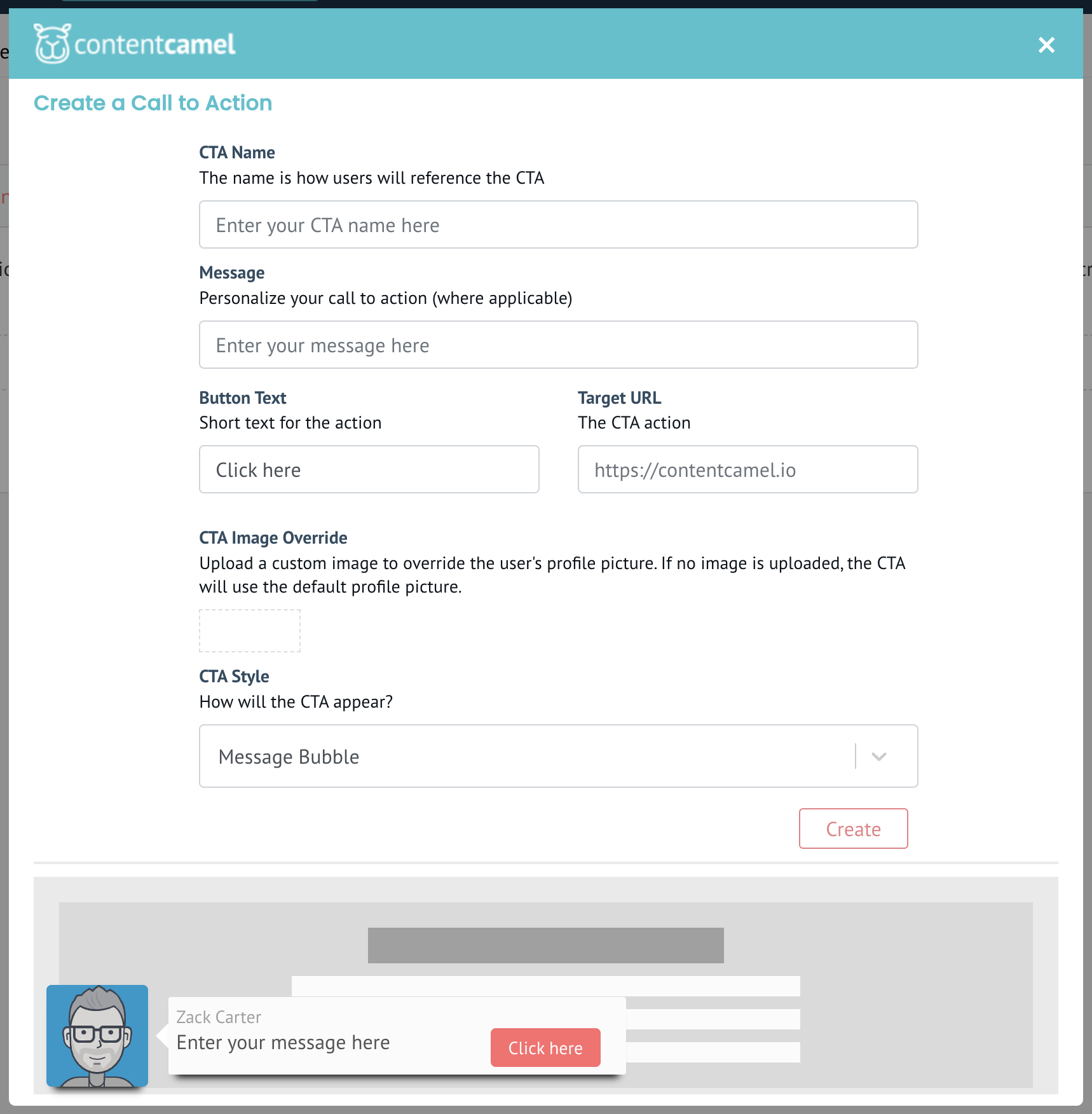
Creating a reusable CTA is simple and has a few parts:
Name: an internal name that users will see. (required)
Message: the message views will see on sites. This is the call to action message. (required)
Button Text: the call to action button short text. (required)
Target URL: the link that's the destination for the action. (required)
Image: the custom image that overrides the user's picture (if applicable). (optional)
Style: how the CTA will appear on the site to viewers. Options include chat bubble, full width banner, and button only.
Using CTAs and Attaching them to Sites
CTAs are reusable actions that are attached to sites when collections are published. Any changes to the defined CTA will immediately be reflected on any associated sites.
When a CTA is defined, it will override the standard "Contact" button on a site. If you don't want the user's profile picture to show up on a site, then disable "personalization" when publishing the site:
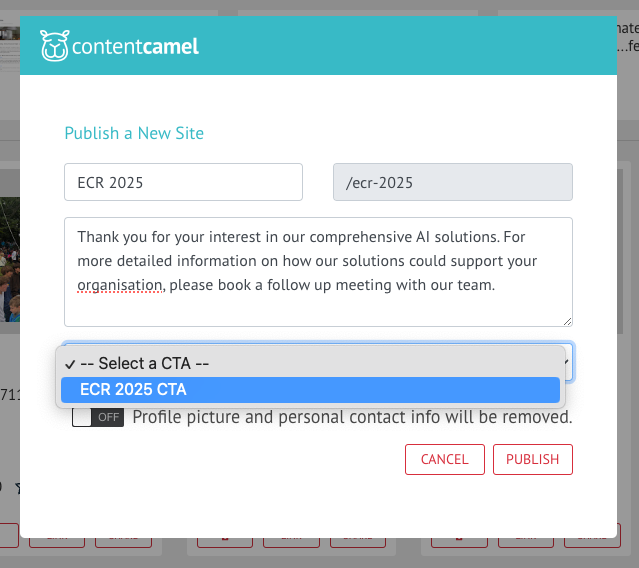
You can adjust the style of the CTA and if you refresh your site, you'll see your changes applied. To apply this to an existing site, for now, you'll have to unpublish and re-publish the site.
Also, you may need to refresh the app in the browser to make sure you have a fully refreshed app on your side! Just so it's not cached.
If you have any questions at all, please contact us anytime.