
📢 How to manage CTAs
Your team shares great content, but if prospects don't know what to do next, opportunities slip away. CTAs turn content consumption into concrete actions—meetings booked, trials started, quotes requested. Content Camel lets you create reusable CTAs that you can deploy across assets, and sites, ensuring every piece of content has a clear path forward for interested prospects.
Accessing CTA management
Step 1: Navigate to Account Settings
Click on your profile icon in the top right or Settings in the left hand sidebar. Then Account Settings.
Step 2: Open the CTAs tab
From Account Settings, click on the CTAs tab to manage your organization's calls-to-action.
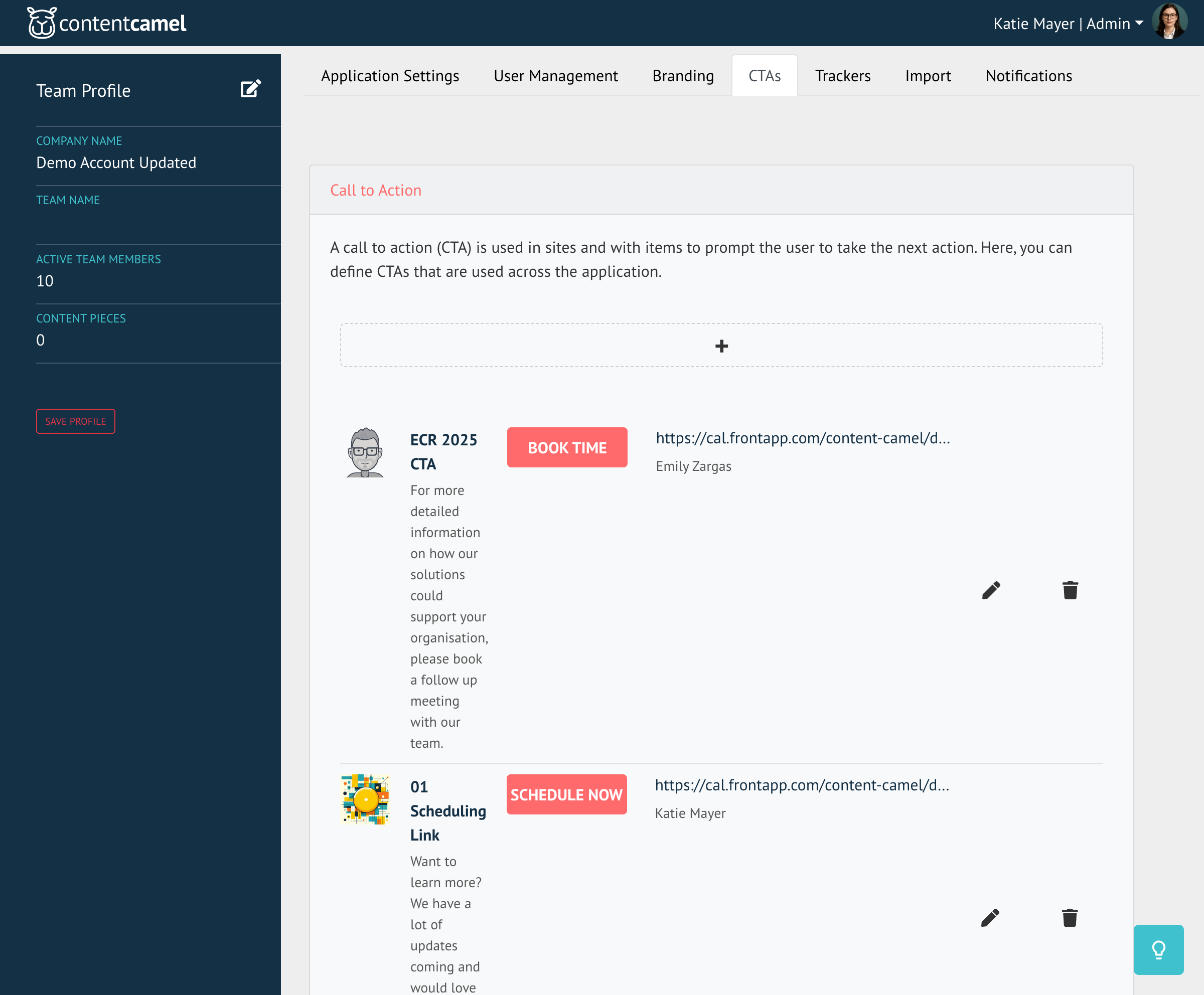
Understanding the CTAs page
The CTAs management page shows all your existing calls-to-action with:
Preview - How the CTA will appear to viewers
Title - Internal name for organization
Message - The text that appears with the call to action.
Button - The clickable call-to-action button with custom text
URL - Where the button links to
Owner - Which team member the CTA is attributed to
Actions - Edit and delete options
You'll see real examples of CTAs already in use, showing how they look with profile images, messaging, and buttons.
Creating a new CTA
Step 1: Start creating
Click the + button to create a new call-to-action.
Step 2: Fill in CTA details
Configure your CTA with these elements:
Title (internal use only)
Give it a clear, descriptive name
Examples: "Schedule Demo CTA", "Webinar Registration", "Free Trial Sign-up"
Message
The text that appears above the button
Should create urgency or clearly state the value
Keep it concise (1-2 sentences)
Examples:
"Want to learn more? We have a lot of updates coming and would love to walk you through everything."
"For more detailed information on how our solutions could support your organization, please book a follow-up meeting with our team."
"Ready to get started? Schedule a personalized demo with one of our product experts."
Button Text
The text that appears on the clickable button
Use action verbs and be specific
Keep it short (2-4 words)
Examples:
"Schedule Now"
"Book Time"
"Start Free Trial"
"Request Quote"
"Download Guide"
"Register Now"
URL
Where clicking the button will take the user
Can link to:
Scheduling tools (Calendly, Cal.com, etc.)
Registration forms
Landing pages
Trial sign-up pages
Contact forms
Image
Choose the image to show along with the message and button
This personalizes the CTA and makes it feel more branded
Step 3: Preview your CTA
Before saving, you'll see a preview of how your CTA will appear to viewers. Check:
Is the message clear and compelling?
Does the button text convey the right action?
Does the profile picture display correctly?
Is everything spelled correctly?
Step 4: Save the CTA
Once you're happy with how it looks, save your CTA. It's now available to use across your content.
Using CTAs
Once created, you can add CTAs to Sites. After publishing, edit the site settings and select the CTA.
Sites
Assign a single CTA to the microsite
CTAs are dynamic and change when you change them
Editing existing CTAs
To edit a CTA:
Click the pencil icon next to the CTA you want to modify
Update any fields that need changing
Save your changes
All content using this CTA will automatically reflect the updates.
👉 TIP: Be careful when editing CTAs that are actively in use. Changes apply everywhere the CTA appears.
Deleting CTAs
To remove a CTA:
Click the trash icon next to the CTA
Confirm the deletion
Important: If the CTA is currently used in any sites, it will be removed from those items. Only delete CTAs you're sure are no longer needed.
CTA best practices
Writing compelling messages
Be specific about the value
Instead of: "Want to learn more?"
Try: "Get a personalized demo showing how we can reduce your costs by 30%"
Create urgency
"Limited spots available for this month's webinar"
"Schedule your consultation before the quarter ends"
Address pain points
"Struggling with manual processes? Let's show you how to automate"
"Not sure where to start? Our team can help you build a roadmap"
Choosing effective button text
Use action verbs
✅ "Schedule Demo", "Download Now", "Get Started"
❌ "Click Here", "Learn More", "Submit"
Be specific
✅ "Book 30-Min Demo"
❌ "Book Time"
Match the message
If your message is about a webinar, button should say "Register for Webinar", not generic "Learn More"
Strategic placement
Match CTAs to content
Use scheduling CTAs on decision-stage content
Use download CTAs on awareness content
Use trial CTAs on product-focused content
Consider the funnel stage
Early stage: "Download Guide", "Watch Webinar"
Mid stage: "See Demo", "Compare Plans"
Late stage: "Start Free Trial", "Request Quote", "Talk to Sales"
URL best practices
Test your links
Always verify URLs work before saving
Test on mobile devices too
Make sure they go to the right page
Keep links current
Update URLs when campaigns change
Review quarterly to ensure no broken links
Personalization
Use team member profiles
Assign CTAs to specific reps for their territories
Match the face to the relationship (account owner, regional rep, etc.)
Rotate based on availability
Update CTAs with current team member availability
Change scheduling links when people are out of office
Common CTA scenarios
For sales teams
Product demos - "Schedule a personalized demo"
Discovery calls - "Book a consultation"
Pricing discussions - "Get a custom quote"
For marketing teams
Webinar registration - "Save your spot"
Content downloads - "Download the full report"
Newsletter signup - "Subscribe for updates"
For customer success
Onboarding calls - "Schedule onboarding"
Training sessions - "Book training"
Support meetings - "Get expert help"
Have questions?
If you have any questions about creating or managing CTAs, reach out to our support team. We're here to help you create calls-to-action that drive meaningful engagement and move prospects through your funnel.