
👥 How to manage team members
Your team is growing, people are changing roles, and you need to stay on top of who has access to what. Content Camel's team management gives you precise control—invite new users in seconds, adjust roles as responsibilities change, and revoke access immediately when needed.
Accessing team management
Step 1: Open team settings
Click on Settings in the left hand navigation, then select Account Settings.
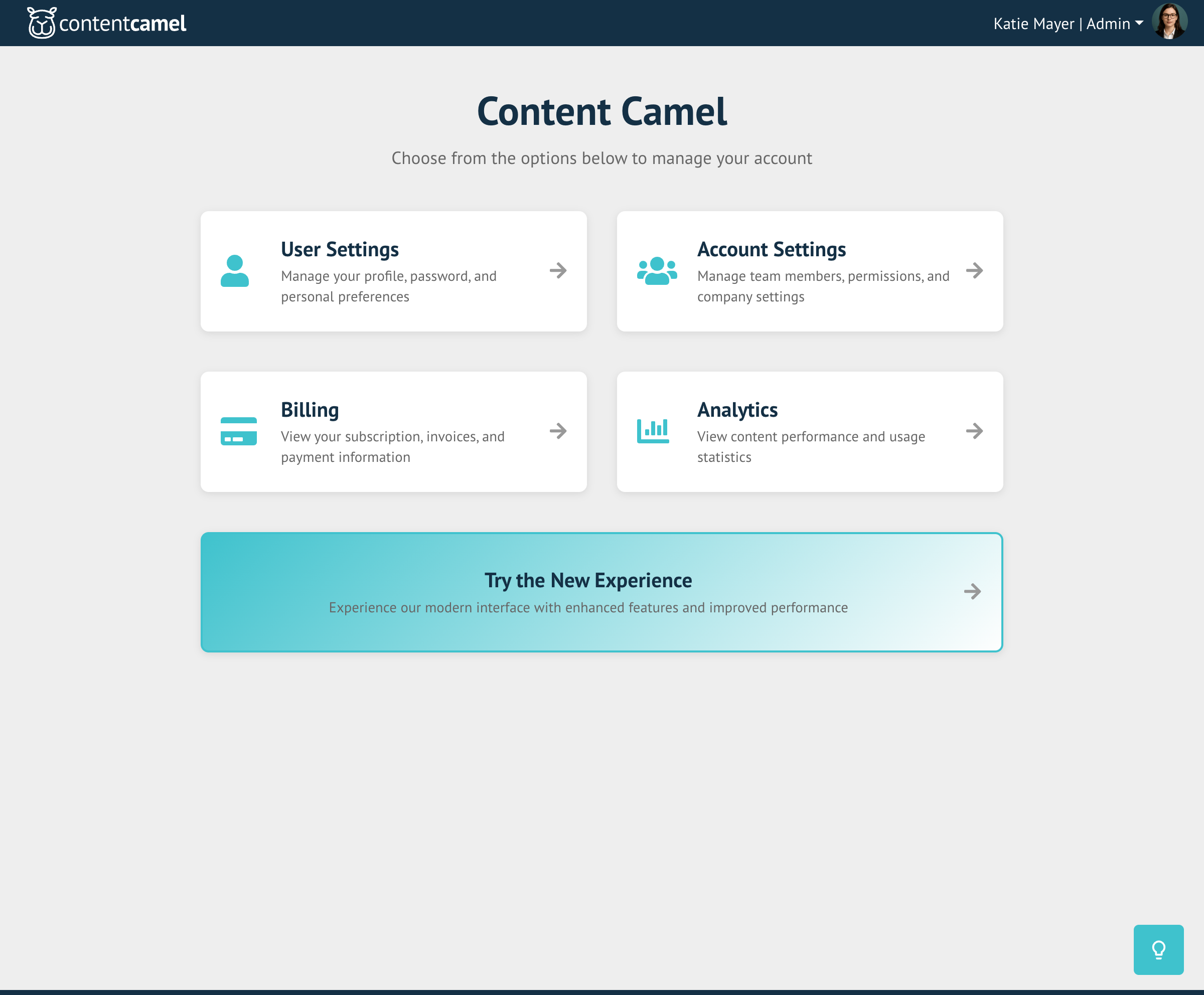
Step 2: Navigate to Team Members
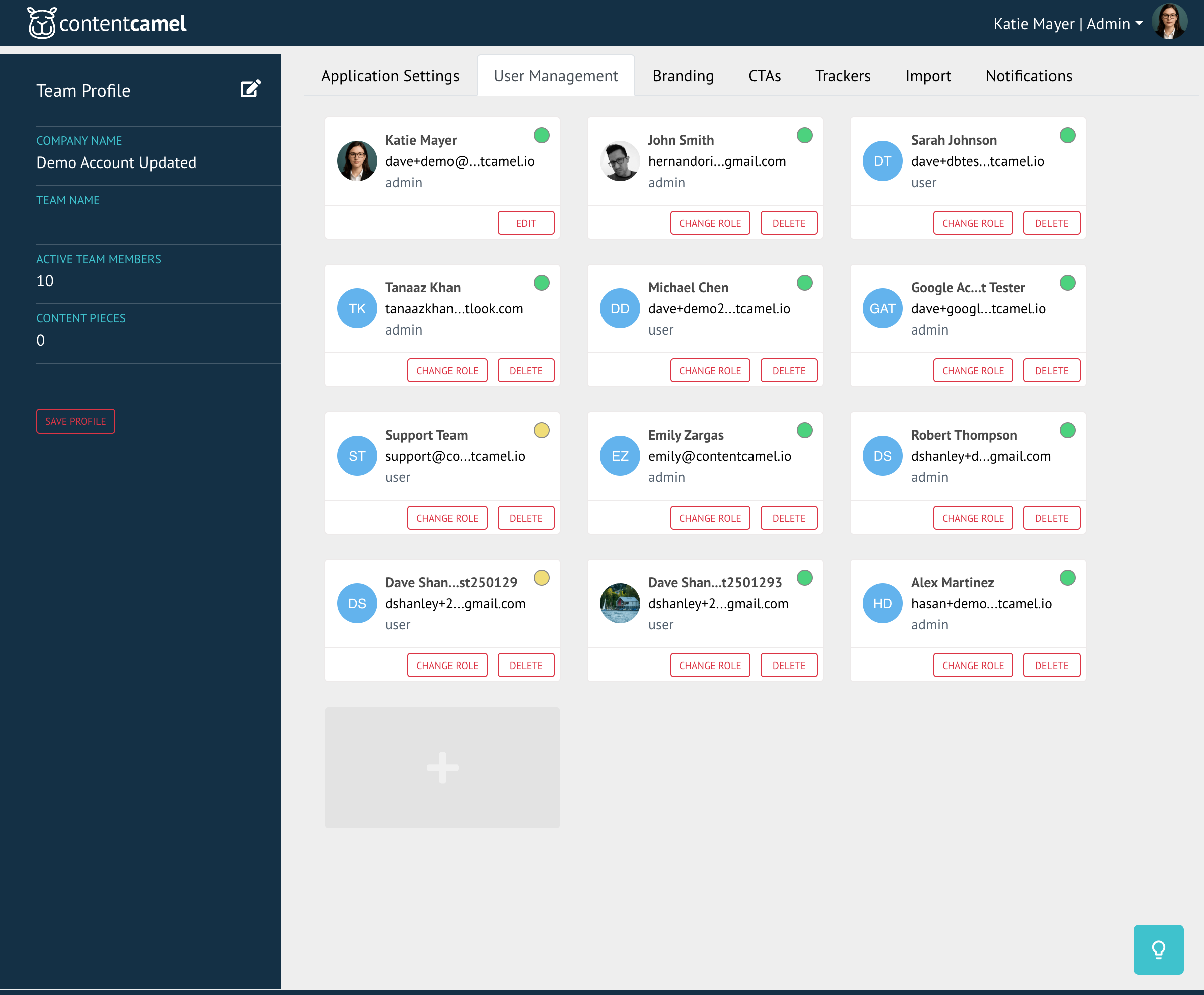
You'll see the Team Members ("User Management") section where you can view and manage all users in your organization.
Viewing current team members
The team members list shows everyone who has access to your organization:
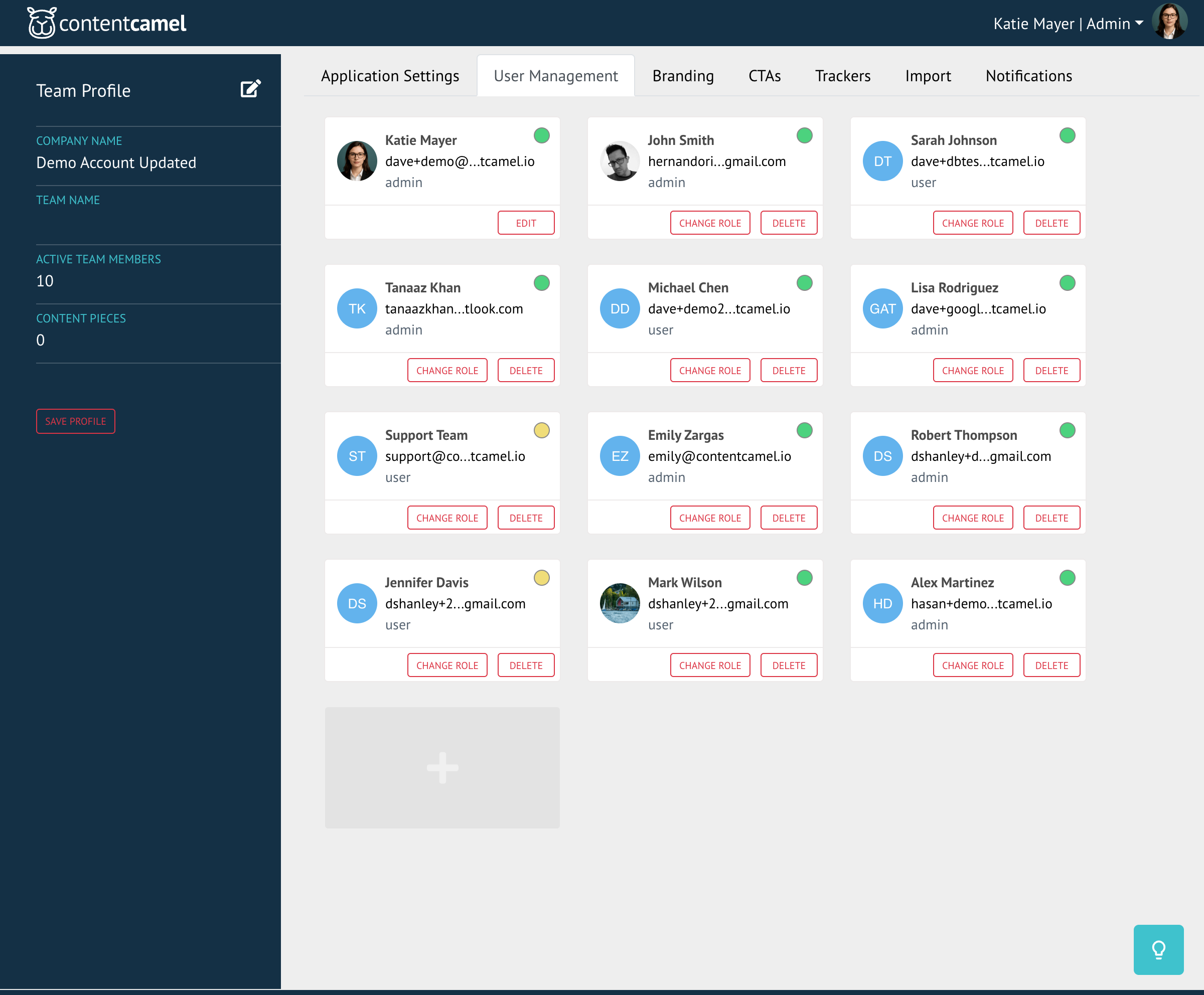
For each team member, you'll see:
Name
Email
Role (Admin or User)
Active Status - whether they are invited (yellow) or confirmed (green)
This gives you a quick overview of your team and their status.
Inviting new team members
Step 1: Start the invitation
Click the "+" button at the end of the user list.
Step 2: Fill in the invitation form
Enter the new user's information:
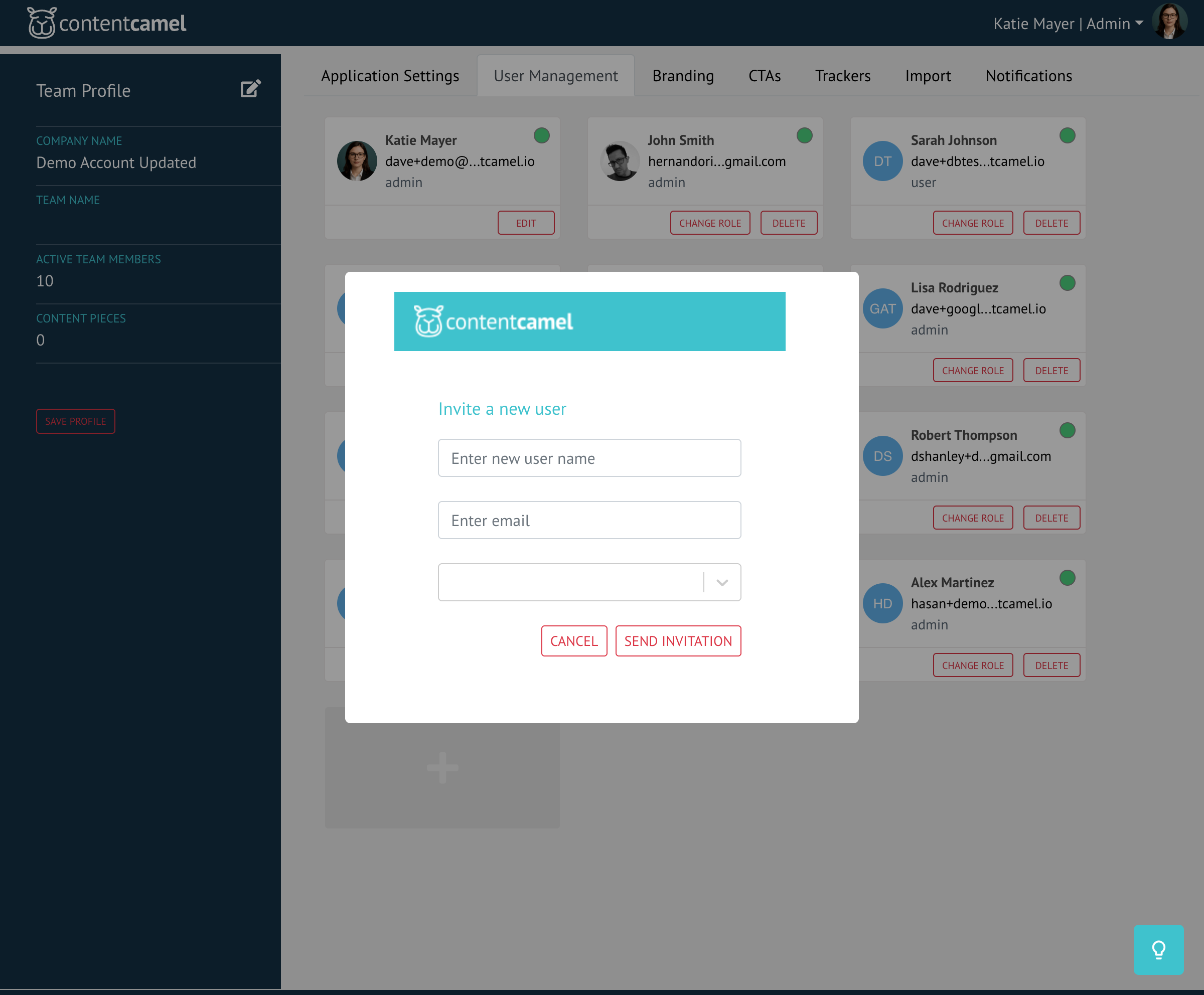
Email Address (required) - The user's work email
Role (required) - Admin or Regular User
Name (required) - Their full name
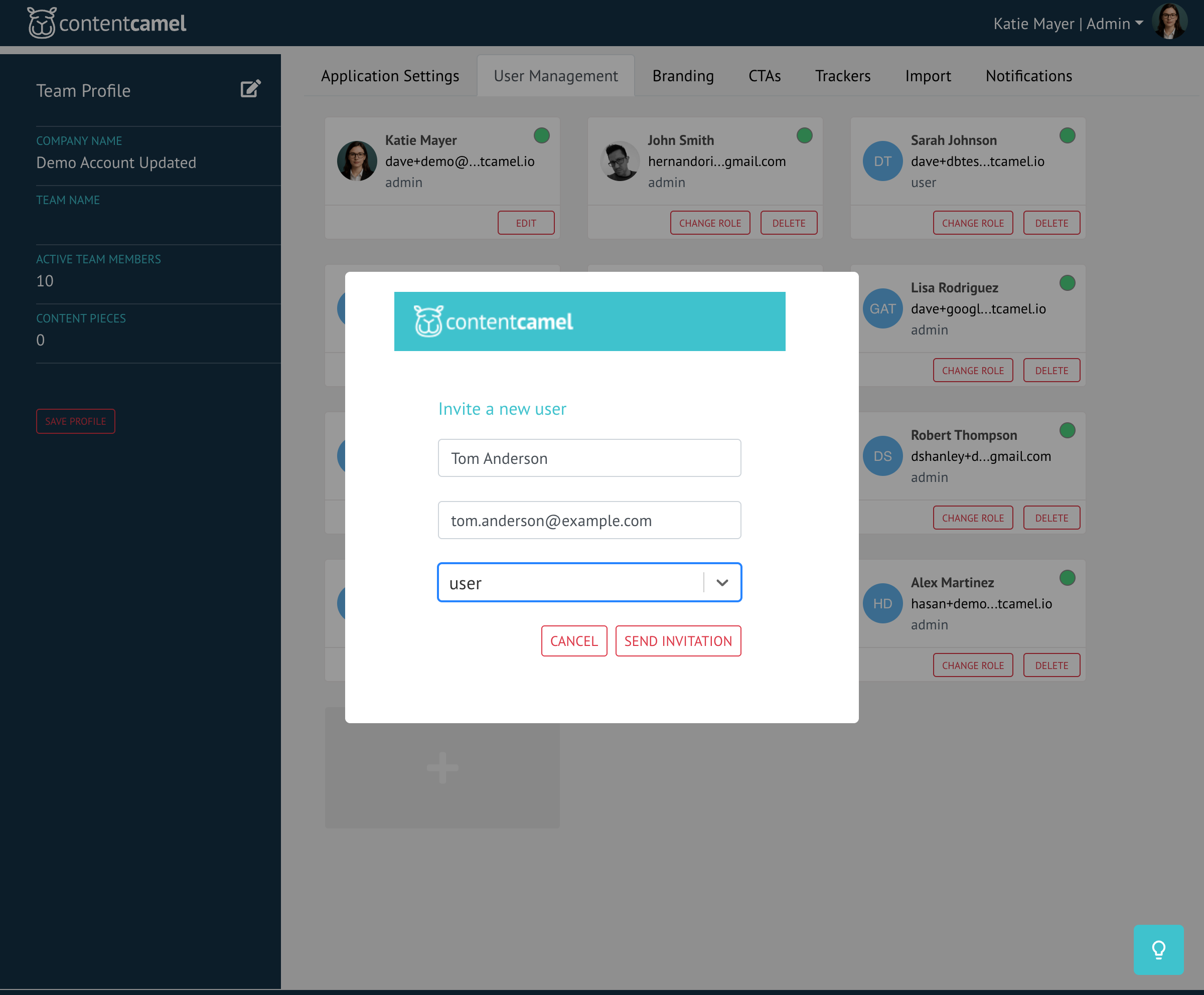
Understanding roles
It's important to understand the difference between Admin and User roles:
Admin role:
Full access to all content across the organization
Can manage team members and permissions
Can view organization-wide analytics
Can configure organization settings (branding, CTAs, etc.)
Can moderate and edit any content
User role:
Can access the content library
Can view team content that's been shared
Can create collections and sites
Can create and manage their own content within collections
Can share content externally
Cannot manage team members or organization settings
👉 TIP: Only grant Admin access to users who truly need it. Most team members will be fine with the User role.
Step 3: Send the invitation
Click Send Invitation to deliver the email. The new user will receive an email with instructions to set up their account and create a password.
💡NOTE: Users become billable only when they are onboarded and confirmed. Their status will be green in the user dashboard.
Managing existing team members
Once team members are in your organization, you can manage their roles and access.
Finding a team member
Use the list to locate the team member you want to manage. Click the More menu (three dots) next to their name to see available actions:
Edit Role - Change between Admin and User permissions
Resend Invitation - If they haven't joined yet, send the invitation again
💡NOTE: To resend an invitation, simply invite the user again using the same email address. This triggers the re-invitation.
Remove from Team - Deactivate their account and revoke access
Changing a user's role
Click Edit Role from the team member's action menu, then select whether they should be an Admin or User.
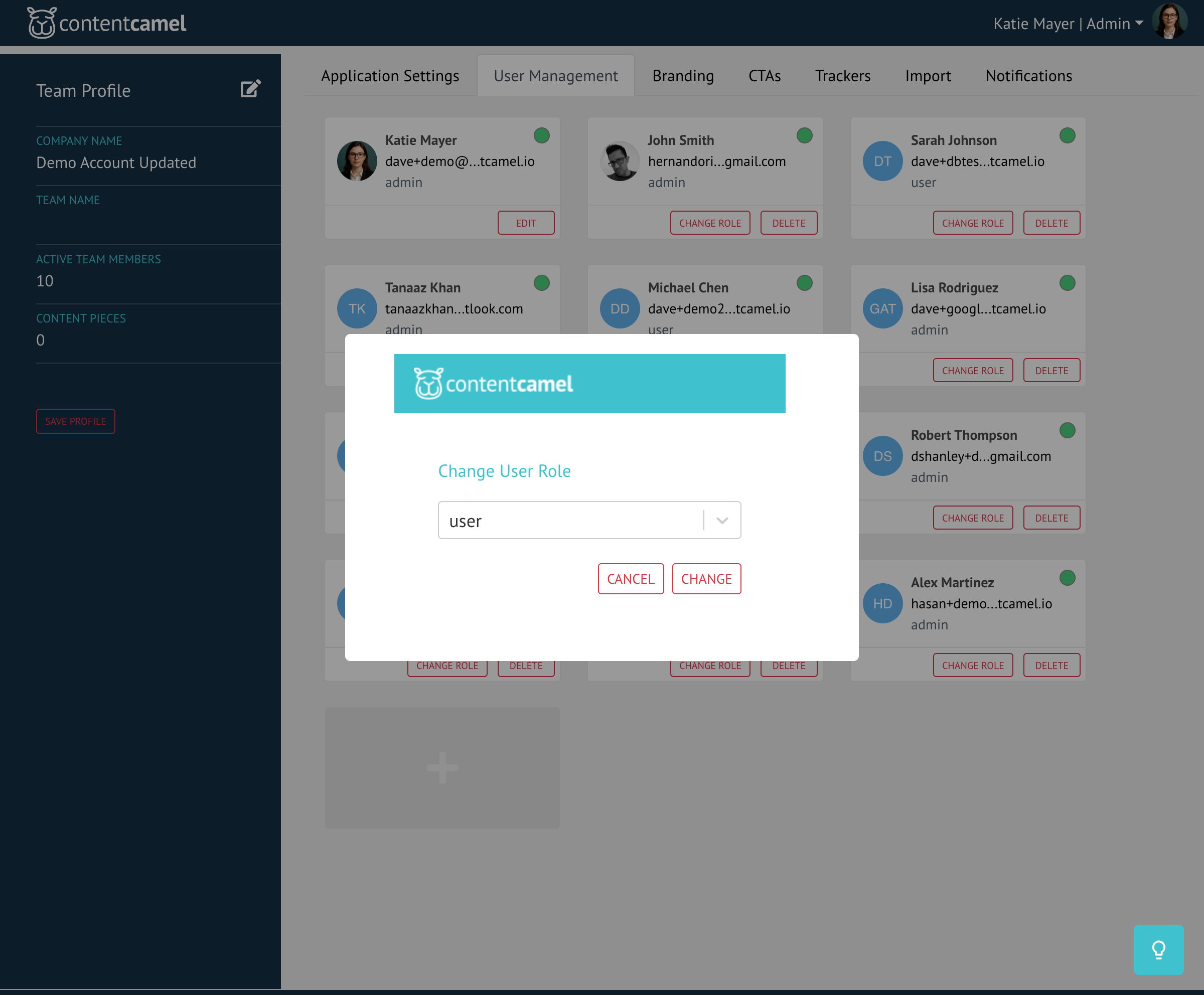
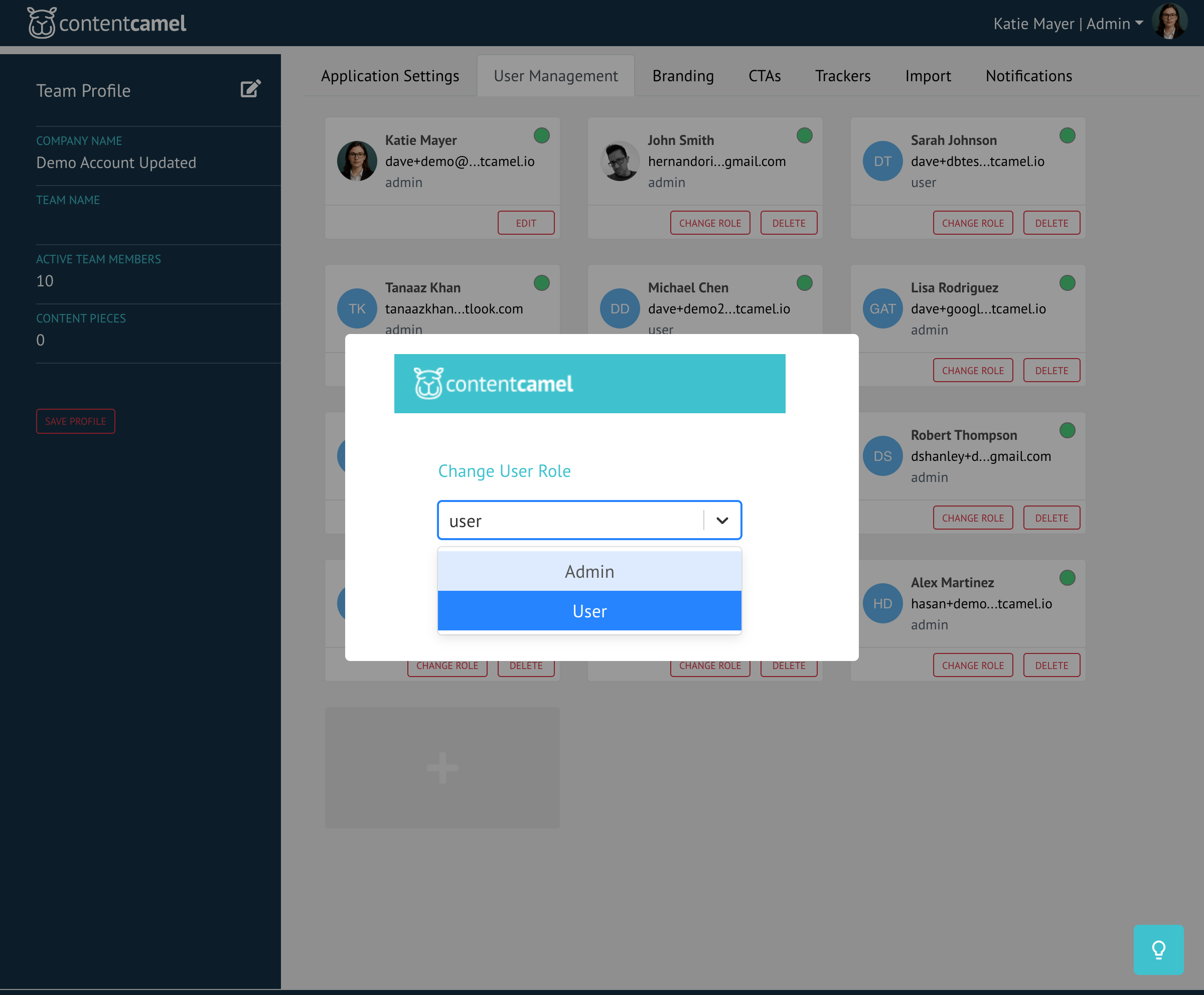
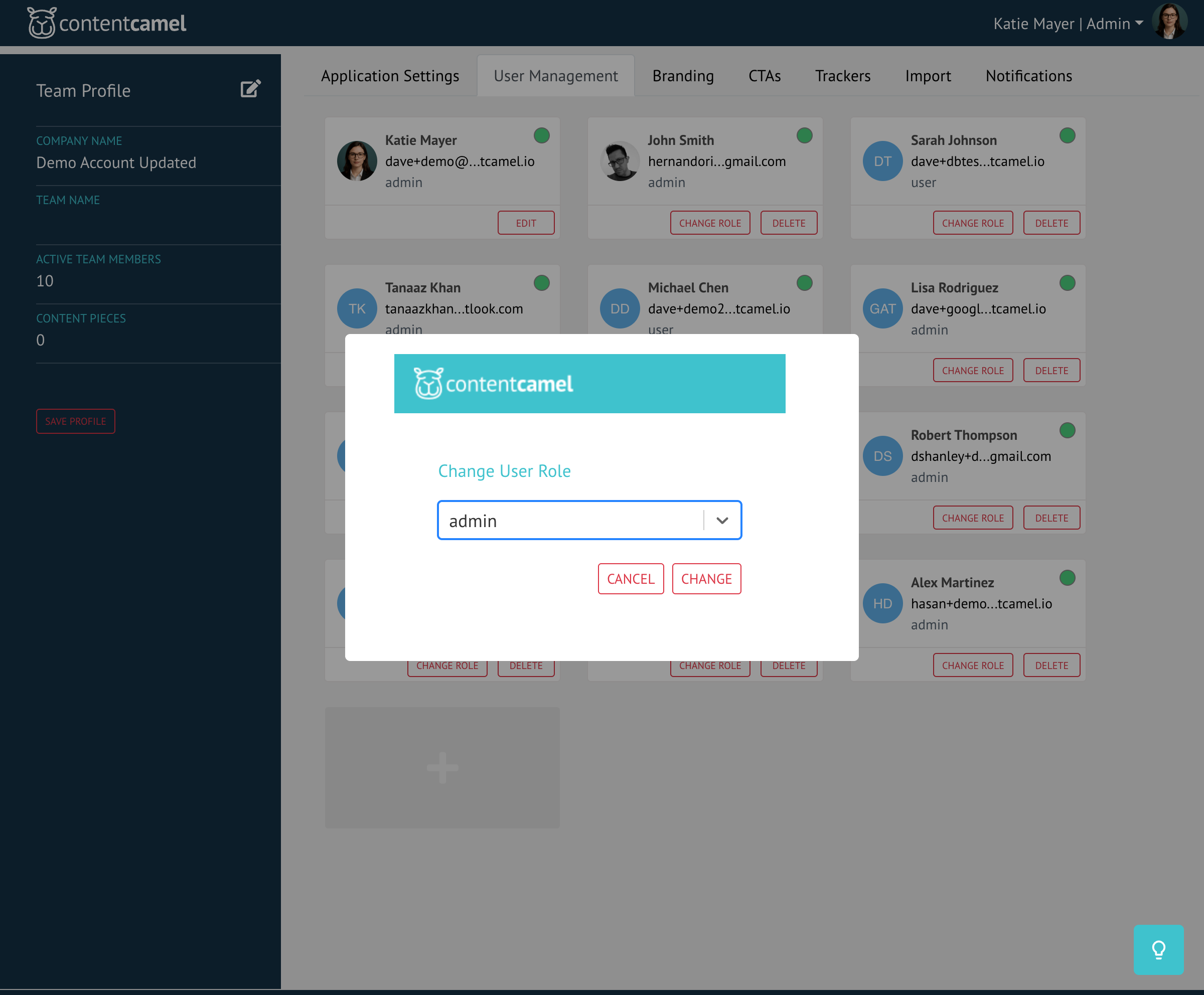
The user's permissions update immediately, and they'll have access to their new capabilities the next time they log in.
Removing a team member
When to remove users
You might need to remove team members when:
They leave your organization
They no longer need access to Content Camel
You're cleaning up inactive accounts
Steps to remove
Click Remove from Team from the action menu, then confirm the removal.
Important: When you remove a team member, their content remains in the system, but they lose access to the platform. This ensures no content is accidentally deleted.
Best practices
Review team access regularly - Quarterly audits help keep your team list current
Use the User role by default - Only promote to Admin when absolutely necessary
Track last active dates - Remove inactive users to keep your team list clean
Document role changes - Keep notes on why certain users have Admin access
Onboard new users properly - Send them training resources along with their invitation
Have questions?
If you have any questions about managing team members or permissions, reach out to our support team. We're here to help you keep your organization secure and well-organized.