
How to manage nested collections
As your content library grows, flat lists of collections become hard to navigate. Nested collections let you organize related collections into parent-child hierarchies—think of it like folders within folders. An admin can build a top-level "Customer Success Toolkit" collection that contains sub-collections for onboarding, renewals, and upsell, keeping everything structured and easy for reps to find.
What are nested collections?
A nested collection is simply a collection placed inside another collection. The parent collection can contain both individual assets (PDFs, videos, presentations) and other collections. This gives you a powerful way to create multi-layered content packages.
For example:
Enterprise Sales Kit (parent collection)
- Case Studies (nested collection) - Product Datasheets (nested collection) - ROI Calculator (asset) - Pricing Overview (asset)
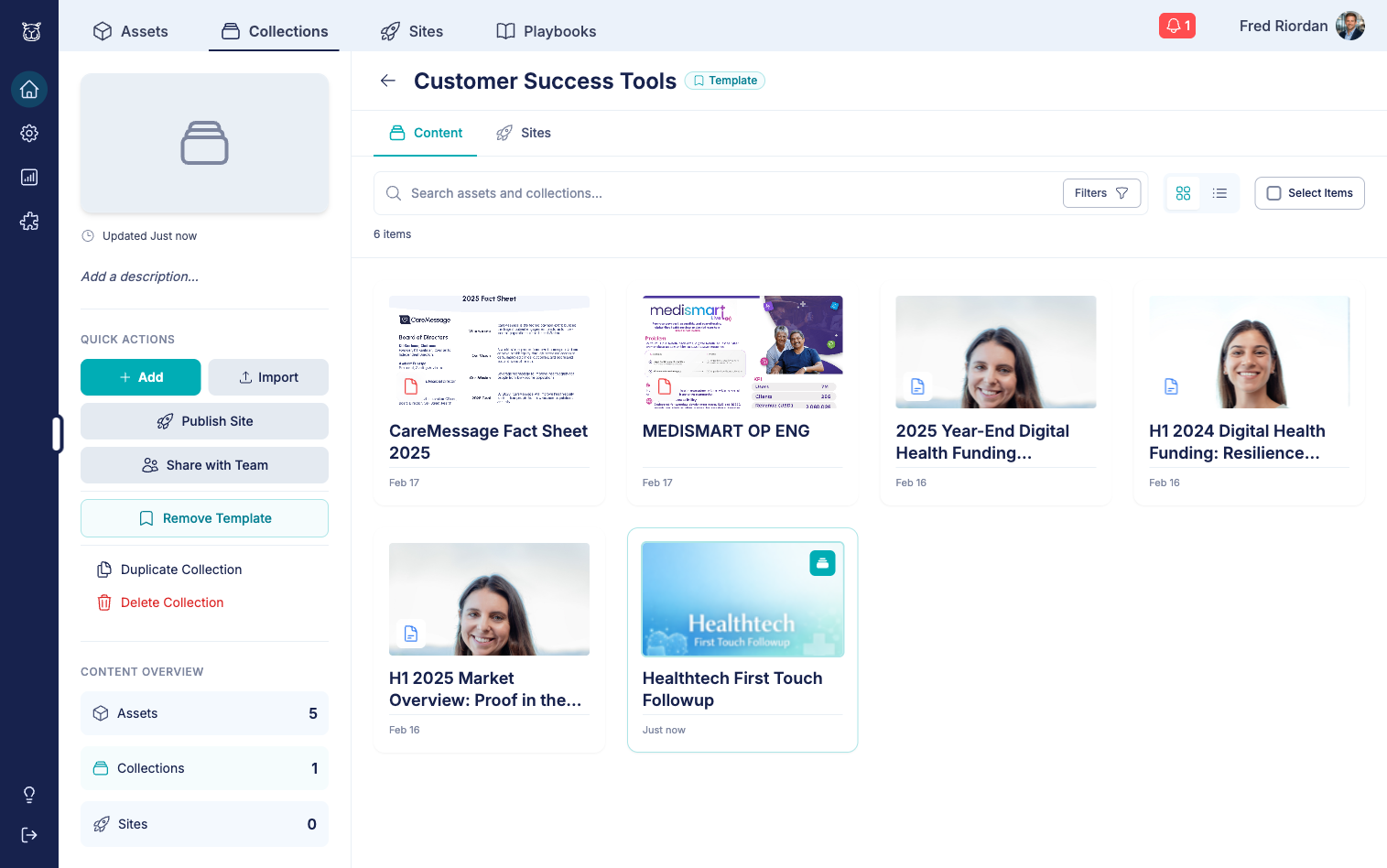
The Content Overview sidebar on the collection detail page shows a count of both assets and nested collections, so you always know what's inside at a glance.
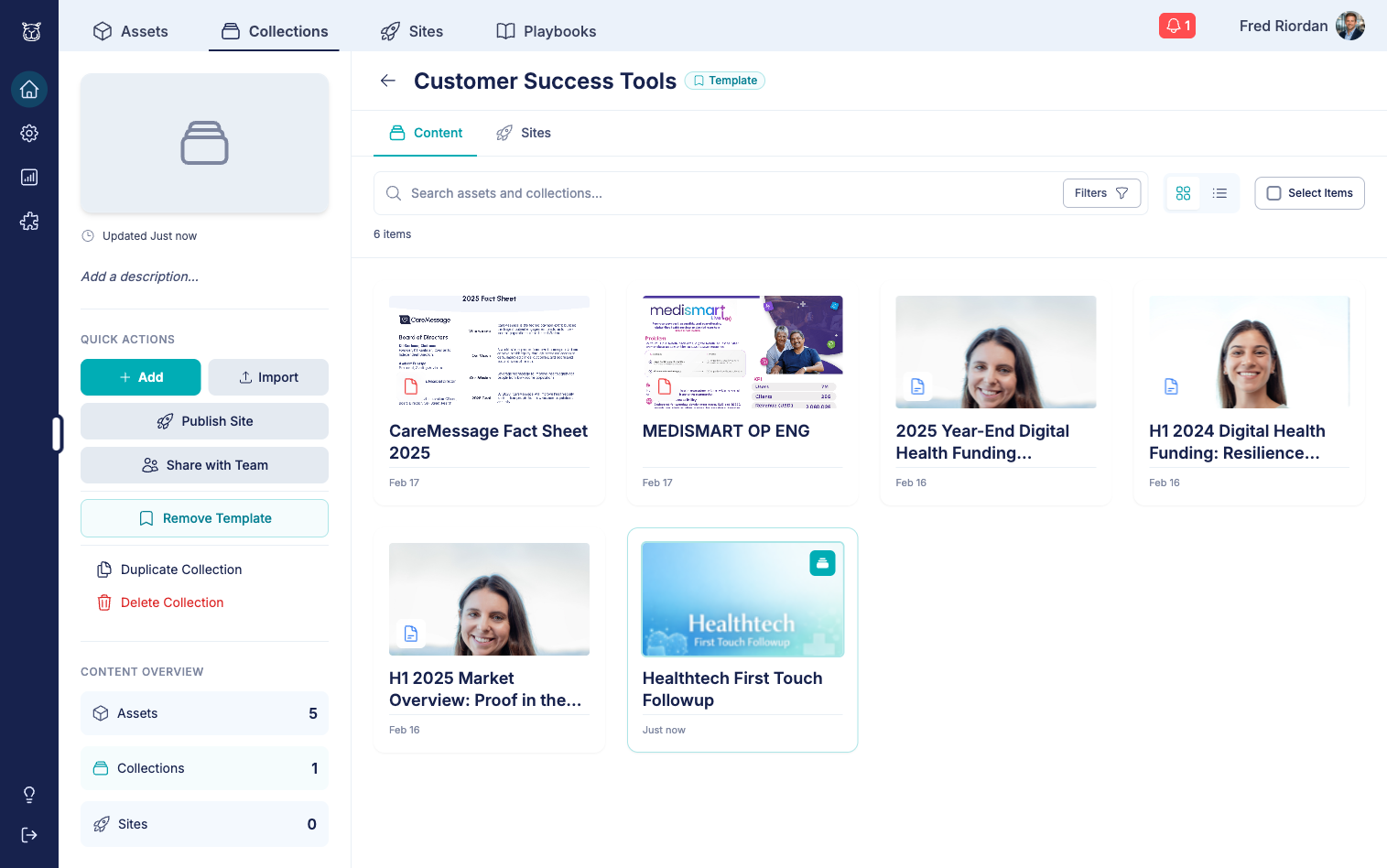
Adding a nested collection
Step 1: Open the parent collection
From the Collections tab on the home dashboard, click on the collection you want to add a nested collection into.
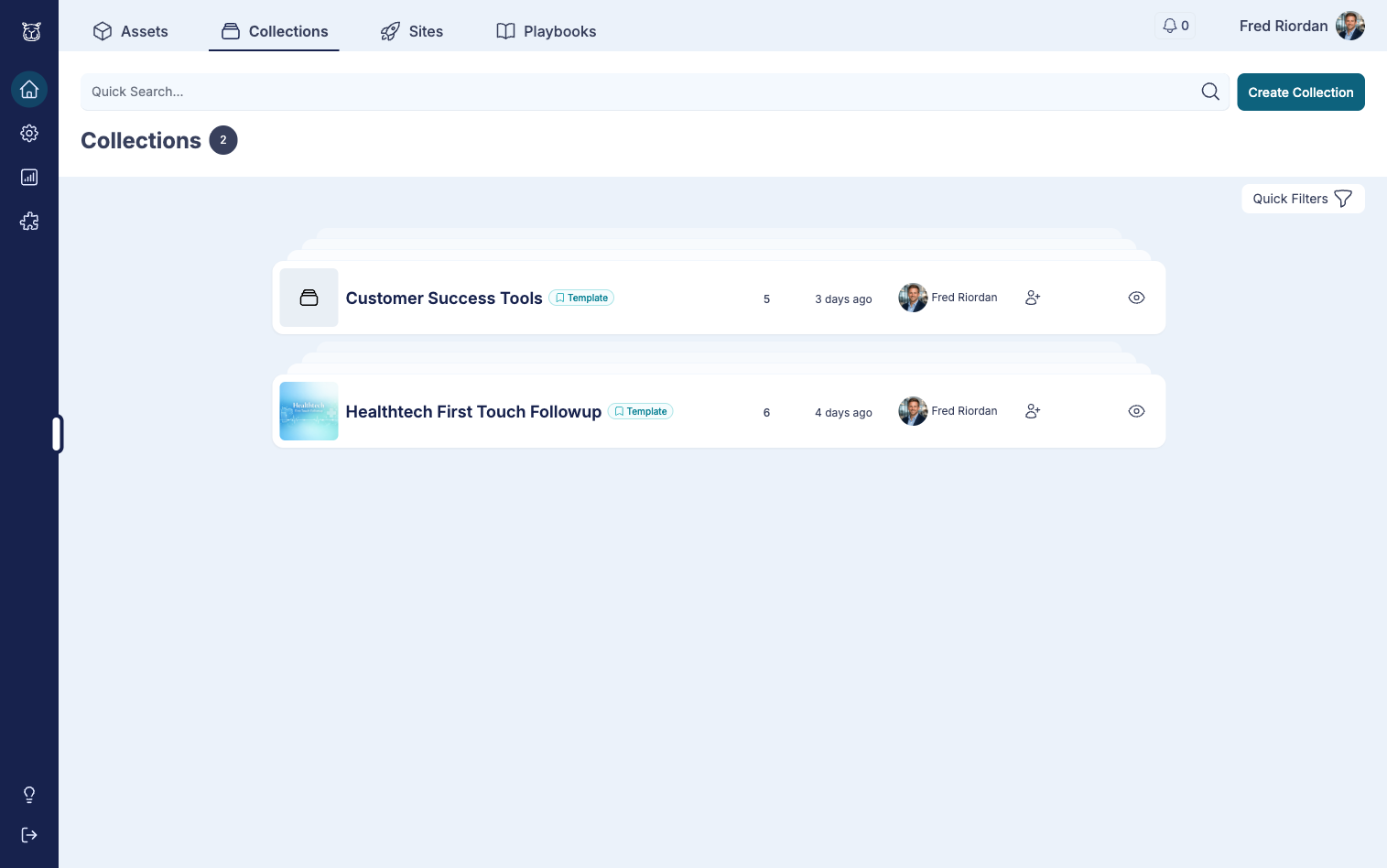
Step 2: Open the Add Content drawer
In the collection detail view, click the + Add button in the Quick Actions sidebar on the left.
This opens the Add Content drawer, which has two tabs: Assets and Collections.
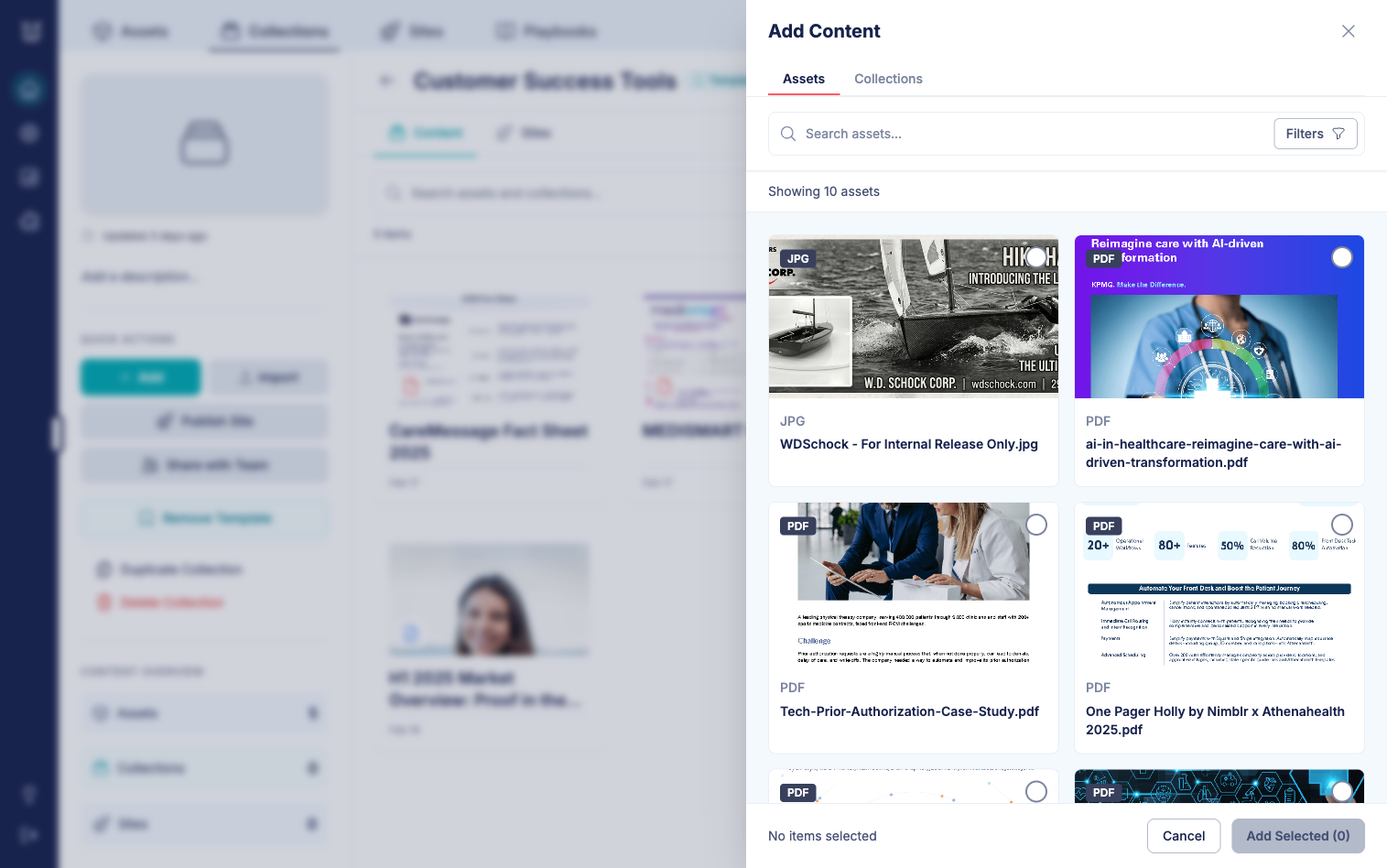
Step 3: Switch to the Collections tab
Click the Collections tab to see all available collections you can nest inside the current one.
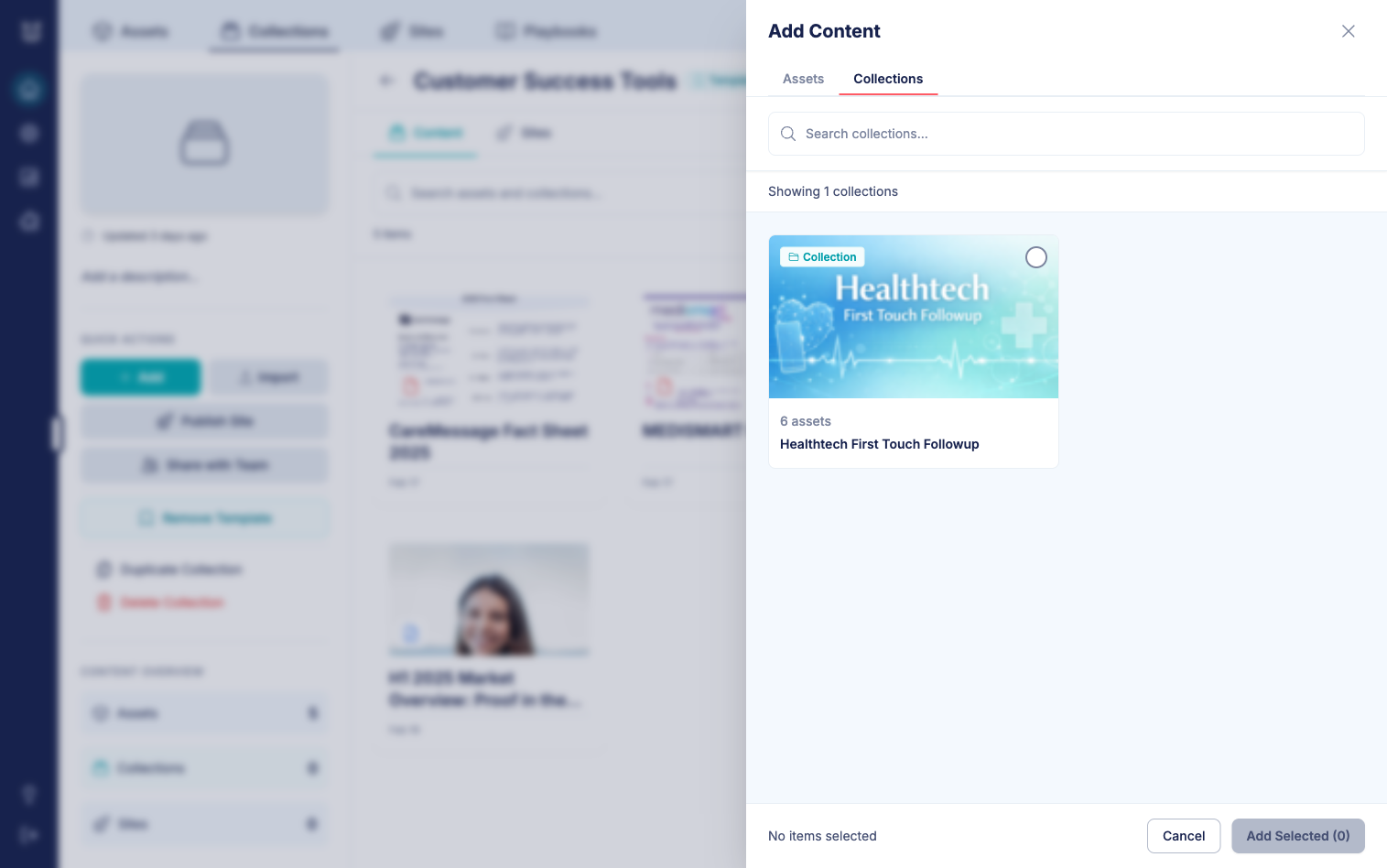
You can use the search bar to filter collections by name.
👉 TIP: The current collection and any collections that would create a circular reference are automatically excluded from the list.
Step 4: Select and add
Click on the collection card to select it. A green checkmark confirms your selection. You can select multiple collections at once.
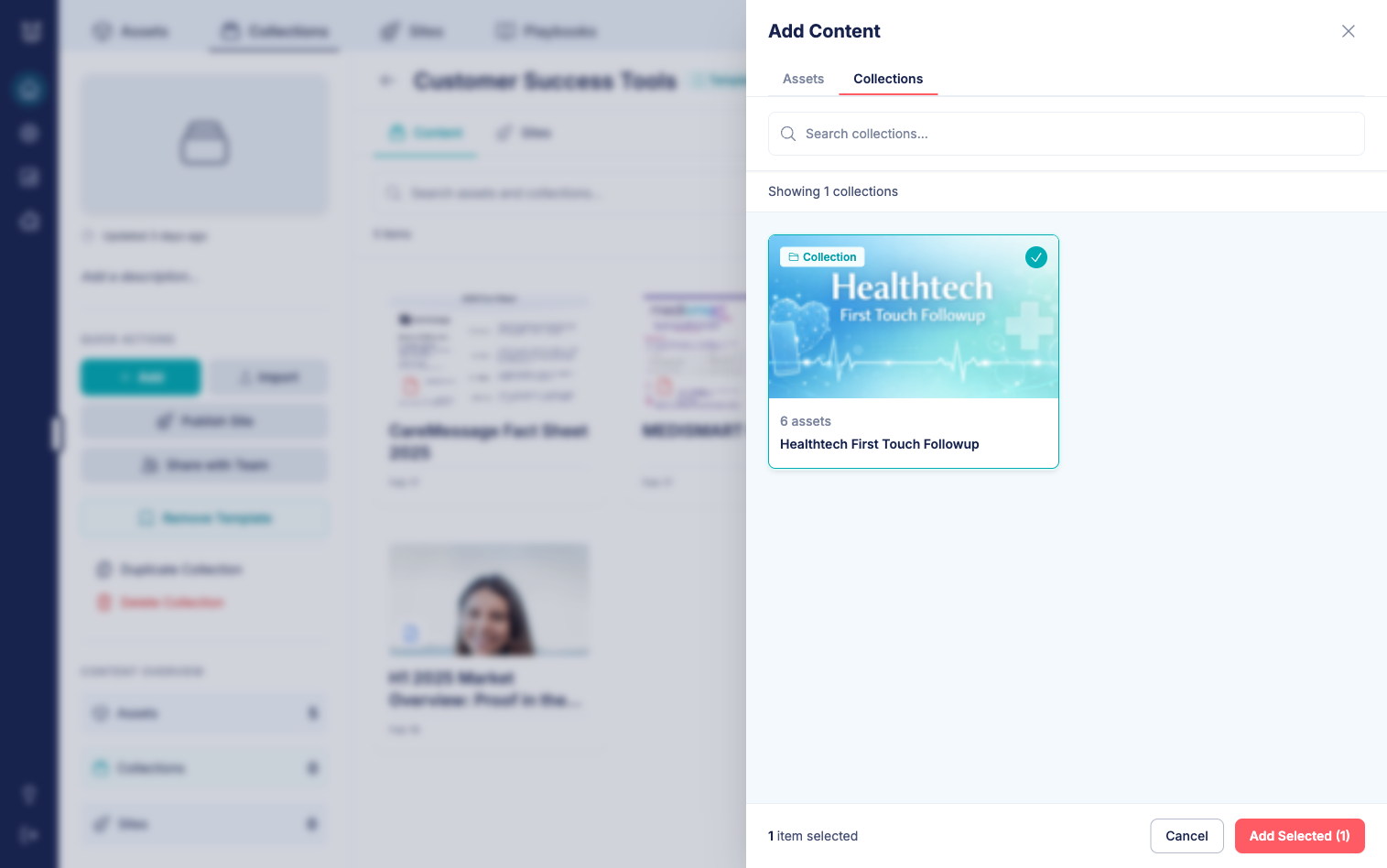
Click Add Selected to add the nested collection(s) to the parent.
Step 5: Verify
The nested collection now appears in the content gallery alongside your assets. The Content Overview sidebar updates to reflect the new count.
Viewing nested collection contents
You don't need to leave the parent collection to see what's inside a nested collection.
Expanding inline
Click the Expand button on a nested collection card (in grid view) to expand it in place. The nested collection's assets appear in a section below the main gallery, labeled NESTED COLLECTION with the item count and collection name.
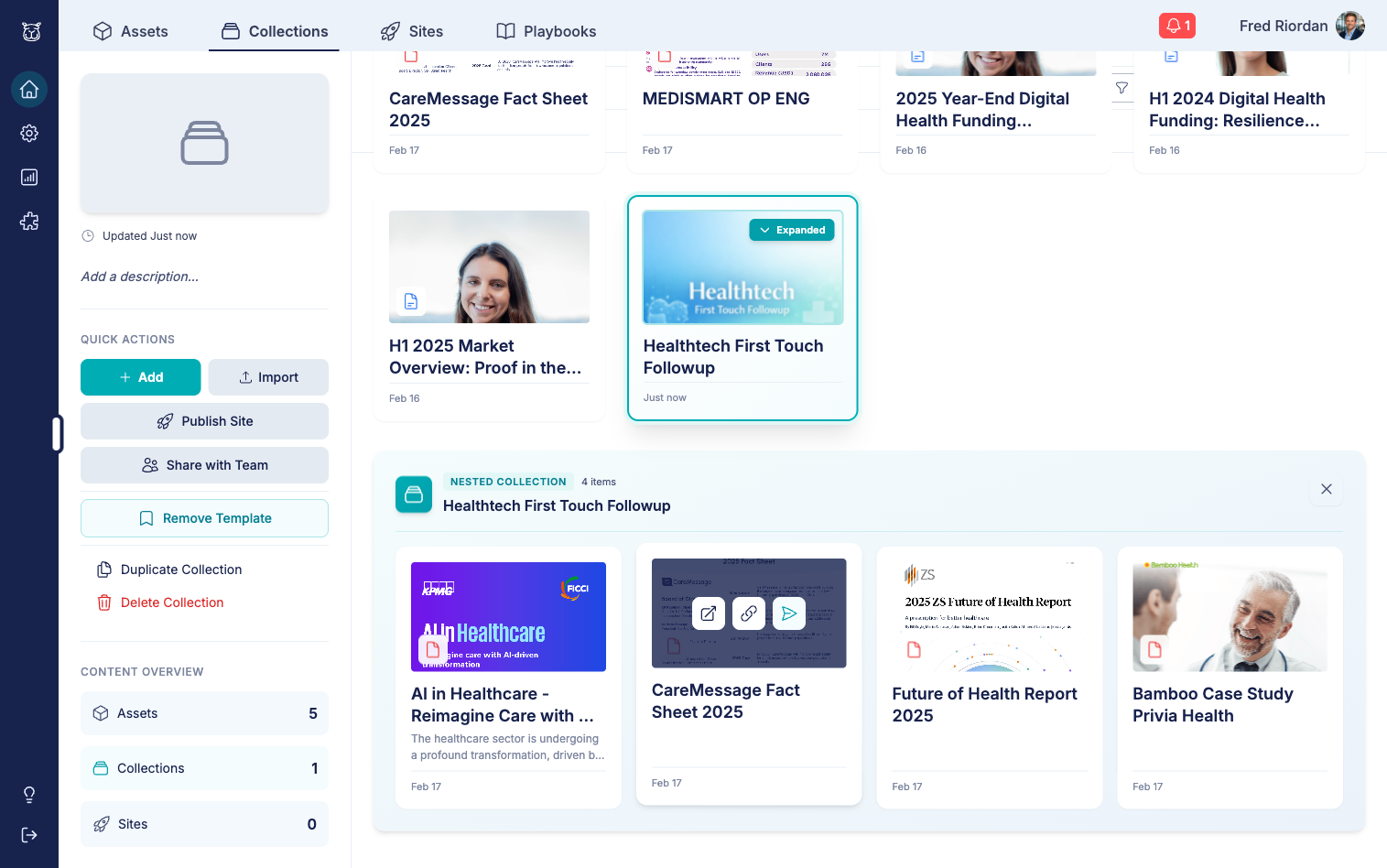
Click the X button on the expanded section to collapse it.
List view
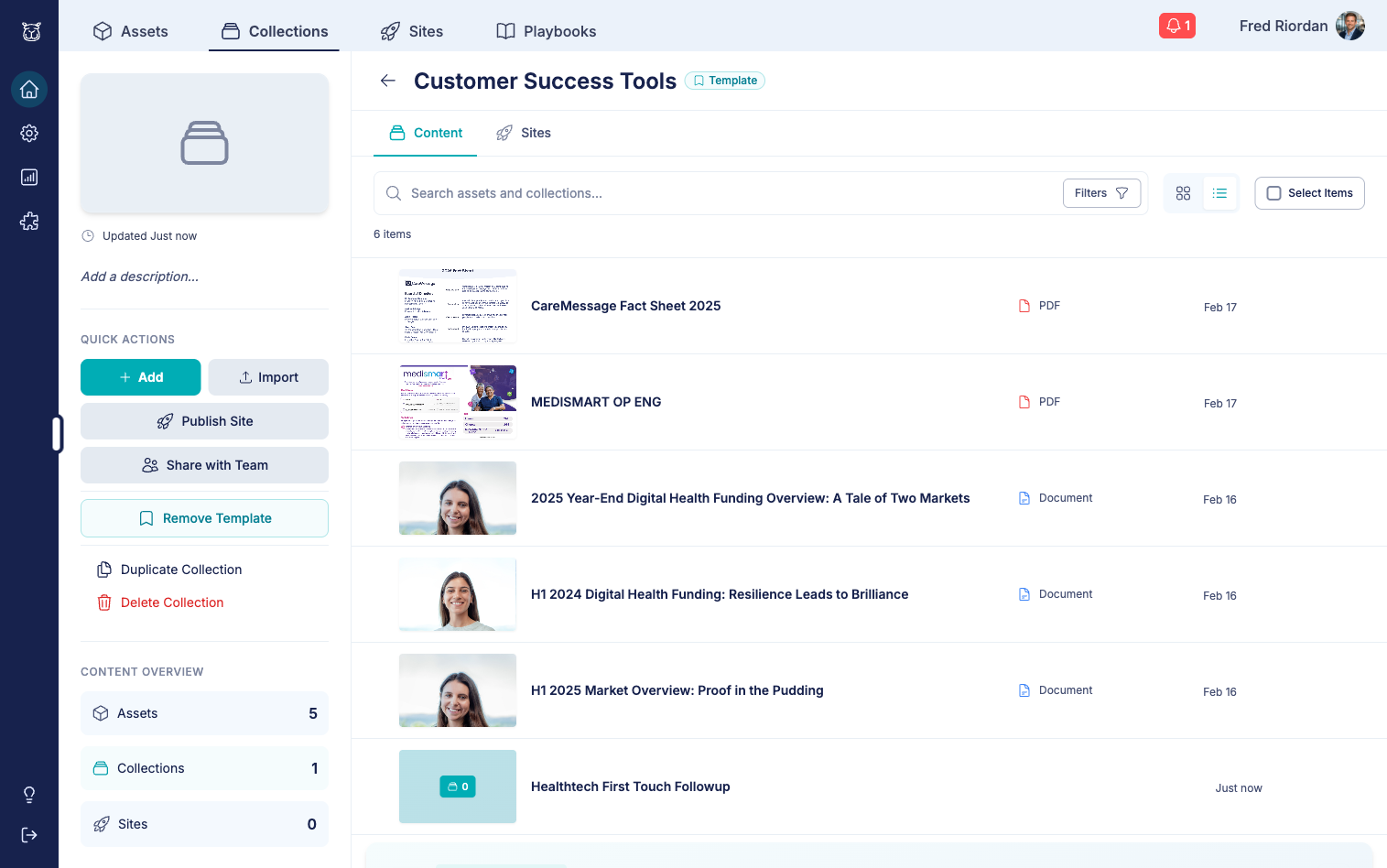
In list view, nested collections appear as rows alongside assets. They're visually distinguished by a collection icon badge.
Removing a nested collection
Hover over the nested collection card and click the Remove button. This only removes the collection from the parent—it does not delete the nested collection itself or its contents.
How nested collections work with sites
When you publish a site from a parent collection, the nested collections and their assets are included in the site. This means you can structure complex multi-section sites using nested collections as logical groupings.
👉 See also: How to build team sites for details on publishing collections as sites.
Best practices
Keep it shallow - One level of nesting is usually enough. Deeply nested structures become hard to navigate
Use descriptive names - Make it clear what each nested collection contains (e.g., "Onboarding Resources" not "Misc")
Think about the audience - Structure nested collections the way your sales reps and prospects would expect to browse
Use for logical groupings - Nested collections work best when the child collection is a distinct category (e.g., "Case Studies", "Product Sheets") rather than an arbitrary grouping
Leverage templates - Mark well-structured parent collections as templates so your team can reuse proven hierarchies
👉 See also: How to create your first collection for the basics of creating collections.
Have questions?
If you have any questions about nested collections or organizing your content library, reach out to our support team. We're here to help you build the right structure for your team.