
How to browse nested collections
Sometimes a single collection isn't enough to hold everything related to a deal or campaign. Your admin may organize content into nested collections—collections placed inside other collections—to create structured content packages. For example, an "Enterprise Sales Kit" collection might contain nested collections for "Case Studies", "Product Datasheets", and "Demo Videos", along with individual assets like a pricing overview.
This guide shows you how to navigate and use nested collections as a regular user.
Finding nested collections
When you open a collection from the Collections tab, look at the Content Overview section in the left sidebar. If the collection contains nested collections, you'll see a count next to Collections (e.g., "Collections: 1").
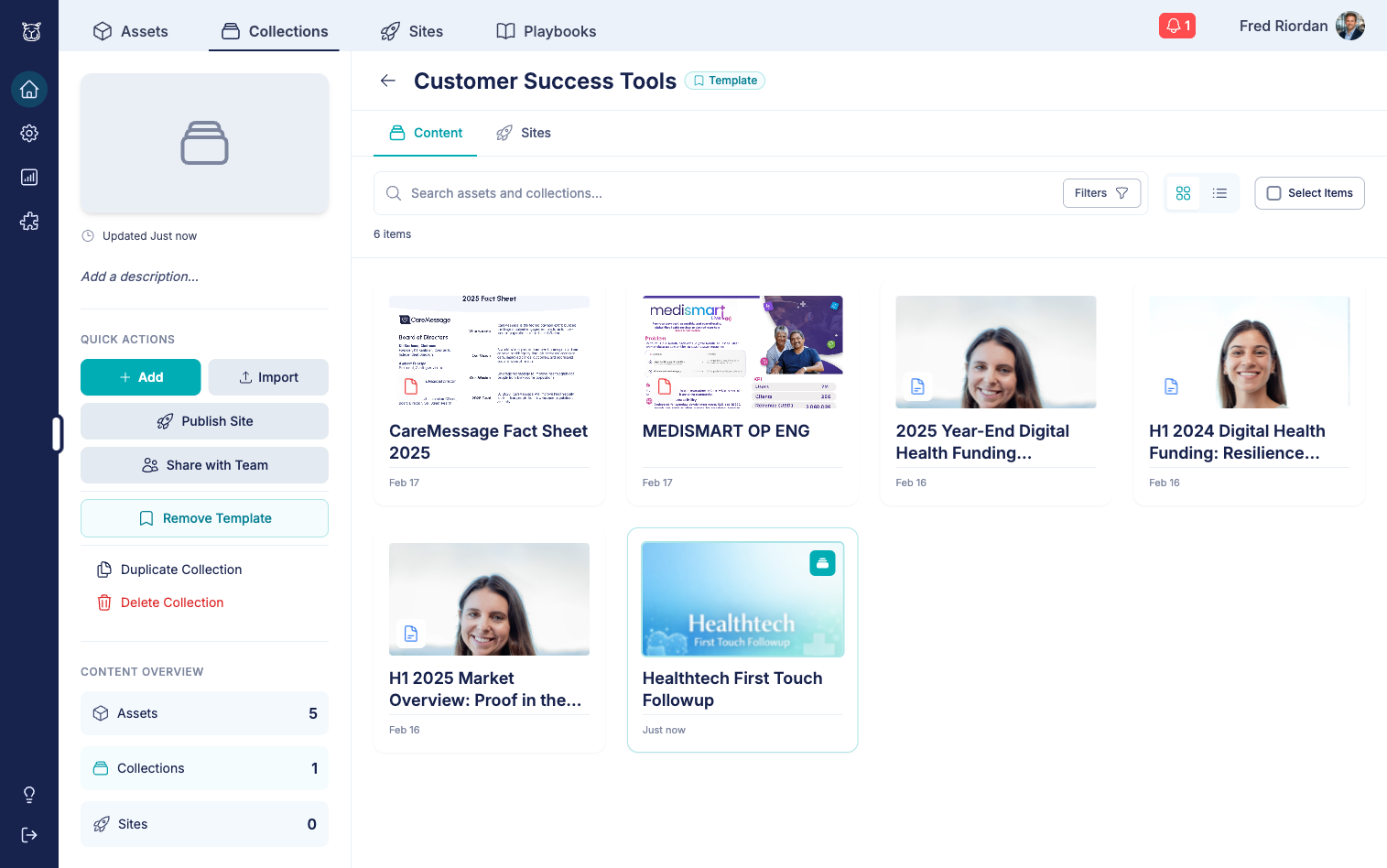
Nested collections appear alongside regular assets in the content gallery. They're easy to spot—they display a collection icon badge and show the collection's cover image instead of a document thumbnail.
Browsing nested collection contents
Grid view
In grid view, nested collection cards look similar to asset cards but with a collection icon. To see what's inside without leaving the page:
1. Hover over the nested collection card 2. Click the Expand button
The nested collection's contents appear in an expanded section below the gallery, labeled NESTED COLLECTION with the collection name and item count.
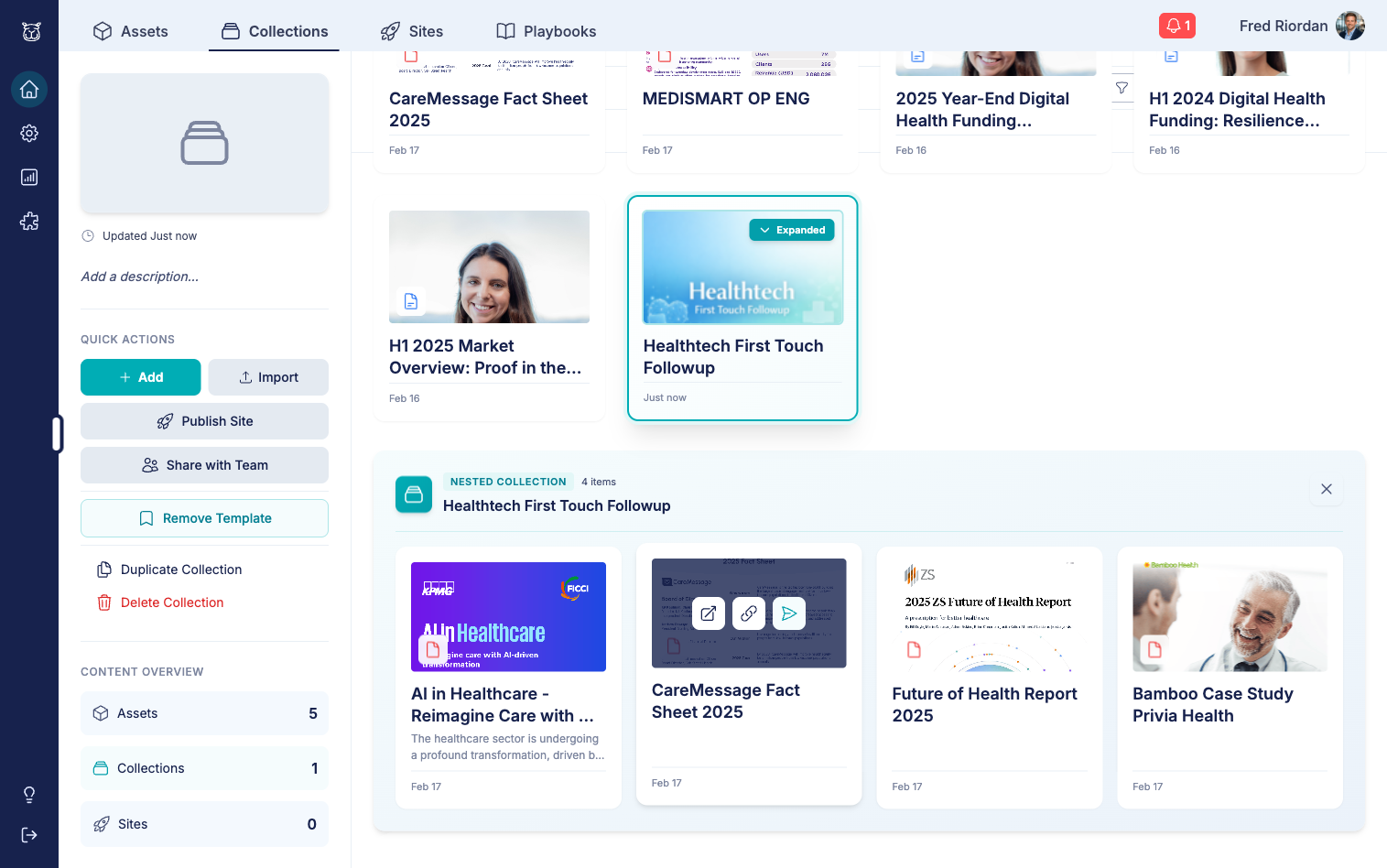
From the expanded view, you can:
Browse assets - See all assets inside the nested collection
Copy links - Copy a direct link to any asset
Share assets - Create engagement links for individual assets
Click the X to collapse the expanded section when you're done.
List view
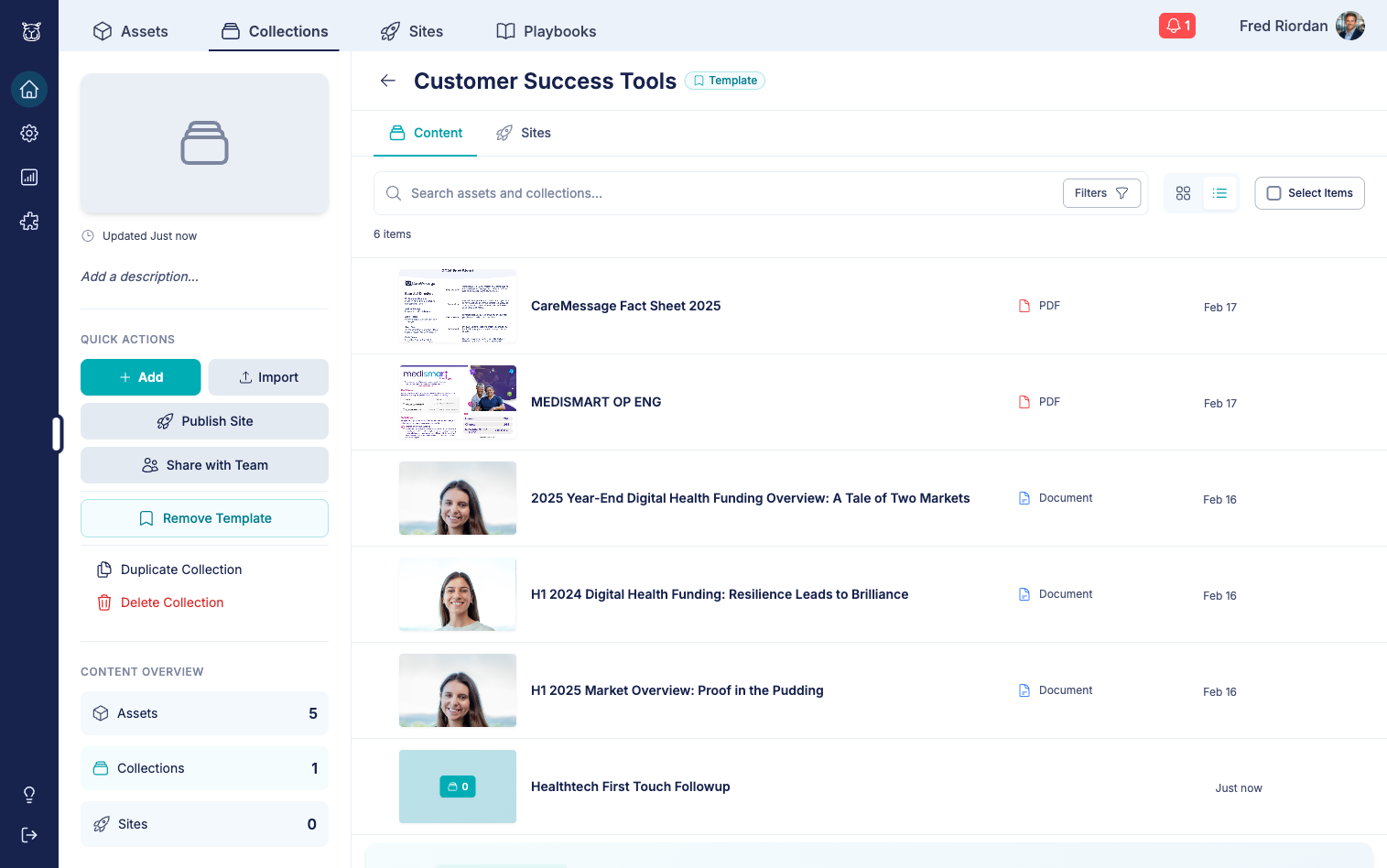
Switch to list view using the toggle in the top-right corner of the content area. Nested collections appear as rows alongside assets, distinguished by their collection icon.
Navigating to a nested collection
If you want the full collection experience (including the collection's own sidebar, description, and settings), click the Open collection details button on the nested collection card. This navigates you to the nested collection's own detail page, where you can browse its contents as a standalone collection.
Use the back arrow at the top to return to the parent collection.
Sharing content from nested collections
You can share individual assets from within a nested collection just like any other asset:
Copy link - Copies the asset's direct link to your clipboard
Create engagement link - Creates a tracked sharing link for the asset
👉 TIP: When sharing content from a nested collection with a prospect, consider sharing the parent collection's site link instead. This gives them the full, organized experience your admin designed.
👉 See also: How to create personalized share links for details on tracked sharing.
Best practices
Start at the top - Browse from the parent collection first to understand the overall structure before diving into nested collections
Use expand for quick browsing - The inline expand feature is fastest when you just need to check what's inside
Navigate in for detail - Use "Open collection details" when you need to search, filter, or spend time within the nested collection
Share the parent - When sending content to prospects, sharing the parent collection or its published site gives a more polished experience than sharing individual assets
👉 See also: How to create your first collection for the basics of creating your own collections.
Have questions?
If you have any questions about browsing or using nested collections, reach out to our support team. We're here to help you find and share the right content at the right time.