
How to bulk import content with CSV
Adding content one piece at a time works when you're getting started, but scaling your library requires a faster approach. The Bulk Import feature lets you upload a CSV file with URLs, titles, metadata, and more—then uses AI to automatically map your columns to Content Camel fields. You can review everything before confirming, and the system adds anything missing to your content organization, then handles transcoding and processing in the background.
Accessing Bulk Import
Bulk Import is an admin-only feature located in Team Settings.
Click Settings in the left sidebar
Under the Data section, click Bulk Import
Step 1: Upload your CSV
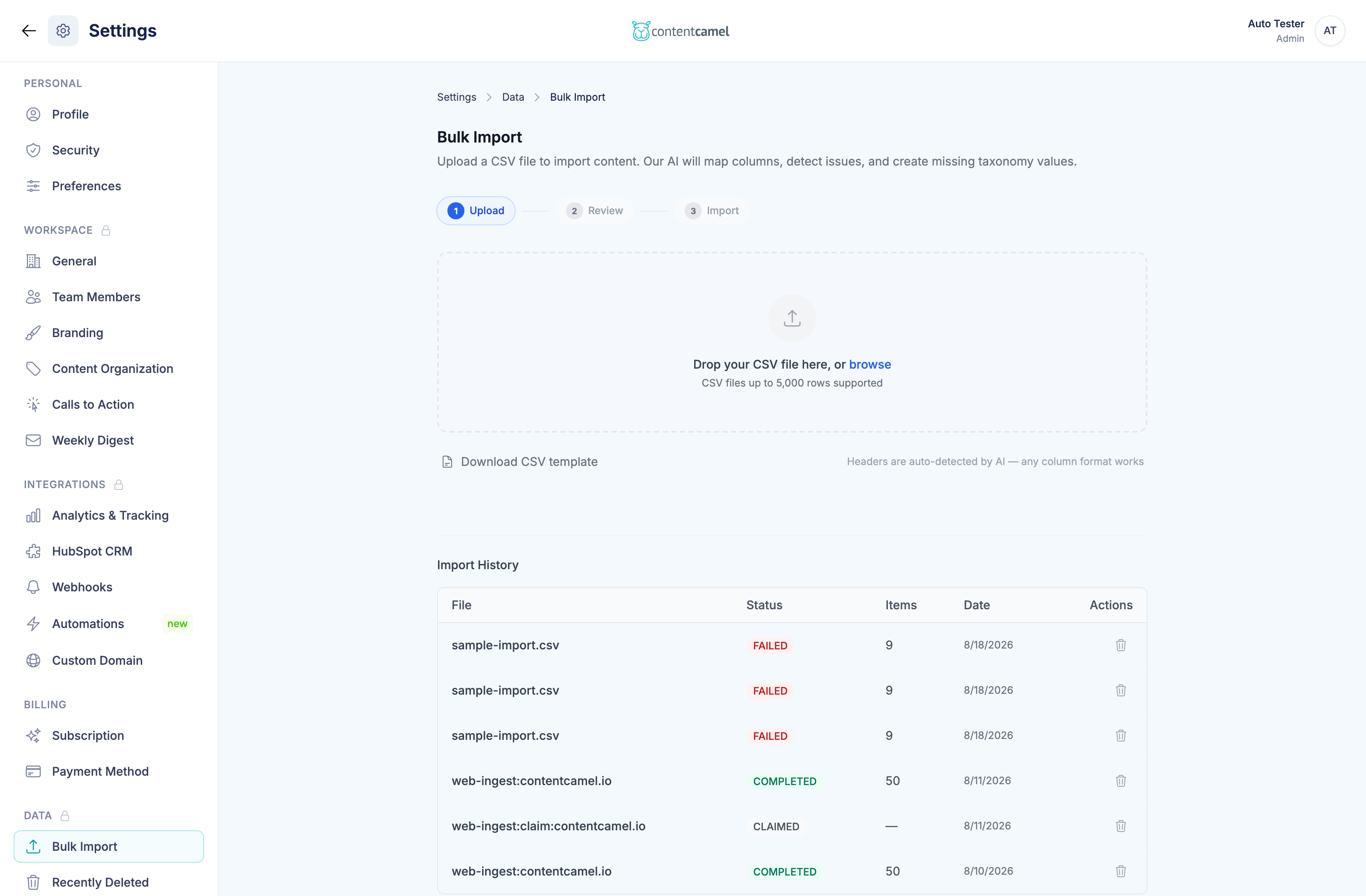
You'll see a drop zone where you can drag and drop your CSV file or click to browse.
Supported format: CSV files only (.csv)
Size limit: Up to 5,000 rows
Headers: Any column format works—the AI auto-detects your headers
Download the template
Click Download CSV template to get a pre-built CSV with the recommended columns:
Column | Description |
|---|---|
URL | Link to the content (web page, PDF, video, etc.) |
Title | Display name for the asset |
Content Type | Type of content (e.g., Case Study, Whitepaper, Video) |
Funnel Stage | Where it fits in the buyer journey (e.g., Awareness, Consideration) |
Tags | Comma-separated tags |
Product | Associated product |
Industry | Target industry |
Region | Geographic region |
Description | Brief description of the content |
Positioning | Positioning statement or notes |
Import Action | "Link" (reference URL) or "Upload" (download and host) |
You don't need to use all columns—include only what you have. You also don't need to name them this way. The template is a convenience, not a requirement: the AI reads your existing headers and works out what they mean.
AI analysis
After you select a file, the system analyzes your CSV using AI. You'll see a spinner with "Analyzing your CSV..." while it maps your columns and detects any issues. This typically takes 10–30 seconds.
Step 2: Review the mapping
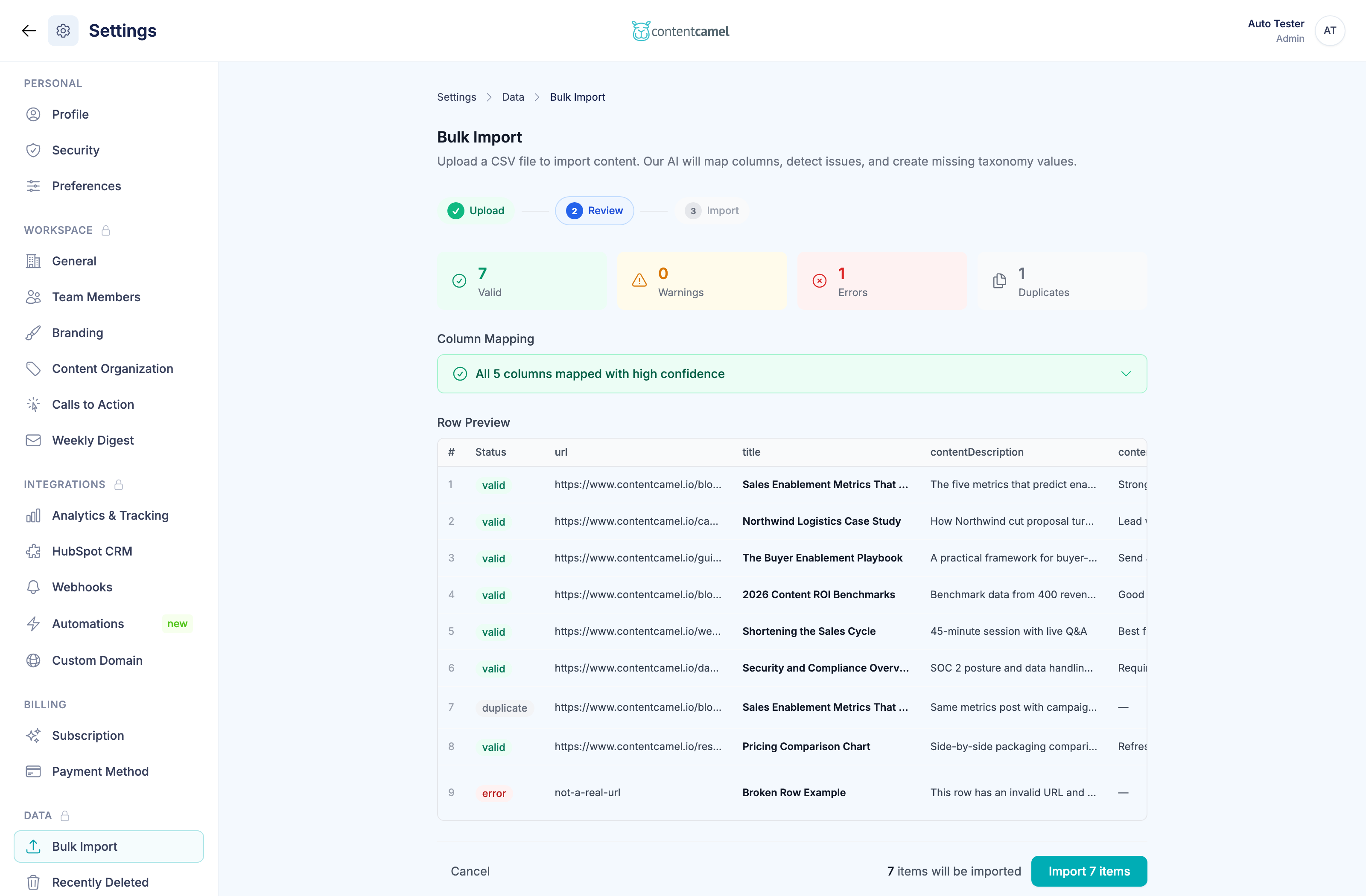
The review screen has four sections to help you verify everything before importing.
Summary bar
Four stat cards show how your rows break down:
Valid (green) — Ready to import
Warnings (amber) — Will import but have minor issues
Errors (red) — Will be skipped
Duplicates (gray) — Repeat URLs within the file you uploaded
Column mapping
This table shows how the AI mapped each of your CSV columns to Content Camel fields. For each mapping you'll see:
CSV Column — Your original header name
Mapped To — The system field (editable dropdown)
Confidence — How sure the AI is: High (green, 80%+), Medium (amber, 50%+), or Low (red, under 50%)
Reasoning — The AI's explanation for its mapping choice
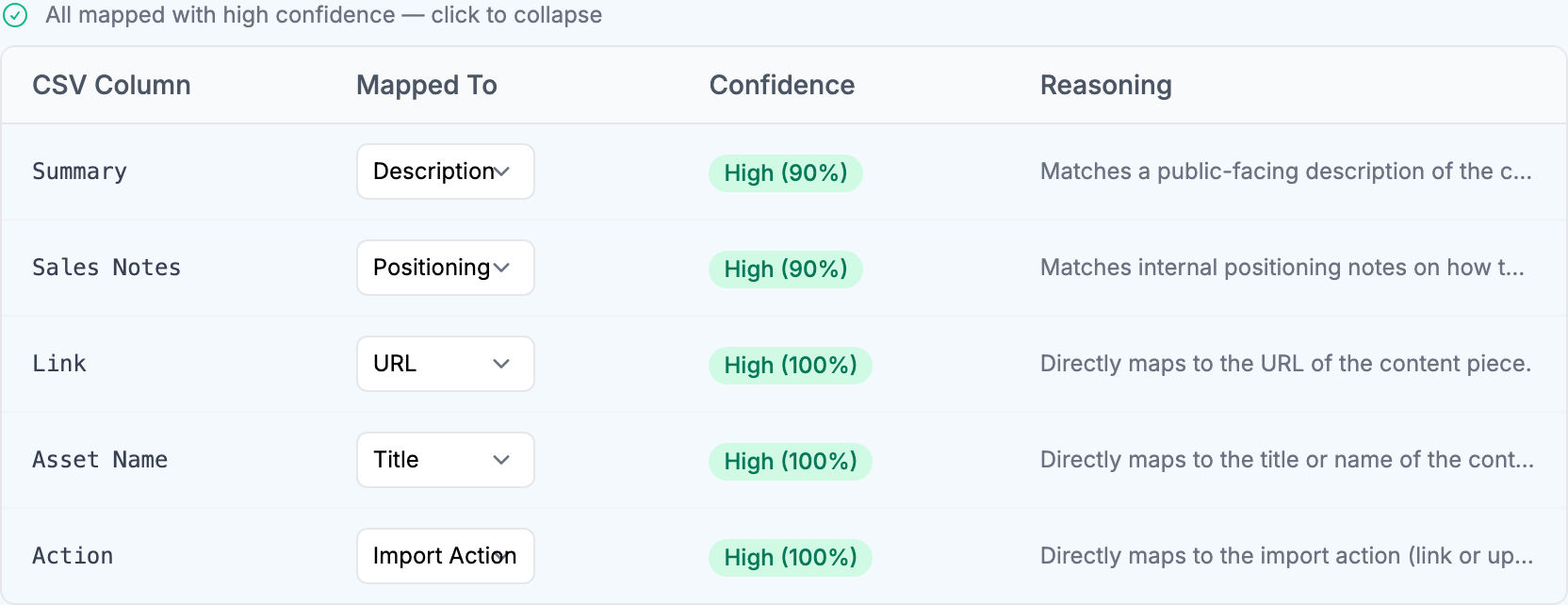
Columns are sorted lowest-confidence first so you see the ones needing attention at the top. If all columns are mapped with high confidence, the table collapses to a summary—click it to expand and review.
You can override any mapping using the dropdown. Available fields include URL, Title, Content Type, Funnel Stage, Tags, Product, Industry, Region, Positioning, Description, Status, and Import Action. Set a column to Unmapped to skip it entirely.
Values your workspace doesn't have yet
If your CSV contains Content Types, Funnel Stages, Tags, Products, Industries, or Regions that aren't in your workspace yet, a collapsible info bar tells you how many will be created. Expand it to see them grouped by field. They're added automatically when you run the import.
This bar is worth opening every time. It's the cheapest moment to notice that Case Studies is about to be created alongside the Case Study you already have.
Row preview
A paginated table showing your rows with their status, mapped data, import action (Link or Upload), and any issues detected. Error and duplicate rows have their action dropdowns disabled since they'll be skipped.
Confirm the import
At the bottom, you'll see the total count of items that will be imported. Click "Import N items" to proceed.
Step 3: Import progress
After confirming, the system processes your import in stages:
Preparing items — Adding any new Content Types, Funnel Stages, or Tags your file introduced
Items are being processed by the transcoder — Downloading, converting, and generating thumbnails
Import complete — Everything is ready
A progress bar tracks the process. For large imports, this may take a few minutes. You can leave the page—the import continues in the background.
Results
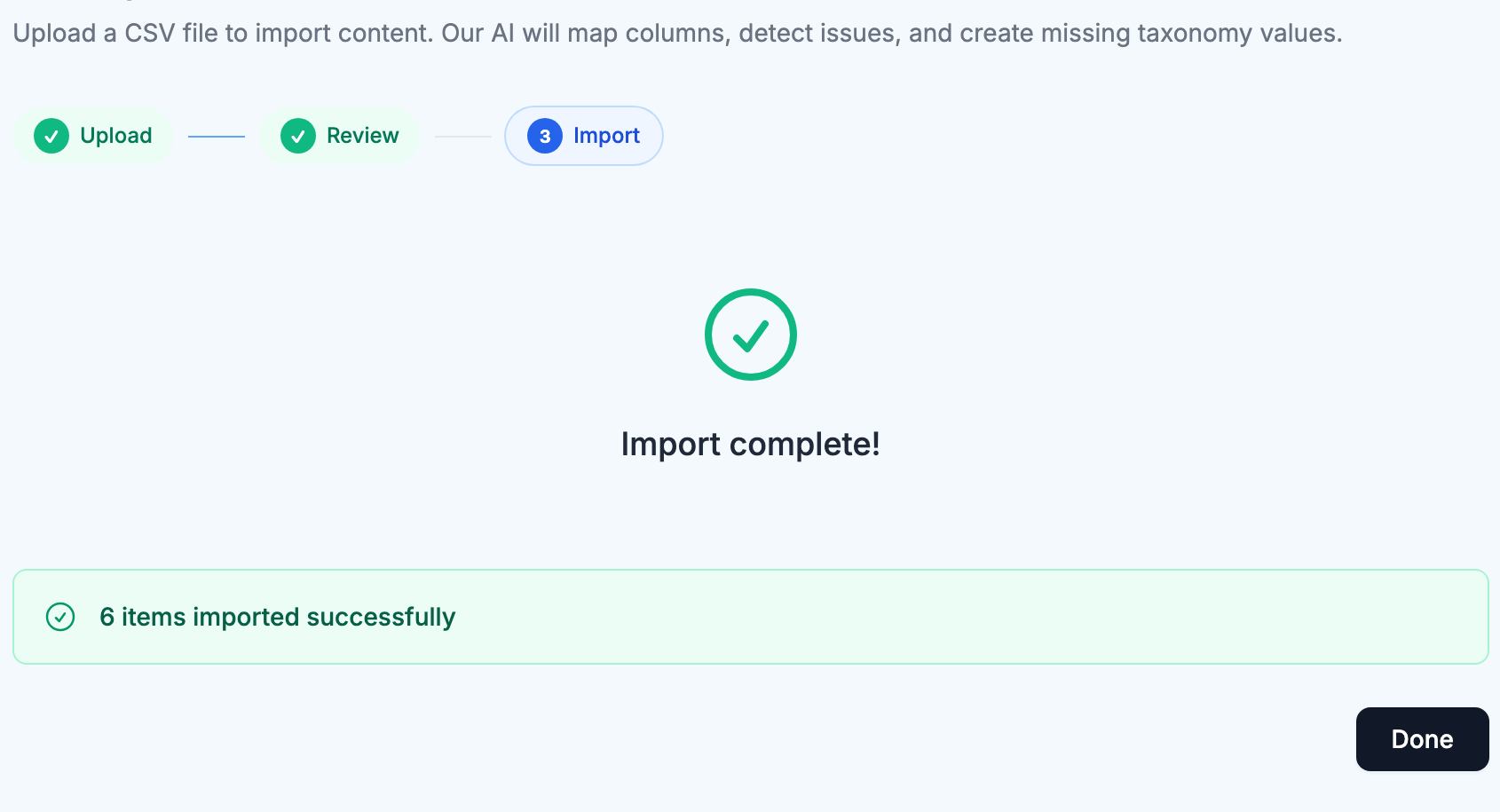
When complete, you'll see:
Success count — How many items were imported
Failed items — If any items failed, click to expand and see the source URL and error for each
New values created — Confirmation of any Content Types, Funnel Stages, or Tags added along the way
Click Done to return to the upload screen.
Import history
Below the wizard, you'll find a history table showing all past imports with their file name, status, item count, and date.
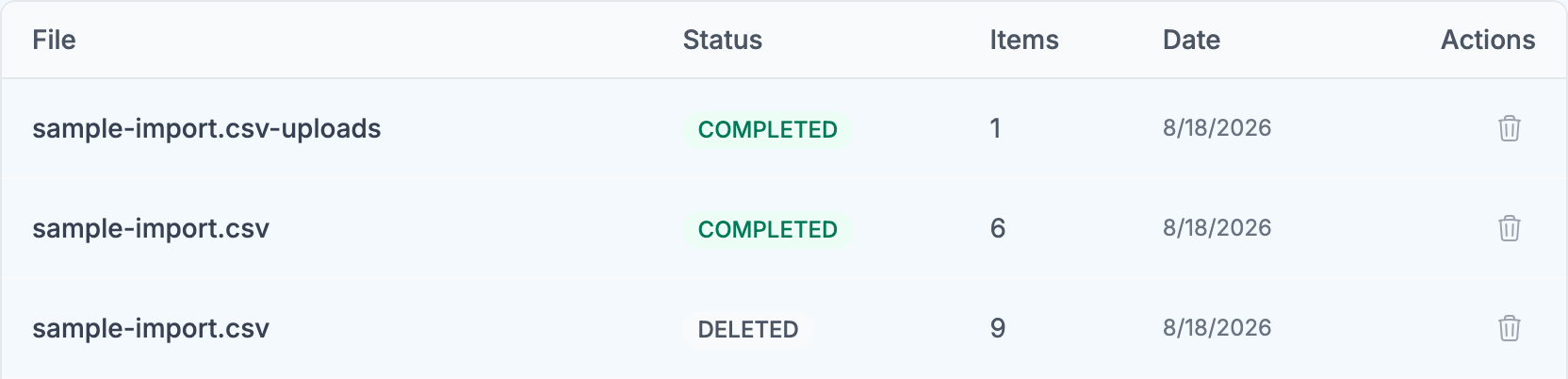
To undo an import, click the trash icon on any row. This archives the imported items and removes any Content Types, Funnel Stages, or Tags that the import created. The row stays in the table with a DELETED status so you keep a record of what happened.
Two things you may notice in this table:
Rows you imported with the "Upload" action appear as a second entry ending in
-uploads. Link rows and upload rows are processed as two separate jobs, so a nine-row file can show up as one job of six and one job of one. The success count on the final screen counts the link job only—check the history table for the full picture.Website imports appear here too, listed as
web-ingest:yourdomain.com. Those come from the content crawl we run during onboarding, not from a CSV.
Updating content that's already in your library
Bulk Import always creates new assets. It never updates or overwrites existing ones.
This is the single most important thing to know before you re-upload a spreadsheet. If you import a URL that's already in your library, you get a second asset pointing at the same URL—not an updated version of the first. Duplicate detection only looks for repeated URLs within the file you're uploading; it does not compare against content you already have.
So if your goal is to change metadata on content that's already in Content Camel, use one of these instead.
Option 1: Edit a single asset
Open the asset from your library and click any field to edit it in place—title, description, positioning, content type, funnel stage, product, industry, region, and tags are all editable directly on the asset detail page. Best when you're fixing one or two things.
Option 2: Bulk-edit many assets at once
This is the right tool for "I need to re-tag 60 assets."
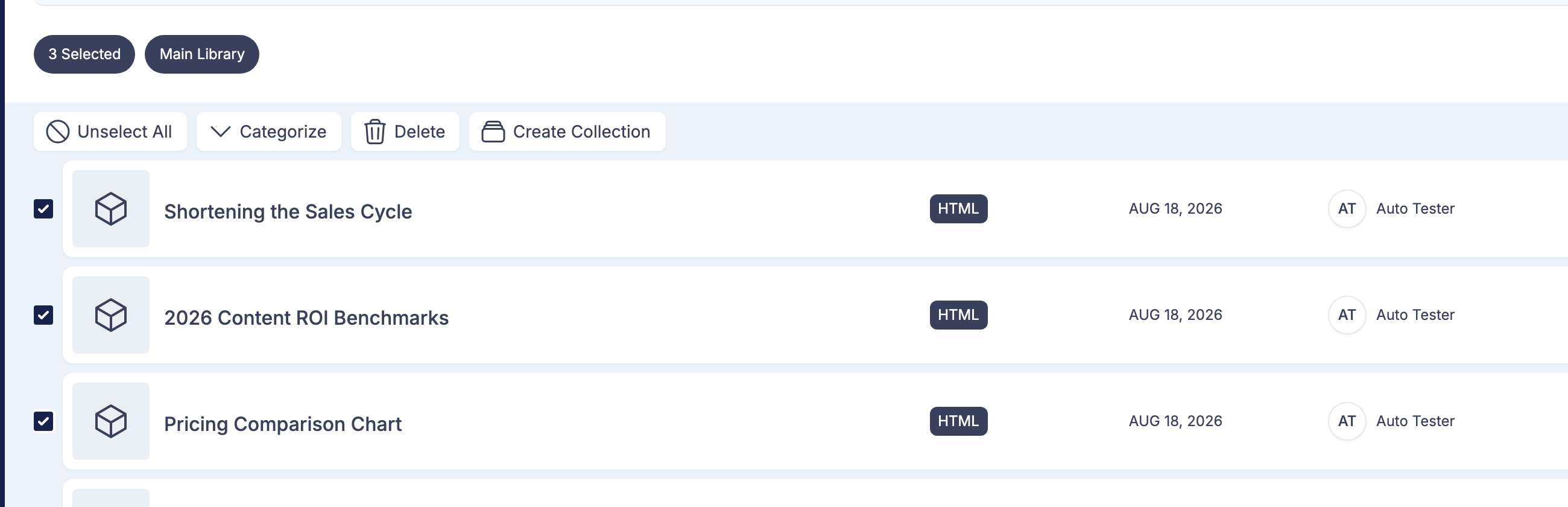
Go to your content library
Select the assets you want to change using the checkboxes
In the action bar that appears, click Categorize
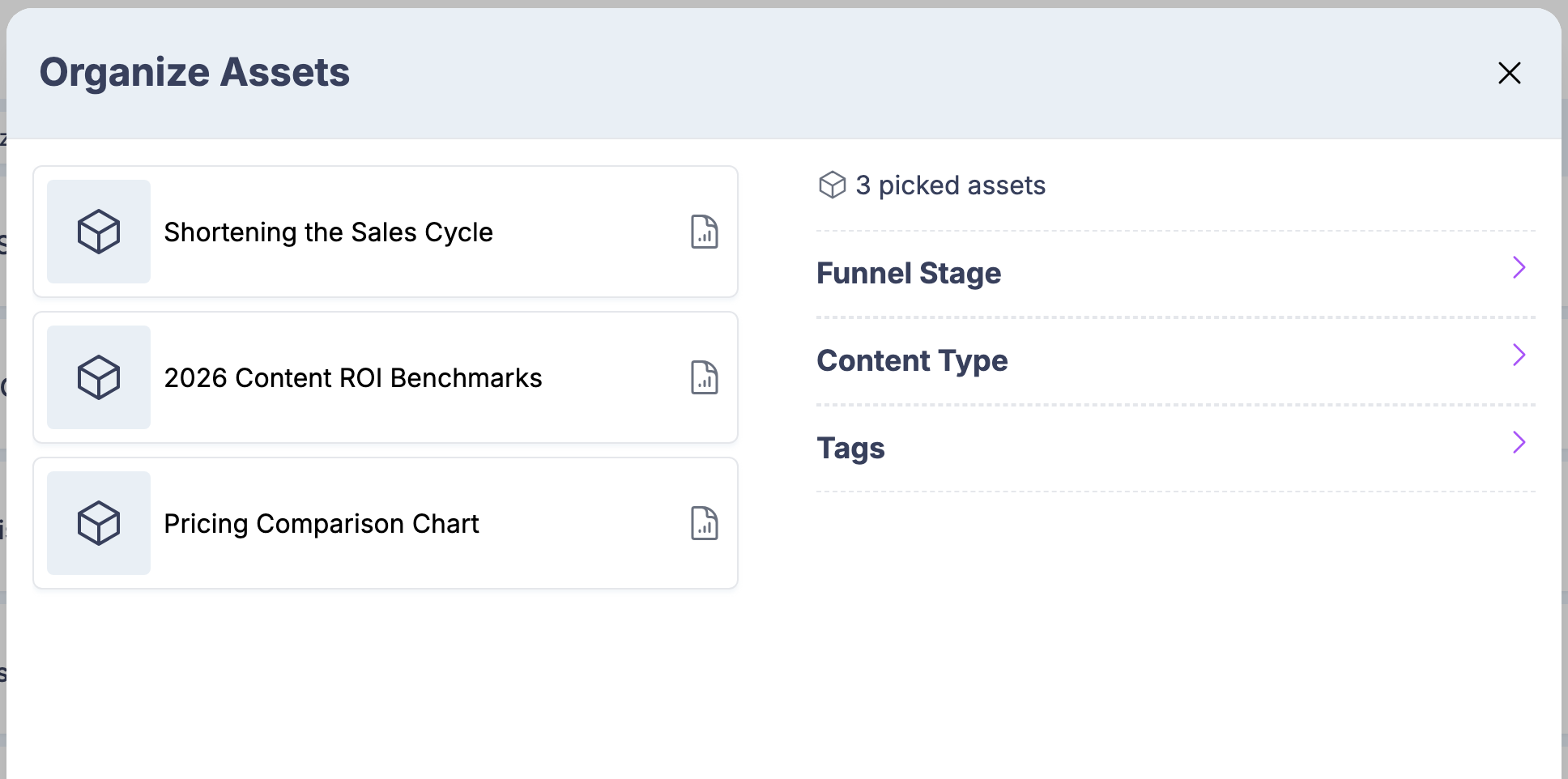
In the Organize Assets panel, expand Funnel Stage, Content Type, or Tags and choose the values you want to apply
Save
A few things to know:
Bulk edits are additive. The values you pick get added to every selected asset. This is for applying a shared label across a group, not for clearing or replacing what's already there—remove unwanted values on the individual asset.
Only the fields your workspace uses are shown. If you haven't enabled Products, Industries, or Regions in Content Organization, they won't appear here.
You can also Delete or Create Collection from the same action bar.
Option 3: Re-import, then undo the original
Use this when your spreadsheet is the source of truth and the changes are too extensive to redo by hand.
Import the corrected CSV as a new import
Confirm the new assets look right
Go to Import History and click the trash icon on the original import
Undoing the original archives its assets, so you're left with just the corrected set.
⚠️ Two cautions before you do this. Undoing an import also removes the Content Types, Funnel Stages, and Tags it created—so if you've started using any of them elsewhere, check before undoing. And the new assets are genuinely new: view counts, share links, and engagement history stay with the old assets and do not carry across.
Which one should I use?
Situation | Use |
|---|---|
Fixing one asset's title or description | Edit the asset directly |
Adding a tag or funnel stage to a group of assets | Bulk Categorize |
Removing a value from an asset | Edit the asset directly (bulk edit only adds) |
Wholesale metadata rewrite driven by a spreadsheet | Re-import, then undo the original |
The content itself changed at the source URL | Nothing to do—linked assets always point at the live URL |
Advanced options
Link vs Upload, per row
The Import Action column controls how each piece of content is stored, and you can set it differently on every row:
Link (the default) — Content Camel stores a reference to the original URL. The asset always reflects whatever is live at that address. Best for blog posts, landing pages, and anything you update at the source.
Upload — Content Camel downloads the file and hosts its own copy. The asset is frozen at the version you imported. Best for PDFs, datasheets, and anything you need to stay fixed—including content behind a URL you may not control forever.
If you leave the column out entirely, everything is imported as Link.
Multi-value fields
Content Type, Funnel Stage, Product, Industry, Region, and Tags all accept multiple values in a single cell. Separate them with commas and quote the cell so your spreadsheet doesn't split it into separate columns:
URL,Title,Funnel Stage,Tags
https://example.com/guide,Buyer's Guide,"Awareness, Consideration","gated, featured"
How the AI matches your values
Two different behaviors, worth knowing so you can predict the result:
Tags are matched exactly, ignoring case only.
Gatedmatches your existinggatedtag.Gated Contentdoes not—it becomes a new tag.Content Type, Funnel Stage, Product, Industry, and Region go through AI matching, which fixes casing, whitespace, and obvious typos.
case studyresolves to your existingCase Study. Genuinely new values are flagged for creation and shown to you before you confirm.
This is why the review step matters: it's your chance to catch a value that should have matched but is about to create a near-duplicate.
How duplicates are detected
Before comparing URLs, the system normalizes them—so these three all count as the same row:
https://www.example.com/post/
https://example.com/post
https://example.com/post?utm_source=newsletter&utm_campaign=q3
Specifically it lowercases the host, drops www., removes trailing slashes and anchors, sorts the remaining query parameters, and strips common tracking parameters (utm_*, gclid, fbclid, mc_cid, ref, source, and similar). The first occurrence is imported; later ones are marked duplicate and skipped.
Remember that this comparison happens within your file only—a URL already in your library will not be flagged. See Updating content that's already in your library above.
What happens to problem rows
Status | Cause | Result |
|---|---|---|
Error | Missing URL, malformed URL, or a non-http(s) protocol | Skipped—not imported |
Duplicate | Same normalized URL as an earlier row in the file | Skipped—not imported |
Warning | Minor issues | Imported |
Valid | No issues found | Imported |
A missing Title is not an error. If you leave it blank, the title is generated from the page's own metadata when the URL is fetched—so a URL-only CSV is a perfectly valid import.
Overriding the AI
You are never locked into the AI's interpretation:
Change any Mapped To dropdown to re-point a column at a different field
Set a column to Unmapped to ignore it—useful for internal spreadsheet columns like owner, review date, or record ID that have no Content Camel equivalent
Change the Import Action on individual rows in the preview table
Click Cancel to discard the analysis and start over with a corrected file
Nothing is written to your library until you click Import N items.
Troubleshooting
The import failed during analysis. Try uploading the file again first—analysis calls an AI service and an individual run can fail. If it keeps failing on the same file, import it with just URL, Title, and Description, then apply Content Type, Funnel Stage, and Tags in bulk afterward using Categorize. That gets your content in while sidestepping the value-matching step.
Fewer items imported than rows I confirmed. Check whether some rows used the Upload action—those are dispatched as a separate -uploads job and are counted separately in Import History.
An imported asset has no thumbnail yet. Transcoding runs in the background after the import completes. Give it a few minutes.
I imported the same content twice. Delete the duplicate assets from your library, or undo the whole import from Import History and re-run it with a cleaned file.
Best practices
Start with the template — Download the CSV template to see the expected format, then adapt it to your data
Include URLs — Each row should have a URL pointing to the content. The system fetches and processes the content from there
Review low-confidence mappings — The AI is usually right, but double-check amber and red confidence columns before importing
Use "Link" vs "Upload" deliberately — "Link" stays current with the source; "Upload" freezes a copy in Content Camel
Open the new-values bar before confirming — It's the cheapest moment to catch
Case Studiesabout to be created alongside your existingCase StudyImport once, then organize — It's normal to import with minimal metadata and refine it afterward with bulk Categorize
Clean your CSV first — Remove empty rows and ensure URLs are valid before uploading
Have questions?
If you have any questions about bulk importing content, reach out to our support team. We're here to help you get your content library set up quickly.