
How to manage slide decks and enable the Deck Composer
The Deck Composer lets reps build prospect-specific decks from slides across your library. As an admin, you control the supply side: which decks are broken into slides, and therefore which slides reps can search, preview, and remix. This guide covers how slide decomposition works, how to enable it for existing content, and what to expect while decks process.
> Beta Preview — Slide decomposition and the Deck Composer are beta features. Deck pages show a BETA PREVIEW badge while we polish the experience.
How slide decomposition works
When a deck is decomposed, Content Camel processes the file and extracts each slide as a browsable unit — a thumbnail, a title, and searchable text content. The original file is never modified; decomposition adds a slide-level view on top of it.
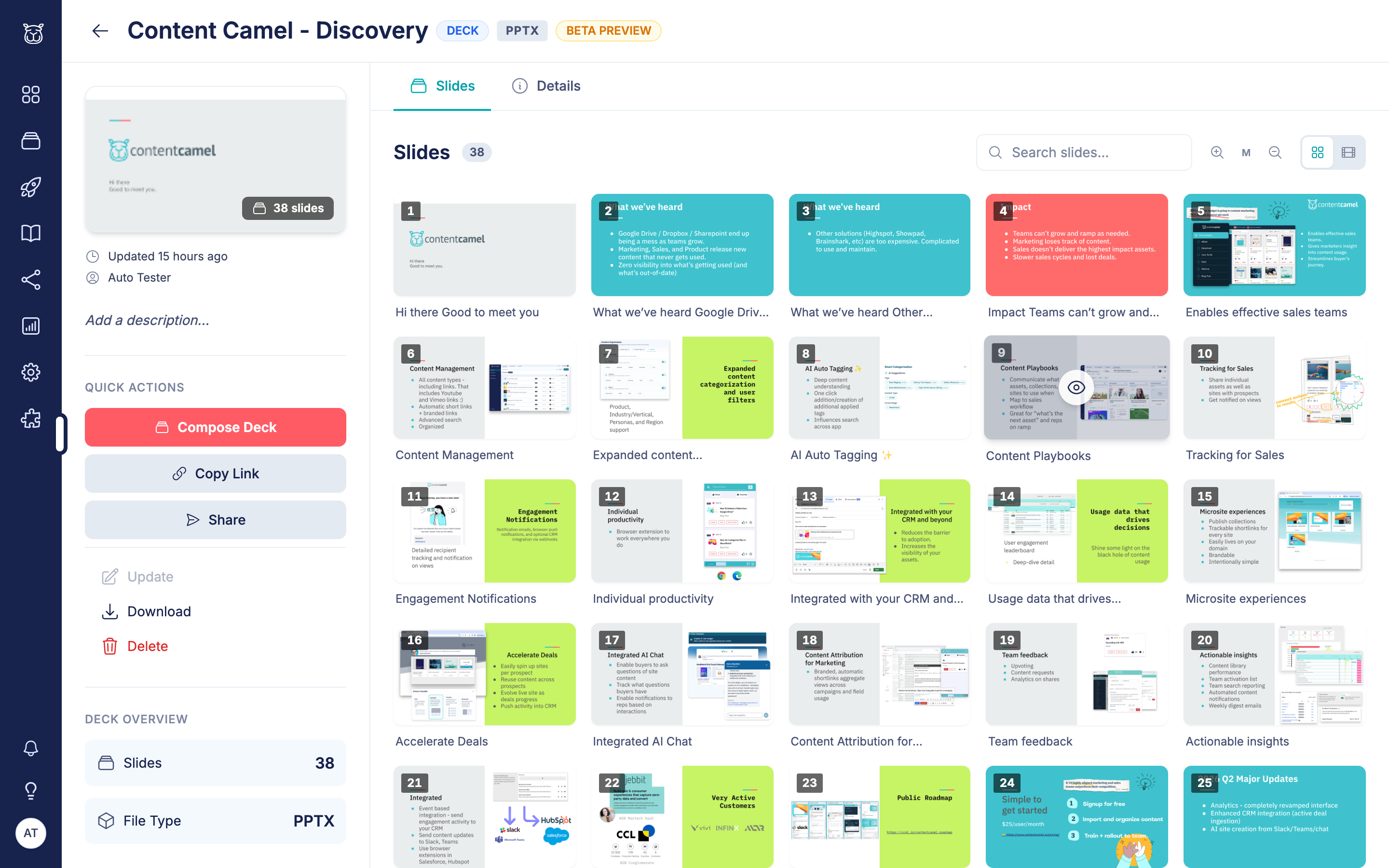
Once decomposed, a deck's asset page shows:
A DECK badge next to the file-type badge
A slide grid with search and filmstrip views
Slide-level actions for reps: full-screen preview and Add to Composer
New uploads
New PowerPoint uploads are decomposed automatically as part of processing. Upload the file as usual — when processing completes, the slide grid appears on the asset page.
While a deck is processing you'll see a processing indicator on the asset page. Processing time scales with deck size; most decks finish in a few minutes.
Existing decks: Break into Slides
Decks uploaded before slide decomposition existed (or decks whose processing was interrupted) can be decomposed on demand.
Open the deck's asset page
Click the Actions menu
Click Break into Slides
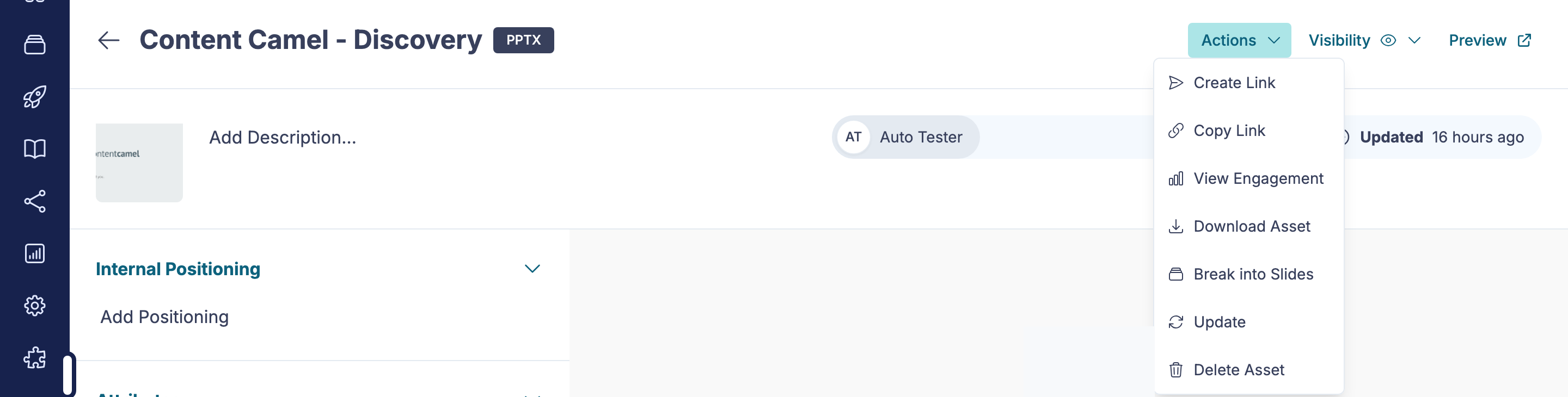
Break into Slides appears only for:
PowerPoint files (.pptx) that haven't been decomposed yet
Users with owner or admin privileges on the asset
The deck processes in the background — you can leave the page. When it finishes, the slide grid replaces the flat preview.
Limits and file types
Supported today | PowerPoint (.pptx) |
Slide cap | Decks up to 300 slides are decomposed in full |
Original file | Never modified — decomposition is additive |
PDF decks | On the roadmap; not yet supported for decomposition |
What reps can do once decks are decomposed
With decomposed decks in the library, reps can:
Search across slides — slide titles and content are searchable, so "pricing" or "security" finds the right slide in any deck
Compose custom decks — pick slides (from one deck or several), reorder them, and publish a share-tracked deck
Download PPTX — export a composed deck as PowerPoint when all slides come from a single source deck
Composed decks are real library assets: they appear in the library, carry share links with engagement tracking, and record who published them and when.
Point your reps at the companion guide: How to build a custom deck with the Deck Composer.
Governance notes
The master stays the master — reps compose from decks; they never edit the source. Updating the master deck updates the slide pool
Visibility controls apply — reps can only pull slides from decks they can see, per your existing content visibility rules
Composed decks are attributable — each composed deck records its creator and its publish history
Have questions?
If you have any questions about slide decks or the Deck Composer, reach out to our support team. We're here to help you get your library working slide-by-slide.