
How to build a custom deck with the Deck Composer
Your marketing team maintains the master decks. Your prospect needs twelve specific slides, in a different order, with the pricing slide from another deck. The Deck Composer lets you browse every slide across your library, pick the ones that fit this deal, arrange them, and publish a share-ready deck — without ever opening PowerPoint or breaking the master.
> Beta Preview — The Deck Composer is a beta feature. You'll see a BETA PREVIEW badge on deck pages while we polish it. Everything described here works today; the badge just means we're still refining the experience.
Finding slides
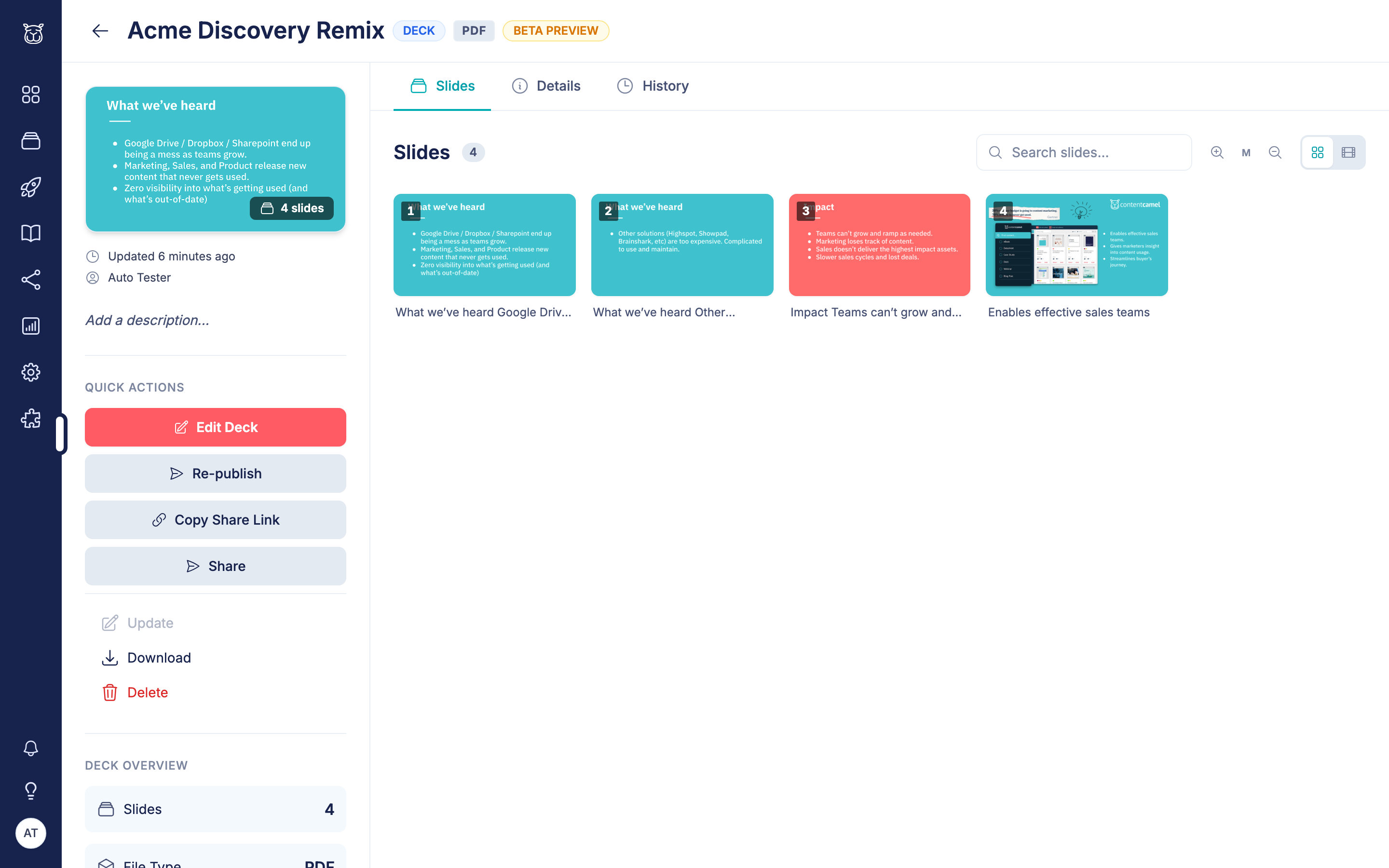
When a PowerPoint or Google Slides deck has been broken into slides (your admin controls this — see the admin guide), its asset page shows a DECK badge and a browsable slide grid instead of a flat file preview.
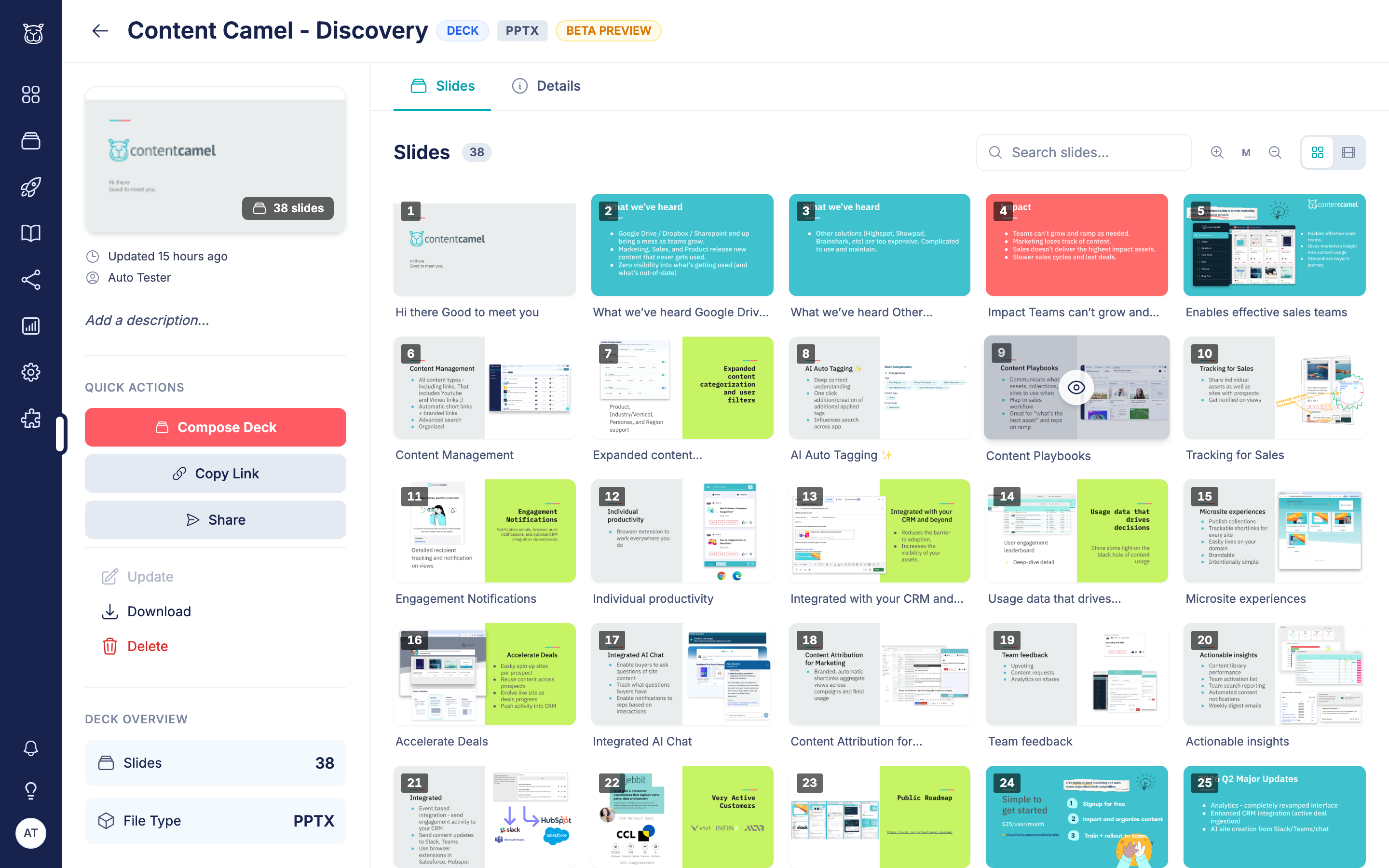
From here you can:
Search slides — the search box filters slides by title and content, so "pricing" finds the pricing slide even in a 60-slide deck
Switch views — toggle between the grid and a filmstrip view
Open a slide — click any slide to open it full-screen
Reading a slide up close
Clicking a slide opens the lightbox — a full-screen viewer with arrow-key navigation, a filmstrip of neighboring slides, and a sidebar showing the slide's extracted content.
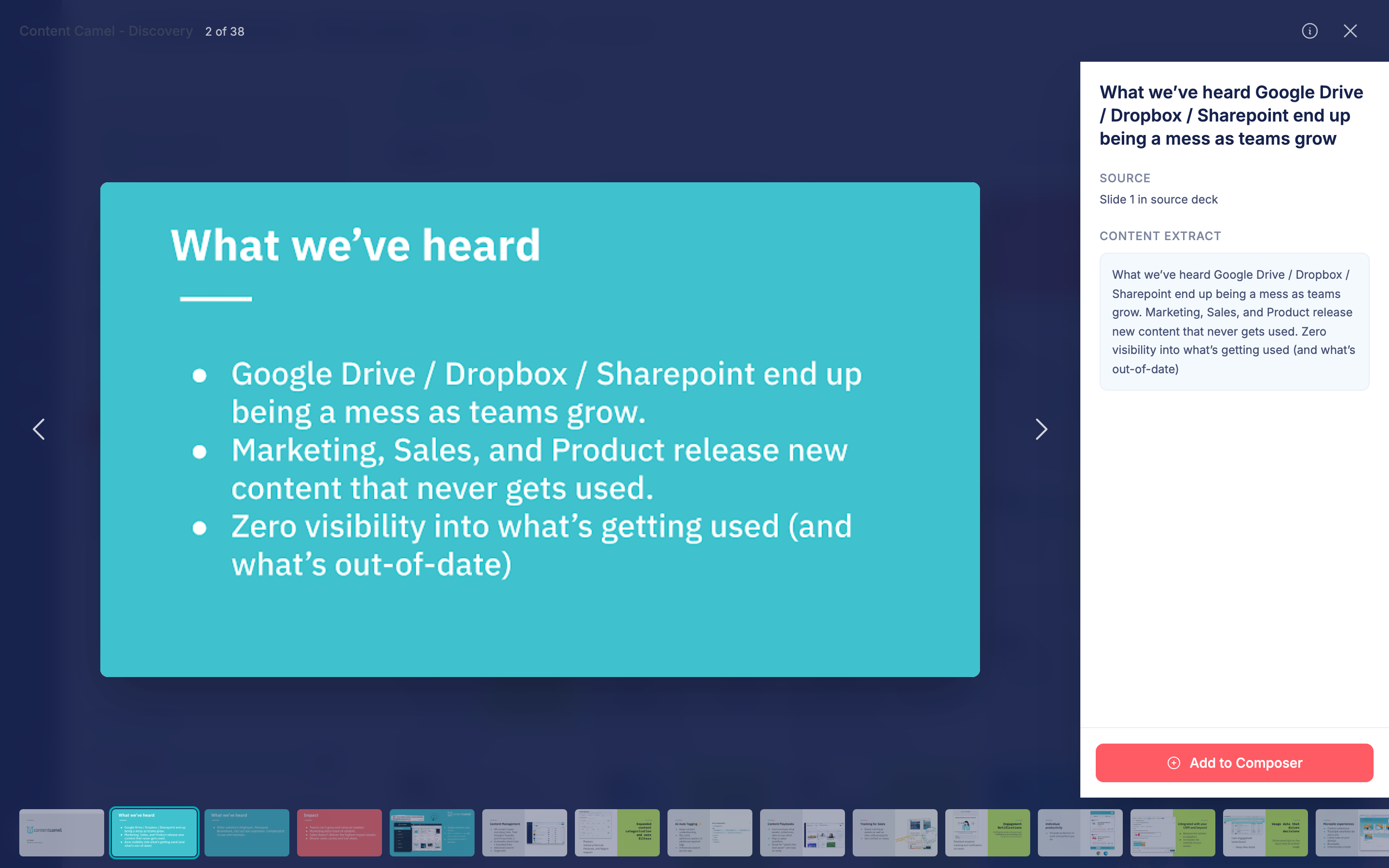
This is the "can I use this one?" view. When the answer is yes, click Add to Composer.
Building your deck
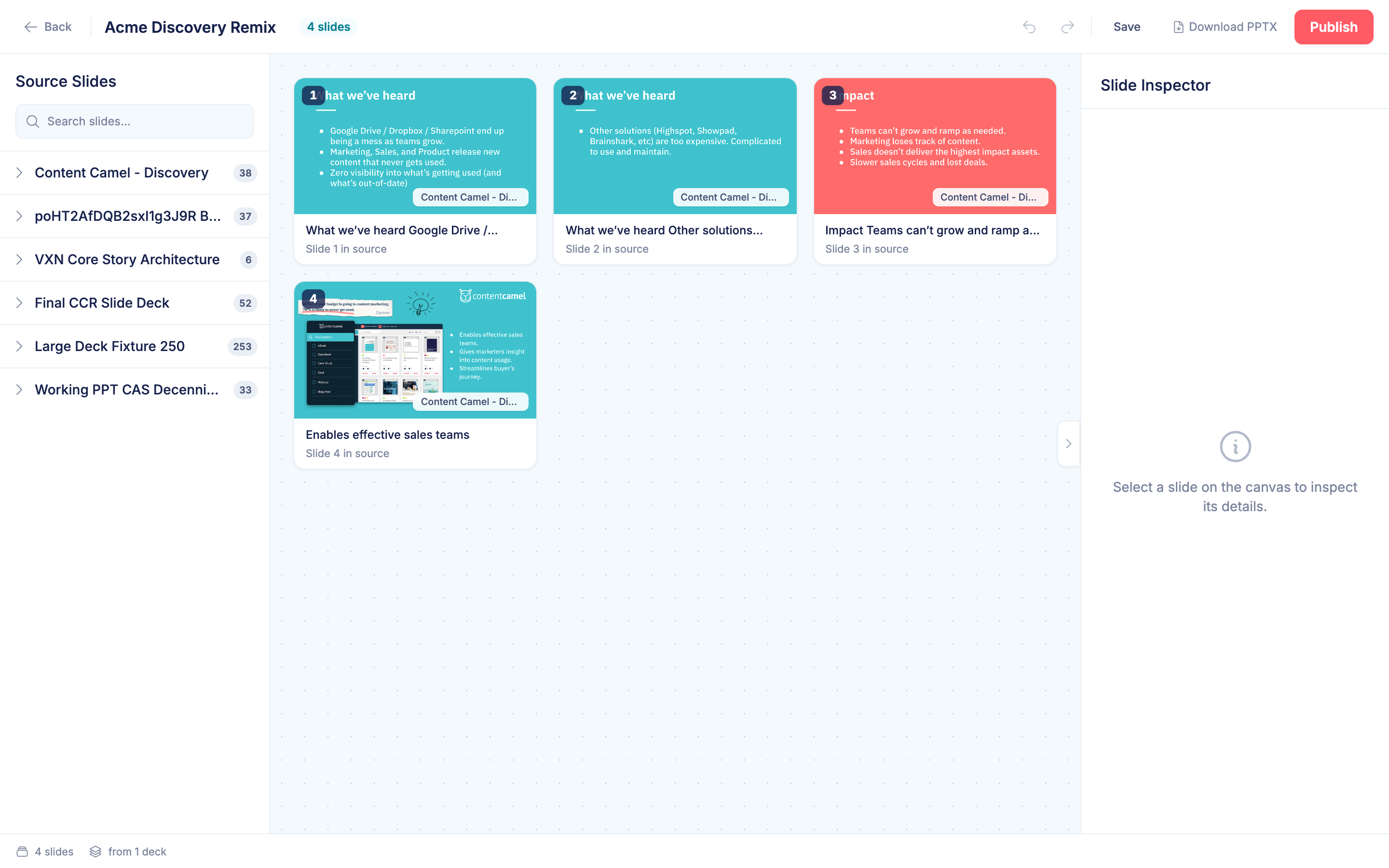
Add to Composer takes you to the Deck Composer with your slide already placed. The composer has three panels:
Source Slides (left) — every deck you can pull from, with search across all of them
Canvas (center) — your deck in progress; drag to reorder
Slide Inspector (right) — details for the selected slide
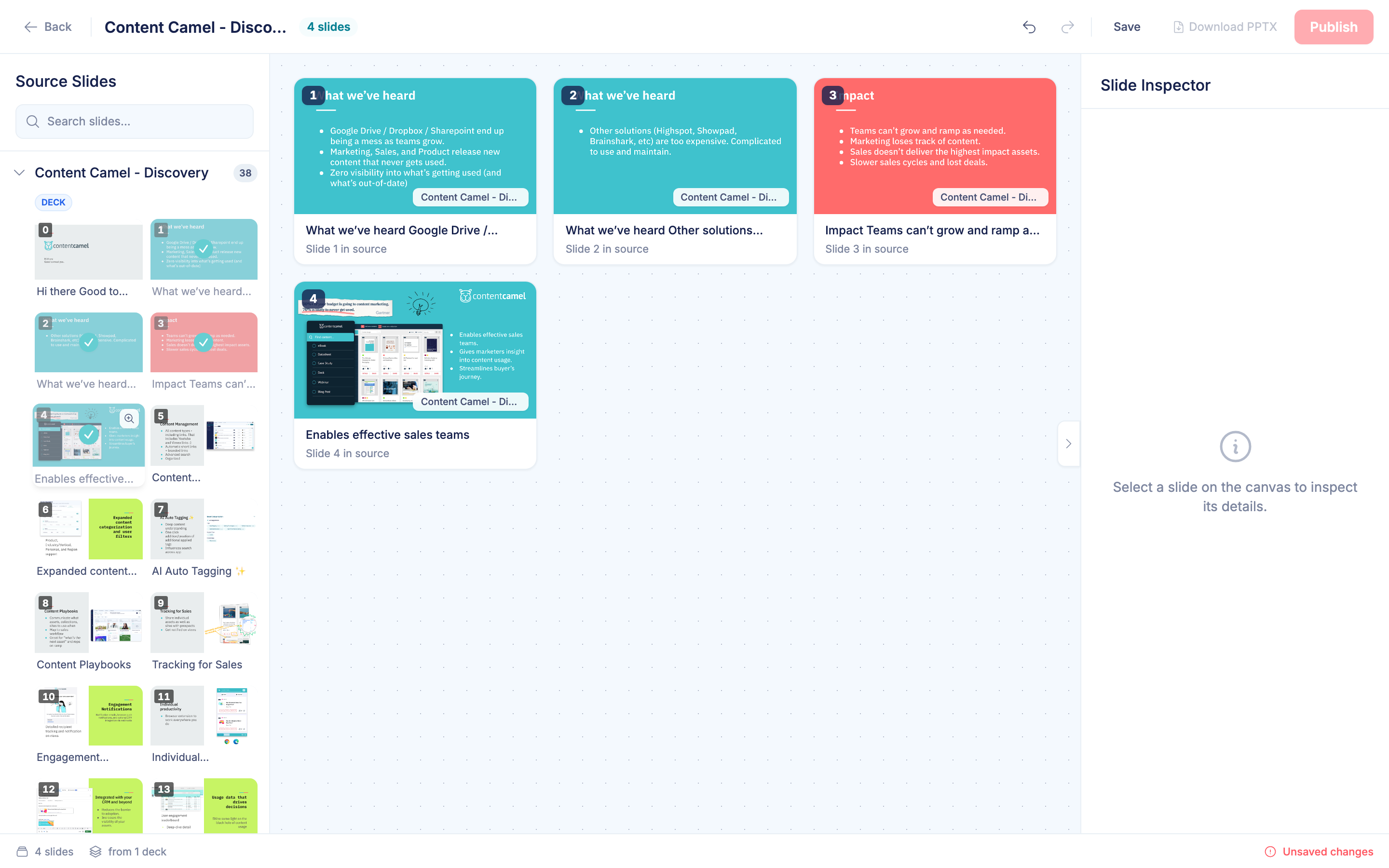
A few things worth knowing:
Click any source slide to add it — you can mix slides from multiple decks
Drag slides on the canvas to reorder — the numbering updates as you go
Undo/redo work — including keyboard shortcuts (Cmd/Ctrl+Z)
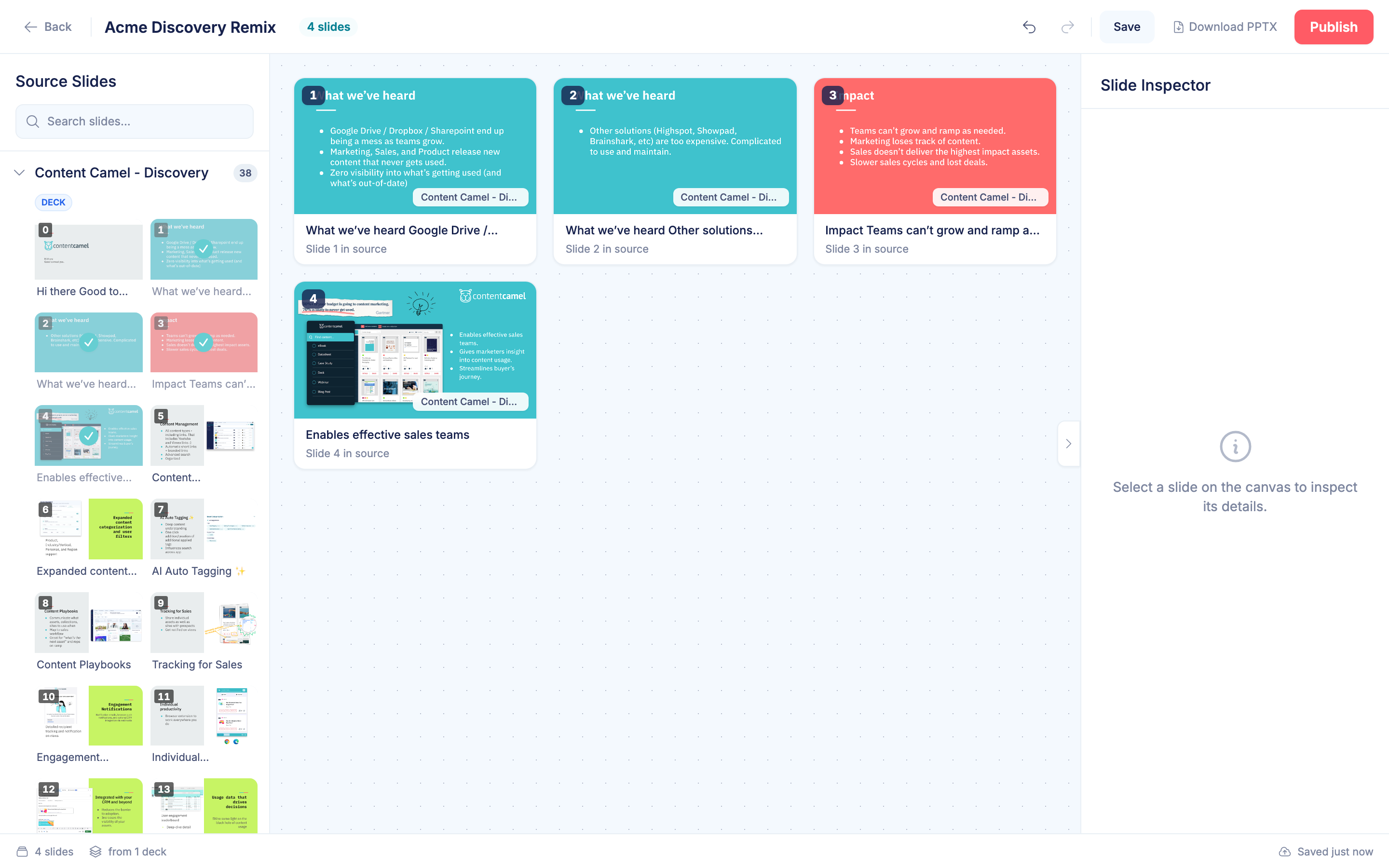
Name your deck — the composer suggests a name based on the source deck (e.g., "Discovery Deck Remix"); click the title to type your own
Saving
Click Save to store your deck. It appears in your library as a deck asset, and you stay in the composer to keep editing. Save early and often — if you try to leave with unsaved changes, the composer will warn you first.
Publishing and sharing
When the deck is ready, click Publish. Publishing renders your slide selection into a shareable PDF-backed deck and gives you a share link.
Publishing takes a moment (we're rendering real slides) — when it's done, a Copy Share Link button appears in the composer header
Copy the share link and send it to your prospect — views are tracked like any Content Camel share
Download PPTX exports the deck as a PowerPoint file. This is available when all slides come from a single source deck
If you keep editing after publishing, just publish again — the share link stays the same and always serves the latest published version.
Editing later
Your composed deck lives in your library like any other asset. Open it and click Edit Deck to jump back into the composer with your slides loaded. The deck page's History tab shows every publication — who published, when, and in what format.
Best practices
Lead with their problem — pull the slides that speak to this prospect's situation, cut everything else
Keep it short — a 10-slide tailored deck beats the 60-slide master every time
Name decks for the deal — "Acme Discovery Remix" is findable later; "Untitled Deck" isn't
Publish before the meeting — the share link gives you view tracking; email attachments don't
Have questions?
If you have any questions about the Deck Composer, reach out to our support team. We're here to help you tailor the perfect deck for every deal.