
How to turn a PDF into slides
Half the decks in a content library aren't PowerPoint. They're PDFs — the export somebody sent, the one-pager from the agency, the customer story that was designed in Figma and never existed as a .pptx. Until now those sat in the library as a single flat file: useful whole, useless in pieces.
Now a PDF can be broken into slides, one per page. Those pages behave like PowerPoint slides: searchable, previewable, and ready to pull into a composed deck alongside slides from any other source.
What "breaking into slides" does
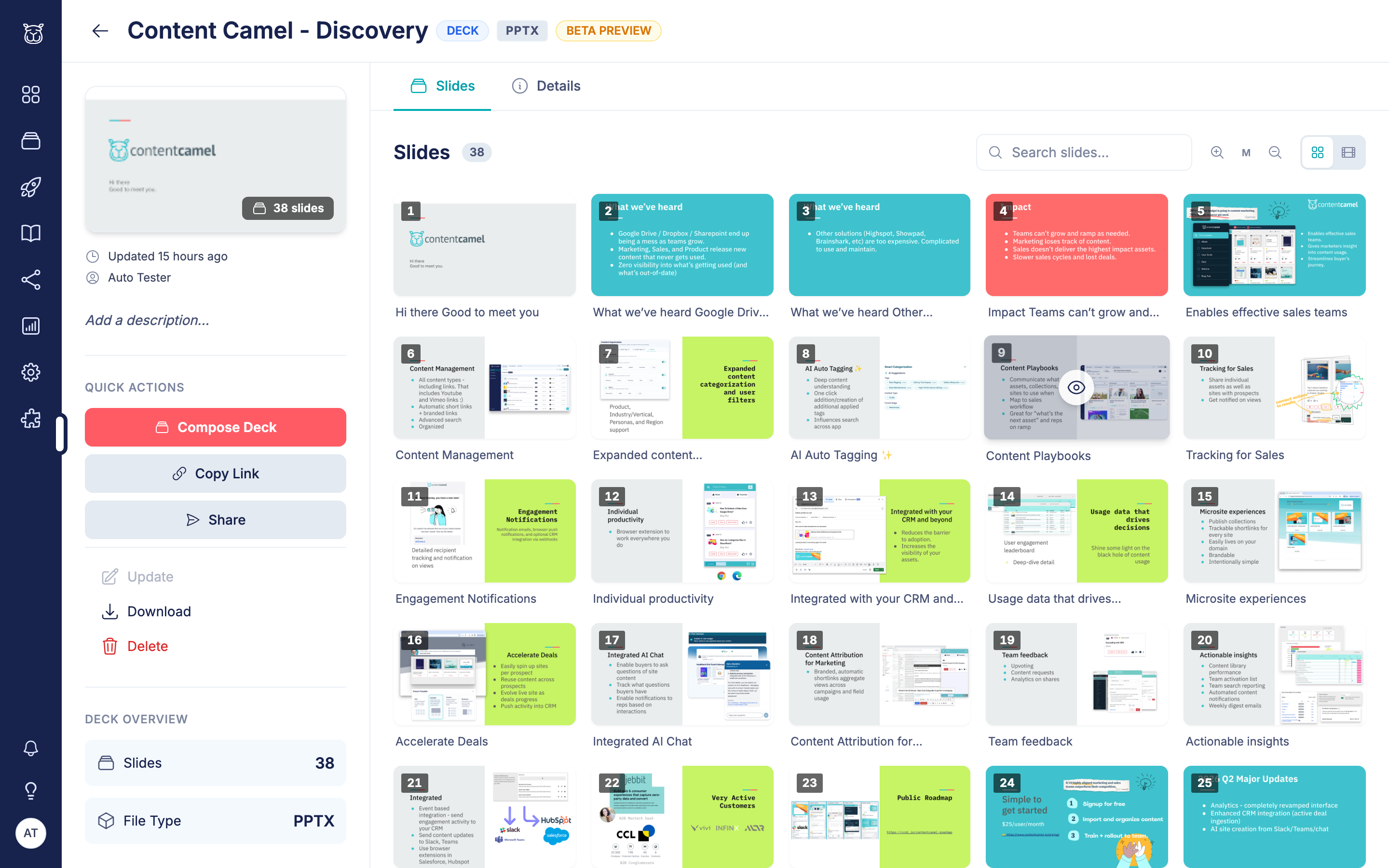
Each page becomes its own slide: a thumbnail, a title, and the page's text, indexed for search.
The original PDF is untouched. This adds a slide-level view on top of the file rather than replacing it.
Once the pages are extracted, the asset gets a DECK badge and its page turns into a searchable slide grid.
PDFs are opt-in. PowerPoint isn't
This is the one difference worth remembering.
Upload a PowerPoint file and it's broken into slides automatically, as part of processing. Upload a PDF and nothing happens until you ask, because most PDFs aren't decks — a signed contract has no business becoming forty searchable slides.
Breaking a PDF into slides
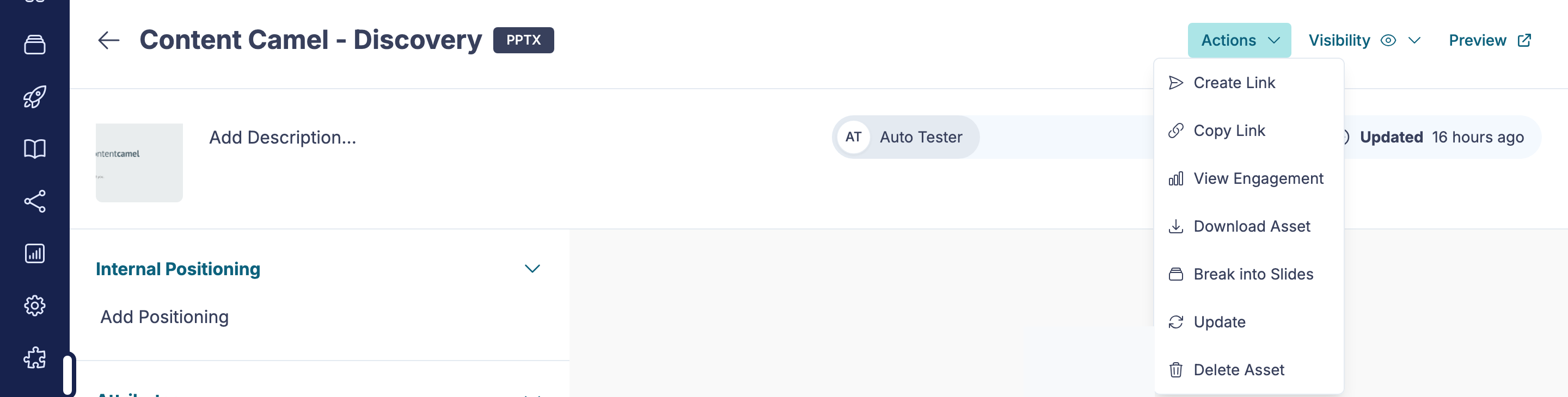
Open the PDF's asset page
Click the Actions menu
Click Break into Slides
We check the page count first, then ask you to confirm: "Break this 24-page PDF into 24 slides?"
Say yes and it processes in the background. Leave the page if you want — when it finishes, the slide grid replaces the flat preview.
Break into Slides shows up only if you own the asset (or you're an admin), and only for files that haven't been broken up yet.
Limits
Up to 100 pages | |
PowerPoint (.pptx, .ppt) | Up to 300 slides |
Deck size | No practical limit. A 520 MB deck processes fine |
Original file | Never modified |
A PDF over 100 pages tells you so before anything runs, rather than processing for a while and then failing.
What you can do with PDF slides
Everything you can do with PowerPoint slides, with one exception at the end:
Search across them — "pricing" or "SOC 2" finds the right page in any PDF in the library
Preview them full-screen — with the filmstrip and the extracted text alongside
Add them to the Deck Composer — mixed freely with slides from PowerPoint decks
The exception is PowerPoint export. A composed deck containing any PDF-sourced slide publishes, shares and downloads as PDF exactly like any other. What it doesn't offer is Download PPTX: the source pages are images, not editable PowerPoint shapes. The composer says so rather than handing you a file full of flattened pictures.
When processing doesn't work
Two things can go wrong, and both tell you which:
Over the page cap — you'll see the real page count against the limit. Nothing is queued
The file failed to process — the asset page says so instead of quietly staying a plain file. Re-run Break into Slides to try again
Have questions?
If you have any questions about PDF slides, reach out to our support team. We're here to help you get more out of the content you already have.