
How to share content with the Share composer
Most sharing tools make you build the thing first and figure out who it's for afterwards. The Share composer works the other way round. You name the prospect, drop in the assets that fit this deal, and it assembles a personalized microsite behind a tracked link while you watch. Nothing is emailed on your behalf — you copy the link (or the email card) and send it however you normally send things.
Where to find it
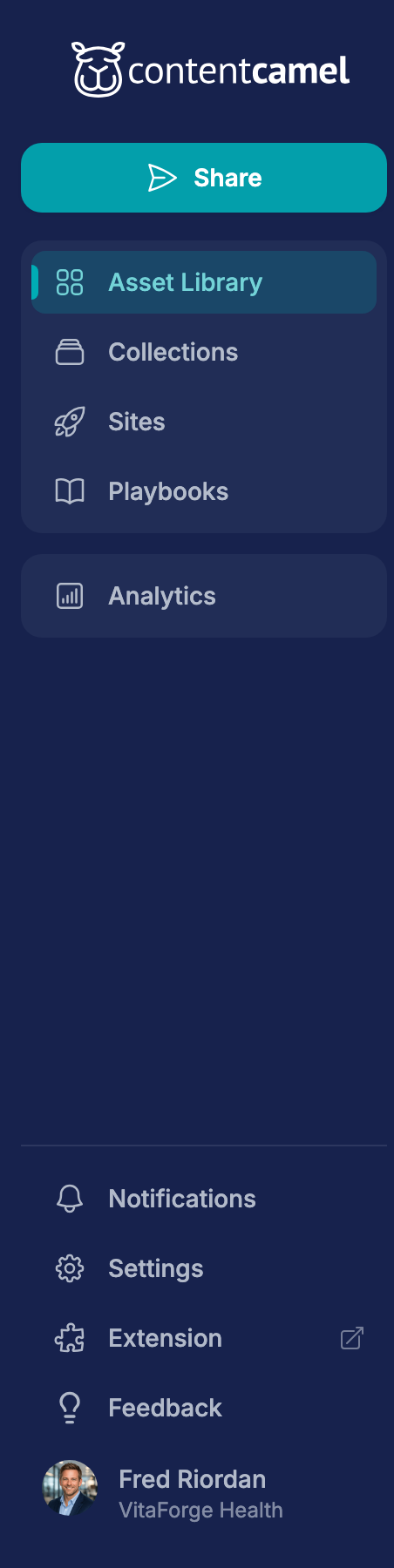
Share is the teal button at the top of the left nav, above everything else. That placement is deliberate: it's the one thing most reps do every day, and it's the only filled button in the rail — everything below it is a destination, not an action.
You can also arrive with content already loaded. Share with a prospect — on an asset card's menu, or in the site editor's header — opens the composer with that content pre-selected, so all you have to do is pick the recipient.
Step 1: Pick who it's for
The composer starts empty on purpose. Until there's a recipient, there's nothing to personalize.
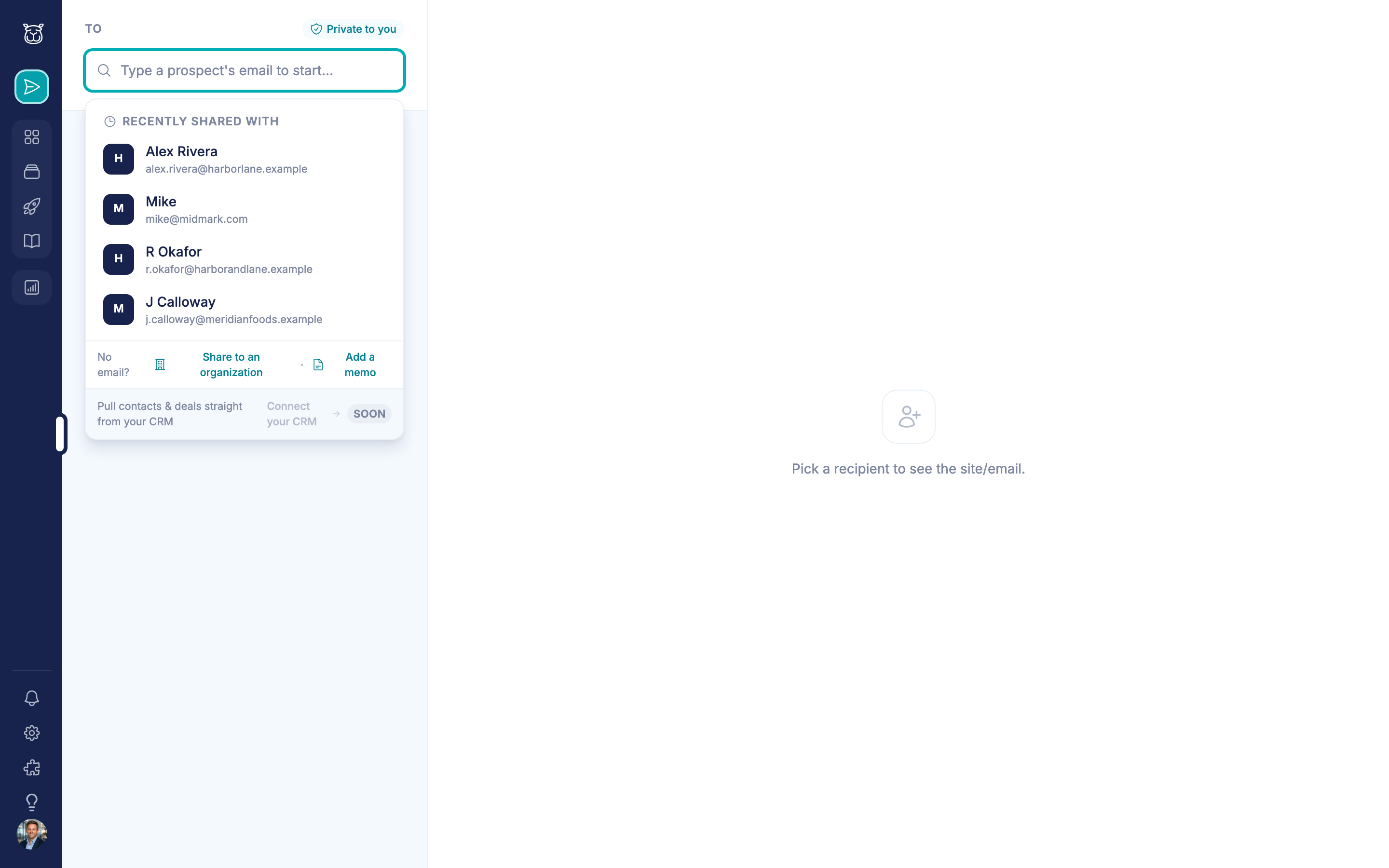
Type an email into the To field. If you've shared with them before, they'll show up under Recently shared with — pick them and everything else stays as it was.
No email address yet? Use Share to an organization or Add a memo at the bottom of the panel to identify the share by company ("ACME Corp") or by a note ("Q3 renewal"). The share still tracks; it just isn't tied to a person.
Add deal context (optional, internal only)
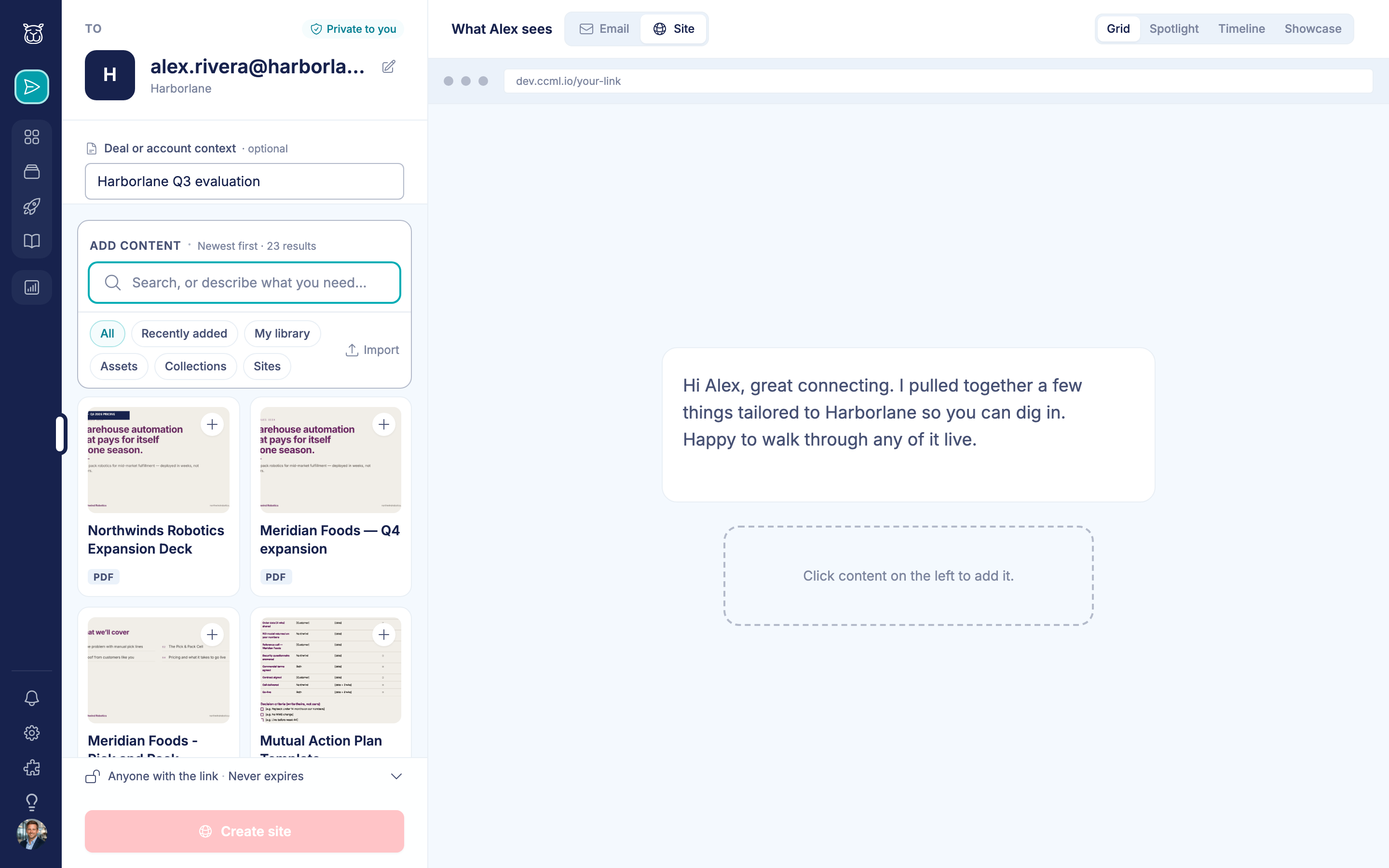
Under the recipient, Add deal or account context opens a one-line field — "Harborlane Q3 evaluation", that sort of thing. It's for you and your team. The prospect never sees it. The prospect-facing note is the greeting, which is a separate field further down.
Step 2: Add the content
The source panel searches your whole library at once. The scope chips narrow it:
Chip | What it shows |
|---|---|
All | Everything you can see |
Recently added | Newest content first |
My library | Content you own |
Assets | Individual files only |
Collections | Curated groups |
Sites | Existing sites you can pull from |
Click any result to add it. Click again to remove it. The running count sits in the panel header, and Import pulls in a file from your desktop without leaving the composer.
Step 3: Arrange it in the preview
The right-hand pane isn't a static preview — it's the canvas. Drag tiles to reorder them, remove the ones that don't fit, and the site updates as you go.
Two views sit at the top:
Site — what the prospect sees when they open the link
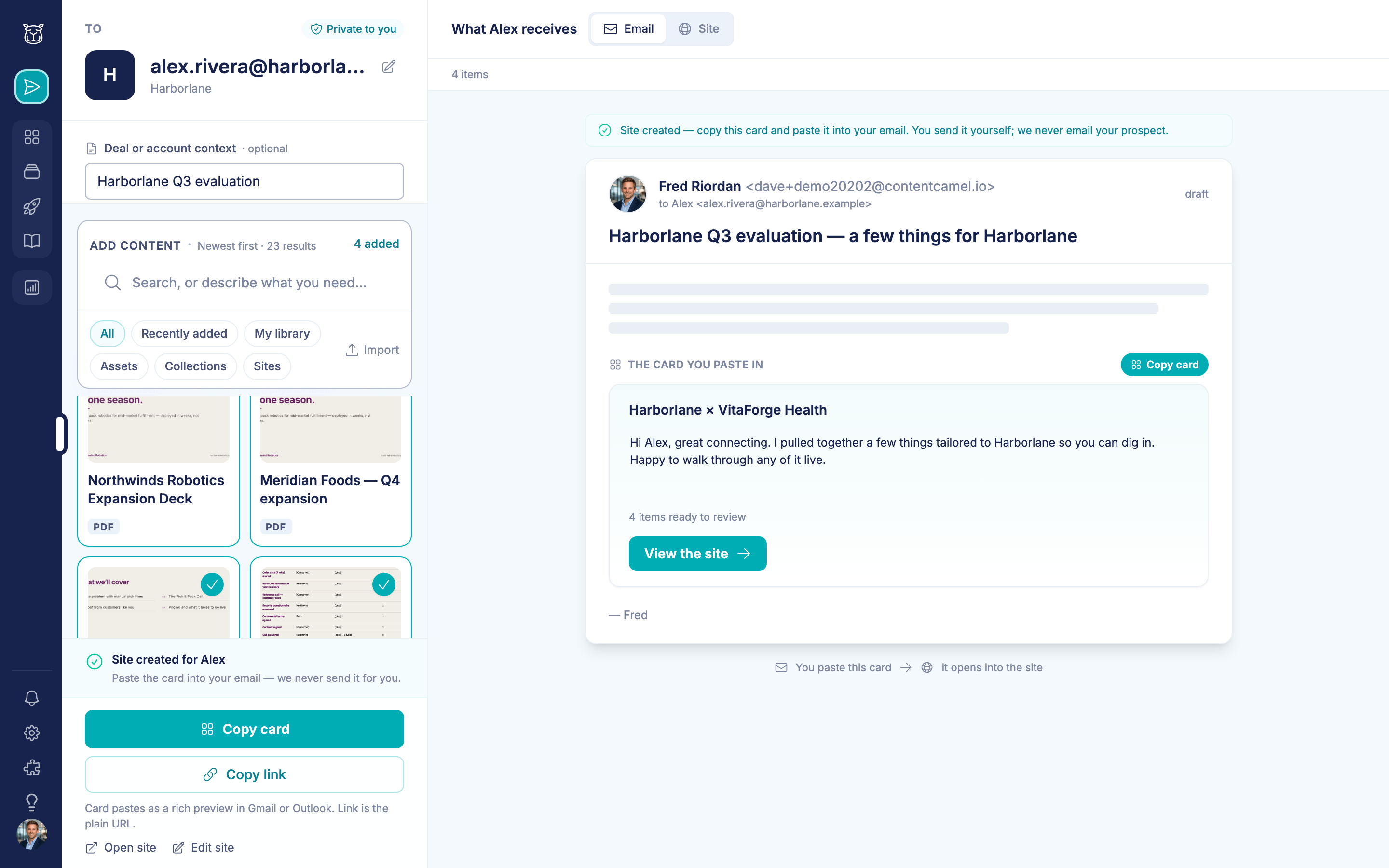
Email — the card you can paste into Gmail or Outlook
Under the Site view, the layout picker switches between Grid, Spotlight, Timeline and Showcase. Spotlight leads with one hero asset; Grid is the safe default.
Write the greeting
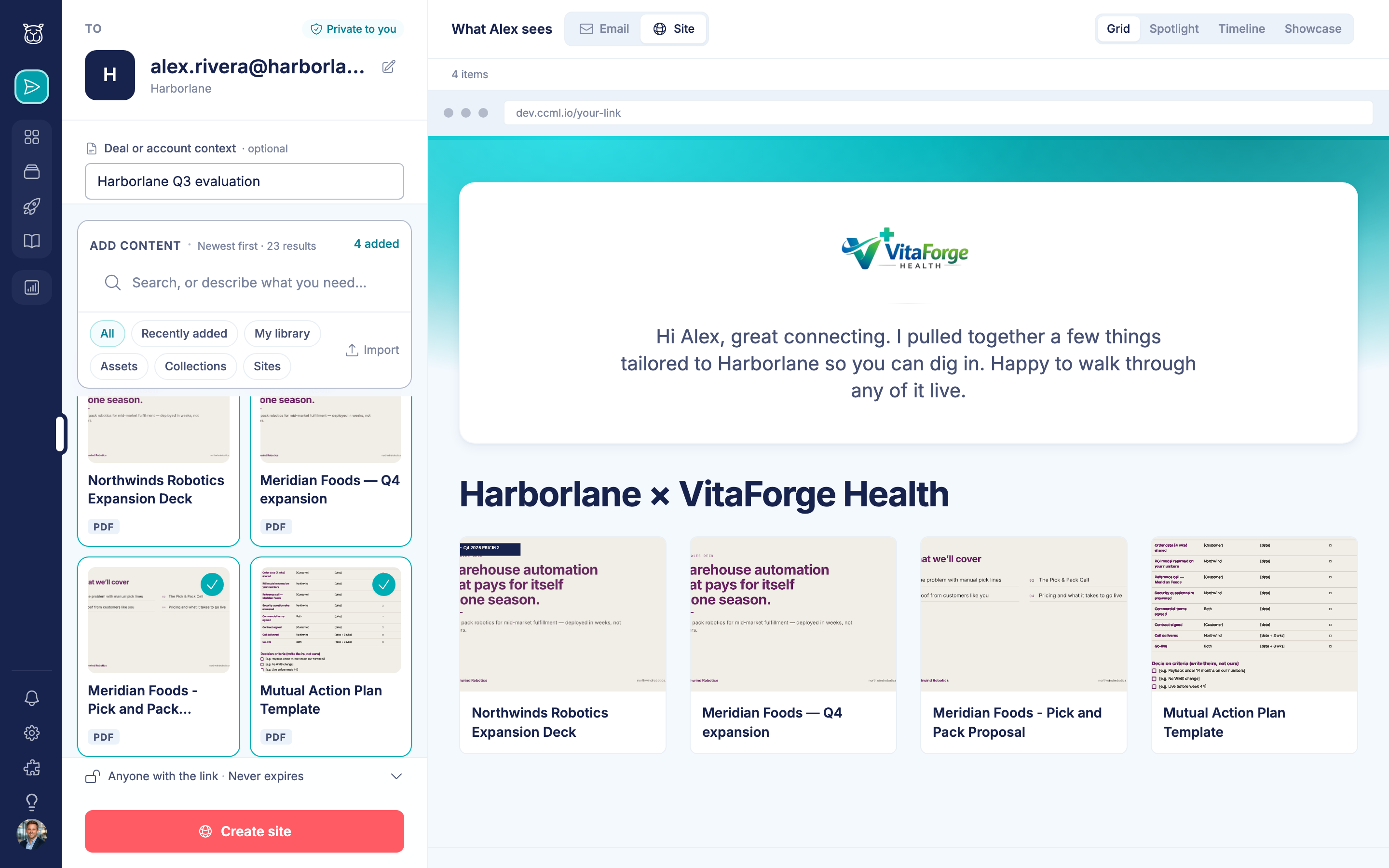
Click the greeting line in the preview to edit it in place. Press Esc when you're done.
This is the message the prospect actually reads at the top of their site. Keep it short and specific — "Rachel, here's the security review we talked through Tuesday, plus the two customer stories from the manufacturing side" beats anything generic.
Step 4: Personalize the share
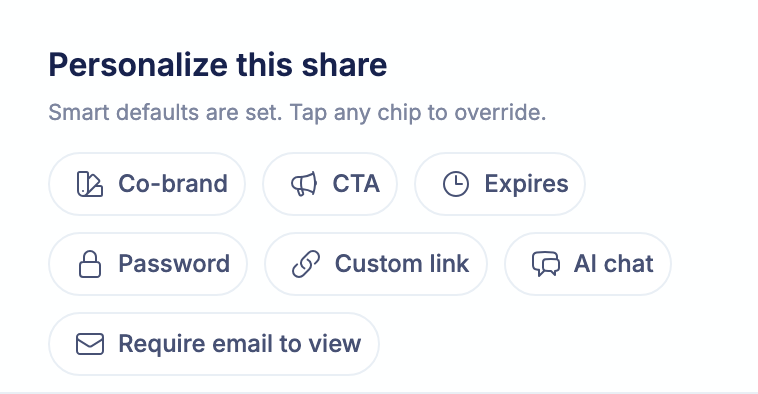
Personalize this share holds seven controls, all optional:
Control | What it does |
|---|---|
Co-brand | Puts the recipient's logo alongside yours. Detected automatically from their email domain where we can find it |
CTA | Adds one of your workspace's calls to action to the site. Admins create these in Settings |
Expires | 7 days, 30 days, 90 days, or no expiry. After that the link stops resolving |
Password | Requires a password to open. Share it separately from the link |
Custom link | Sets your own slug — |
AI chat | Adds a chat widget so visitors can ask questions about the content |
Require email to view | Visitors enter an email before anything renders. Turns anonymous traffic into named traffic, at the cost of some drop-off |
Whatever you set, the bar just above Create site always states where the share currently stands — "Anyone with the link · Never expires" until you change it. Read that line before you create; it's the fastest check that a pricing link isn't about to go out unprotected and forever.
👉 On expiry: this is the only place you can set it. Once a share exists, its expiry is fixed — the site editor can't change it later, so decide here.
👉 On custom links: if the slug you want is taken, you still get a link. We add a short suffix (/acme-q3 becomes something like /acme-q3-x7fq2k) and tell you what you actually got, rather than making you guess again.
Step 5: Create and send
Click Create site. The composer mints a real site and a tracked short link, and the bar changes to Copy card and Copy link, with Open site and Edit site underneath.
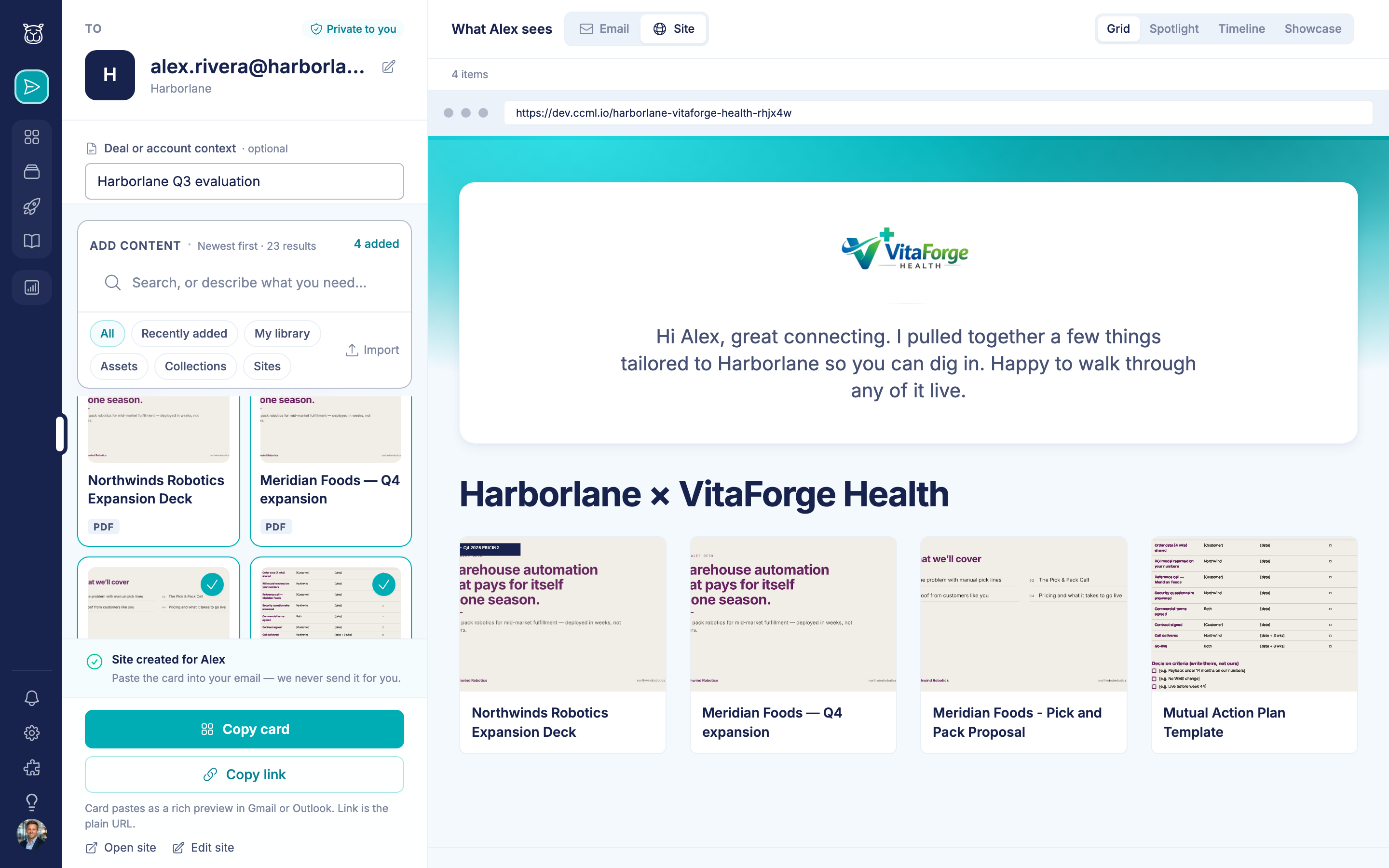
There are three places to copy from, and they do different jobs:
The action bar — plain link, for Slack, a CRM field, anywhere text goes
The email card — a formatted card carrying your logo, the greeting and the item count. Paste it into Gmail or Outlook and the formatting survives
The address bar in the preview — click the URL shown in the fake browser chrome and it copies. It's the one you're already looking at while you eyeball the site
Switch to the Email view to see exactly what you're pasting.
Change the recipient afterwards and the composer re-arms for the next share.
What your prospect gets
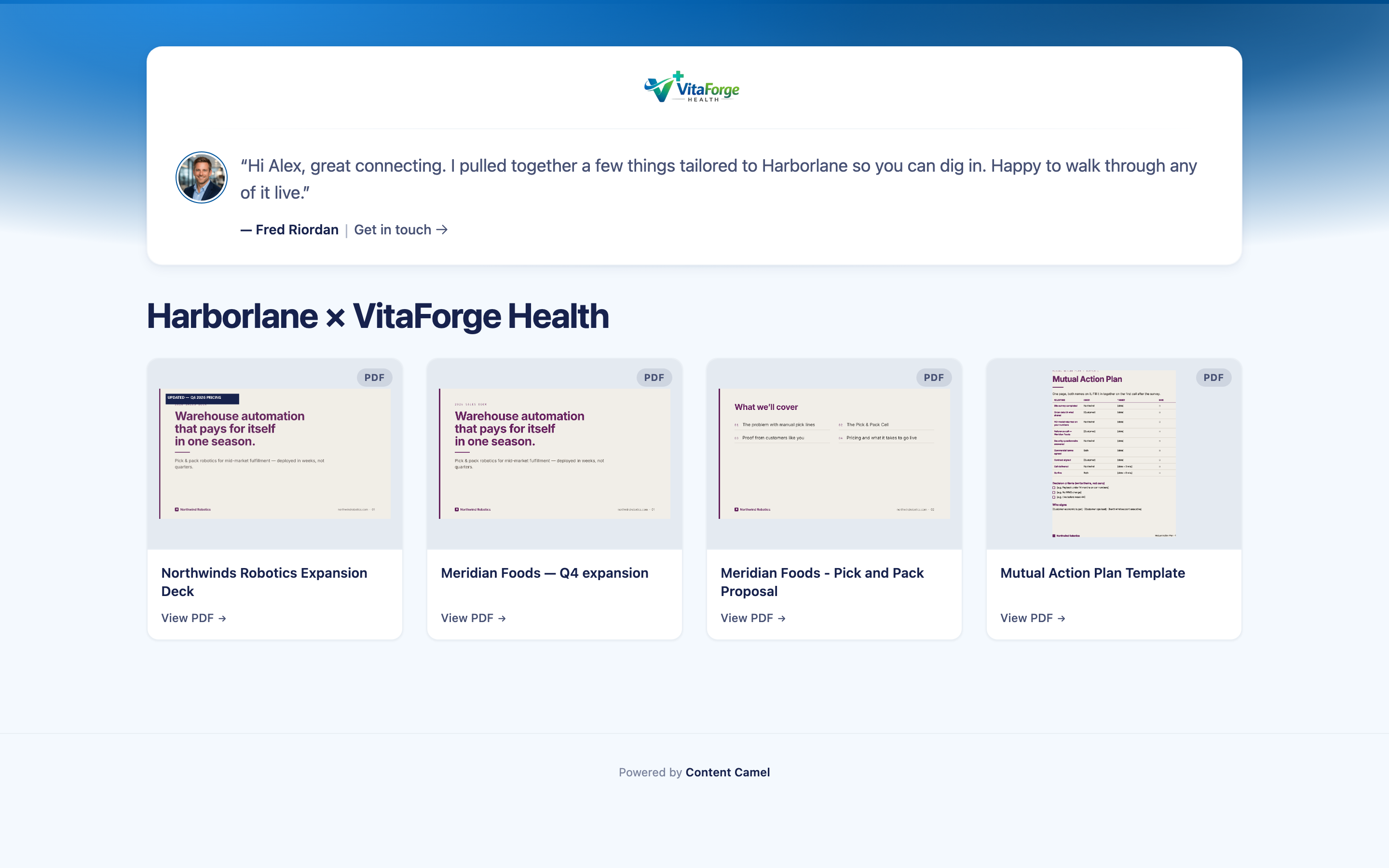
A branded page with your greeting, the content you picked, and your contact details. PDFs and decks open in a reader that pages with the arrow keys, Page Up/Page Down, or Home and End. The fullscreen control toggles both ways, so Esc isn't the only way out.
Every open, every asset view and every download lands in your analytics. Check the Analytics section in the left nav, or the asset's own engagement panel.
Editing after the fact
The share is a site. You'll find it under Sites in the left nav.
Open it in the site editor to change the content, the layout, the password, the email gate or the custom link. Expiry is the exception: that one is set at create time only.
Best practices
Three to six assets. A twelve-tile site reads as a dump. Cut to what this deal needs
Use the greeting. A named, specific opening line is the difference between a link and a message
Turn on Require email for wide shares. If the champion is forwarding it around, that's how you learn who else is in the room
Set an expiry on pricing. A stale quote resurfacing in month five is a conversation nobody enjoys
Have questions?
If you have any questions about the Share composer, reach out to our support team. We're here to help you get the right content in front of the right person.