
🎨 How to customize branding and organization
When your team shares content with prospects, generic branding isn't probably what you're looking for. When they search for assets, categories that don't match your products or terminology slow them down. Content Camel lets you customize logos, colors, and content categories so everything your team shares matches your brand and feels natural to how your organization actually works.
Accessing customization settings
Step 1: Navigate to Account Settings
Click on your profile icon in the top right, or Settings in the left hand sidebar, then select Account Settings.
You'll see the account settings section.
Step 2: Go to the Branding tab
Click on the Branding tab to access branding customization options.
Customizing your brand
Upload your organization logo
Your logo appears in emails, sites, and shared content, so it's important to set it up.
Click Upload Logo and select your company's logo file. For best results:
Use a PNG file with transparency
Recommended size: 200px wide or larger
Keep it simple and recognizable
This will be presented on a white background
Set your brand colors
Define your brand's primary color to maintain consistency across all content.
This color becomes the default for:
Sites you create
👉 TIP: Use your official brand colors from your style guide. This ensures everything looks professional and on-brand.
Save your branding changes
After making your changes, click Save to apply them across your organization.
Your branding updates will be reflected immediately in the platform.
Managing content organization
Content organization refers to how you organize and categorize your content. As an admin, you can customize these categories to match your organization's needs.
Accessing content organization settings
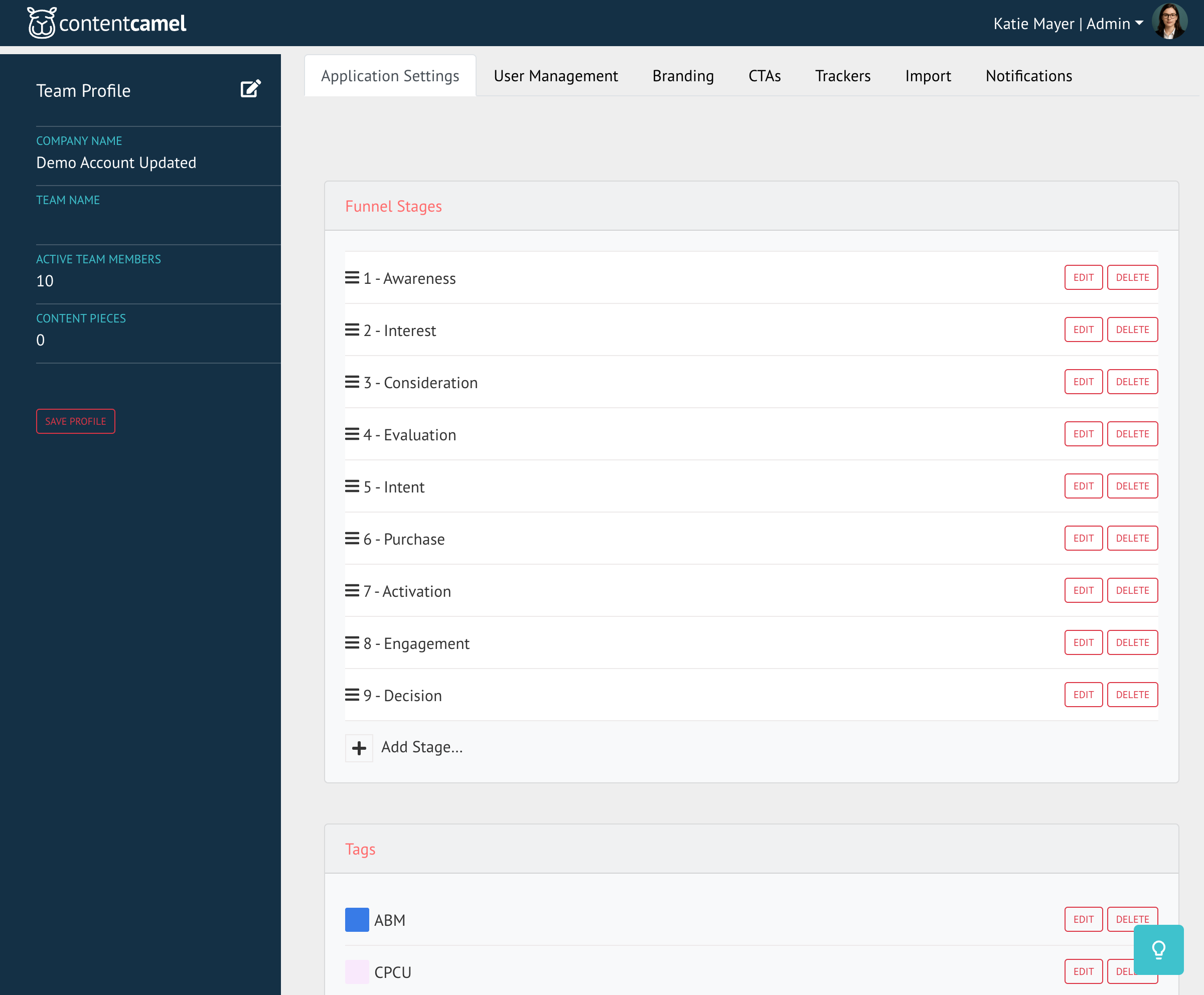
From Account Settings, click on the Application Settings tab to manage your content taxonomy.
Funnel stages
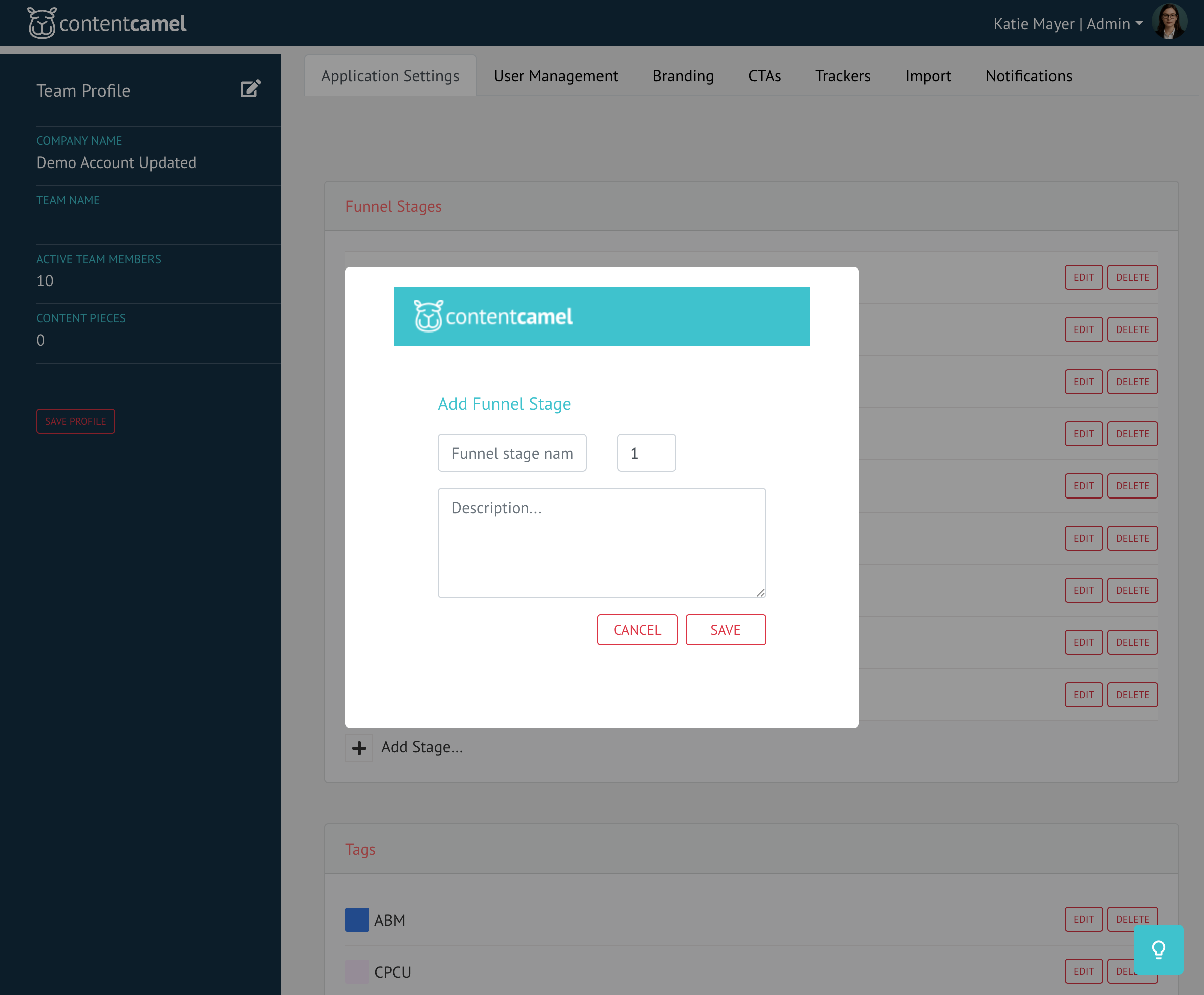
Funnel stages represent where content fits in the buyer's journey. You can add, edit, or remove stages to match your sales process.
Common funnel stages include:
Awareness
Consideration
Decision
Retention
But you should customize these to match your specific sales pipeline stages.
Content Types
Content types are used to categorize the actual types of content that your team is using. This is most helpful when filtering content -- like answering the search for a user that "needs a video for...".
There are a lot of common content types, and we've populated the list to get you started.
Product (optional)
If you have multiple products and/or services that you are taking to market, then you can add those here. Again, this is most helpful when a user is searching for content and "needs content for product...".
Industry (optional)
If you have multiple verticals or industries that you are serving, then you can add those here. This is helpful for segregating content and allowing users to quickly partition all content.
Region (optional)
If you have multiple regions or geographies that you are serving, then you can add those here. This is helpful for segregating content and allowing users to quickly partition all content.
These fields are optional but powerful for organizations with diverse product lines, multiple markets, or global teams.
Tags
Tags are flexible labels that help organize and find content. Unlike rigid categories, tags can overlap and combine.
Good tag examples:
Product names (e.g., "Product A", "Product B")
Use cases (e.g., "Sales Enablement", "Customer Onboarding")
Campaigns (e.g., "Q1 Launch", "Summer Promotion")
Adding tags
Click Add tag... to create new tags that your team can apply to content.
👉 TIP: Establish a tagging convention early and communicate it to your team. Consistent tagging makes content much easier to find.
Call-to-action (CTA) management
CTAs prompt viewers to take the next step when they engage with your content. You can create custom CTAs for different scenarios.
More on CTAs here: Configuring CTAs
Best practices
Branding
Be consistent - Use the same logo and colors across all platforms
Keep it simple - Don't overload with too many brand elements
Test on mobile - Make sure your branding looks good on all devices
Taxonomy
Start simple - Don't create too many categories at first
Get team input - Ask users what categories would help them find content
Document your system - Create a guide explaining your taxonomy
Review regularly - Archive unused tags and add new ones as needed
Use consistent naming - Establish conventions (e.g., all caps for regions, title case for products)
CTAs
Make them action-oriented - Use clear, compelling button text
Test different messages - See what resonates with your audience
Keep URLs current - Update CTAs when links change
Match CTAs to content - Use relevant CTAs for each piece of content
Have questions?
If you have any questions about customizing your branding or organizing your content taxonomy, reach out to our support team. We're here to help you create a Content Camel instance that perfectly fits your organization.