
How to share content to a CRM deal (HubSpot or Pipedrive)
If your workspace has HubSpot or Pipedrive connected, the Share composer can list your open deals and their contacts. Pick one, create the share as usual, and Content Camel adds a note to that deal in your CRM with the link. Nothing is emailed for you: you still copy the link or the email card and send it yourself.
Before you start
An admin has to connect your CRM once for the whole workspace. In Settings, open CRM integrations and connect HubSpot or Pipedrive there. Admin steps are in Navigating the settings dashboard. Only one CRM can be connected at a time.
Your deals show up when your Content Camel user is matched to an owner in your CRM. If you see "Your deals aren't listed yet: your Content Camel user isn't matched to a HubSpot owner" (or a Pipedrive owner), ask your admin. Email, organization and memo sharing still work in the meantime.
Step 1: Open the recipient picker
Click Share at the top of the left nav and click the To field. With a CRM connected, the field reads "Search your CRM or type a prospect's email…" and your open deals are listed under it, each with its contacts.
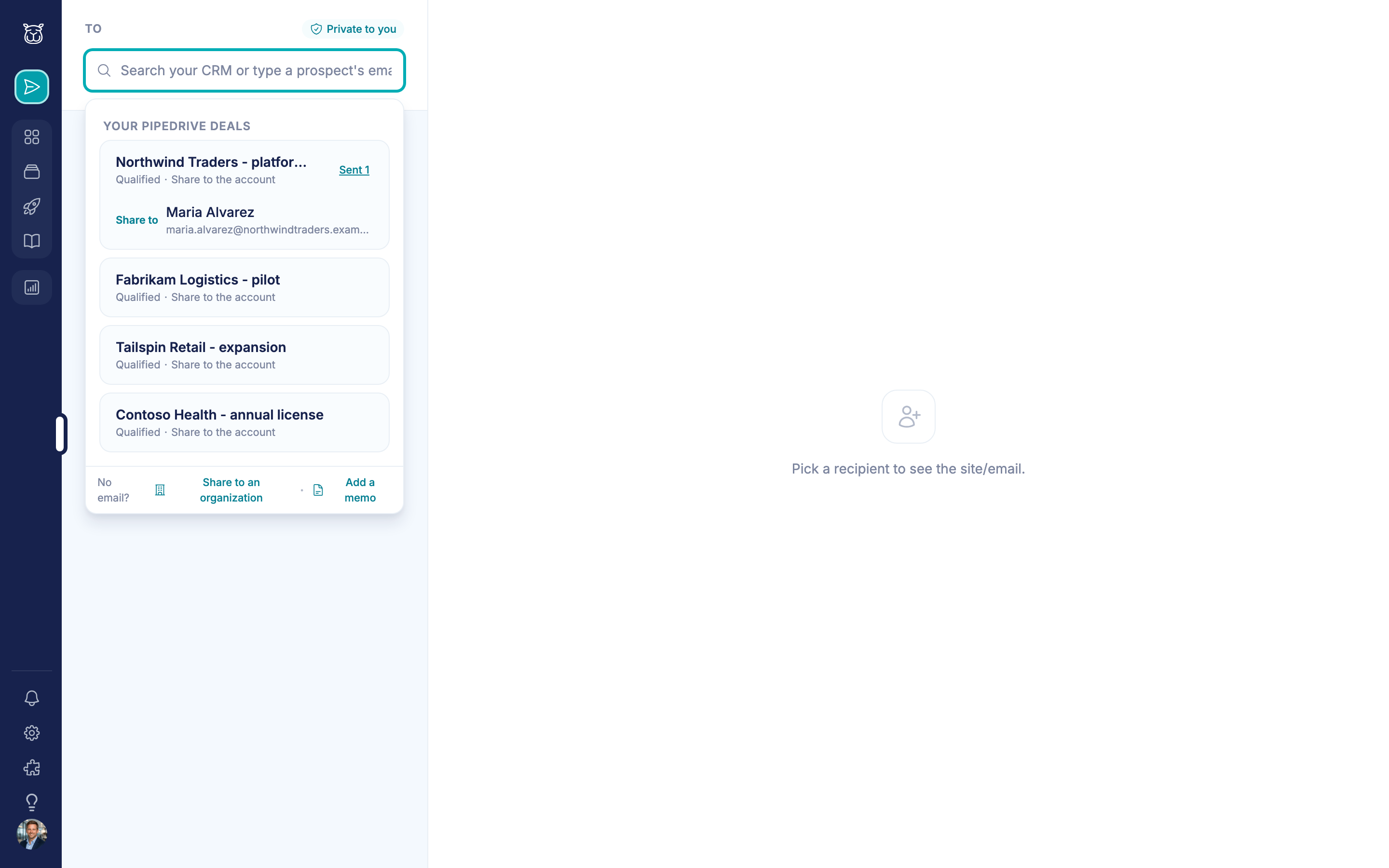
Type to narrow the list by deal or contact name. If the list can't load, the picker says so and you can still type an email.
Step 2: Pick the deal or a contact
You have two ways to pick:
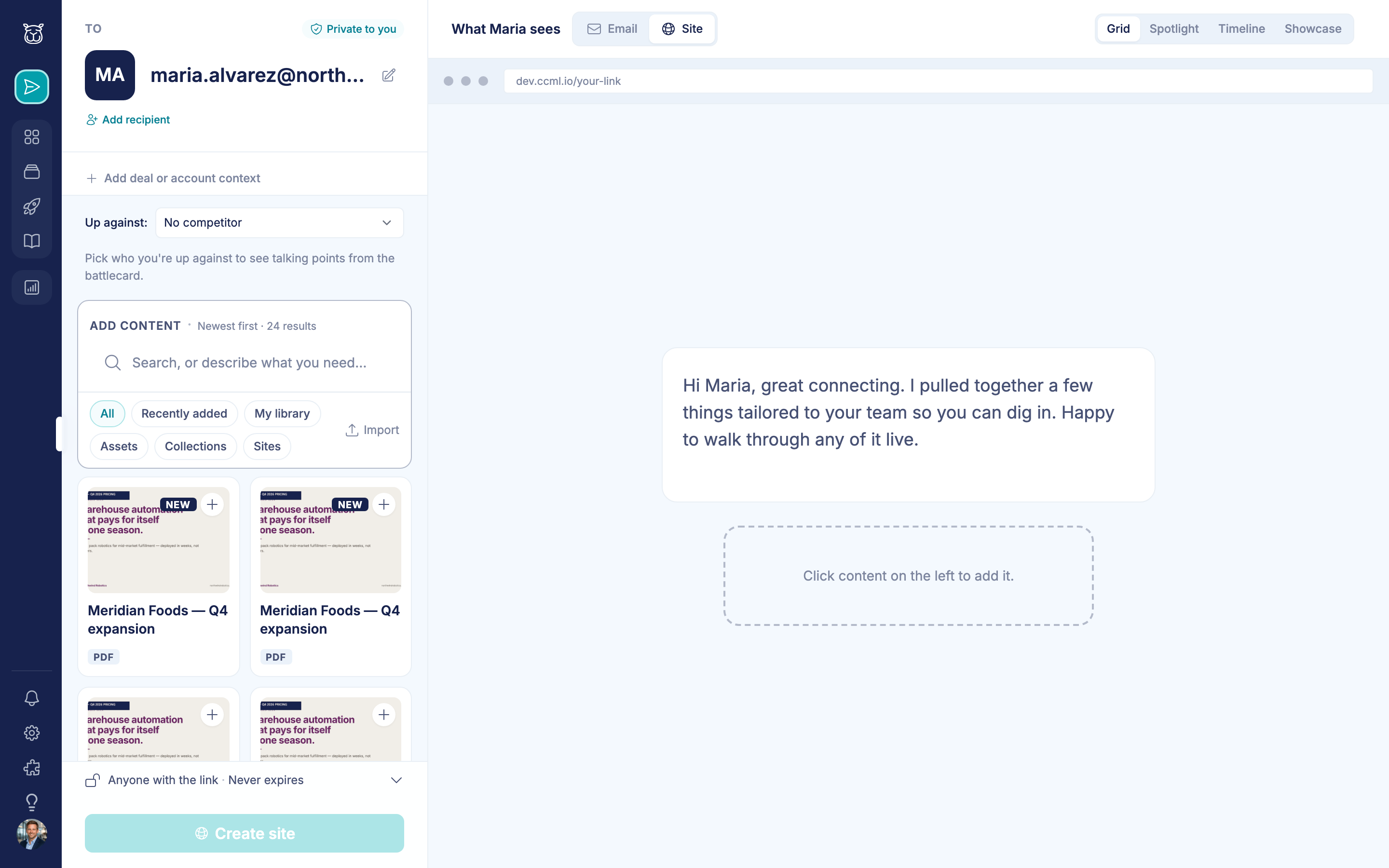
A contact under the deal. The share goes to that person and is attached to the deal.
Share to the account. The share is attached to the deal with no single person, and is labelled with the deal name.
Step 3: Add more people from the same deal (optional)
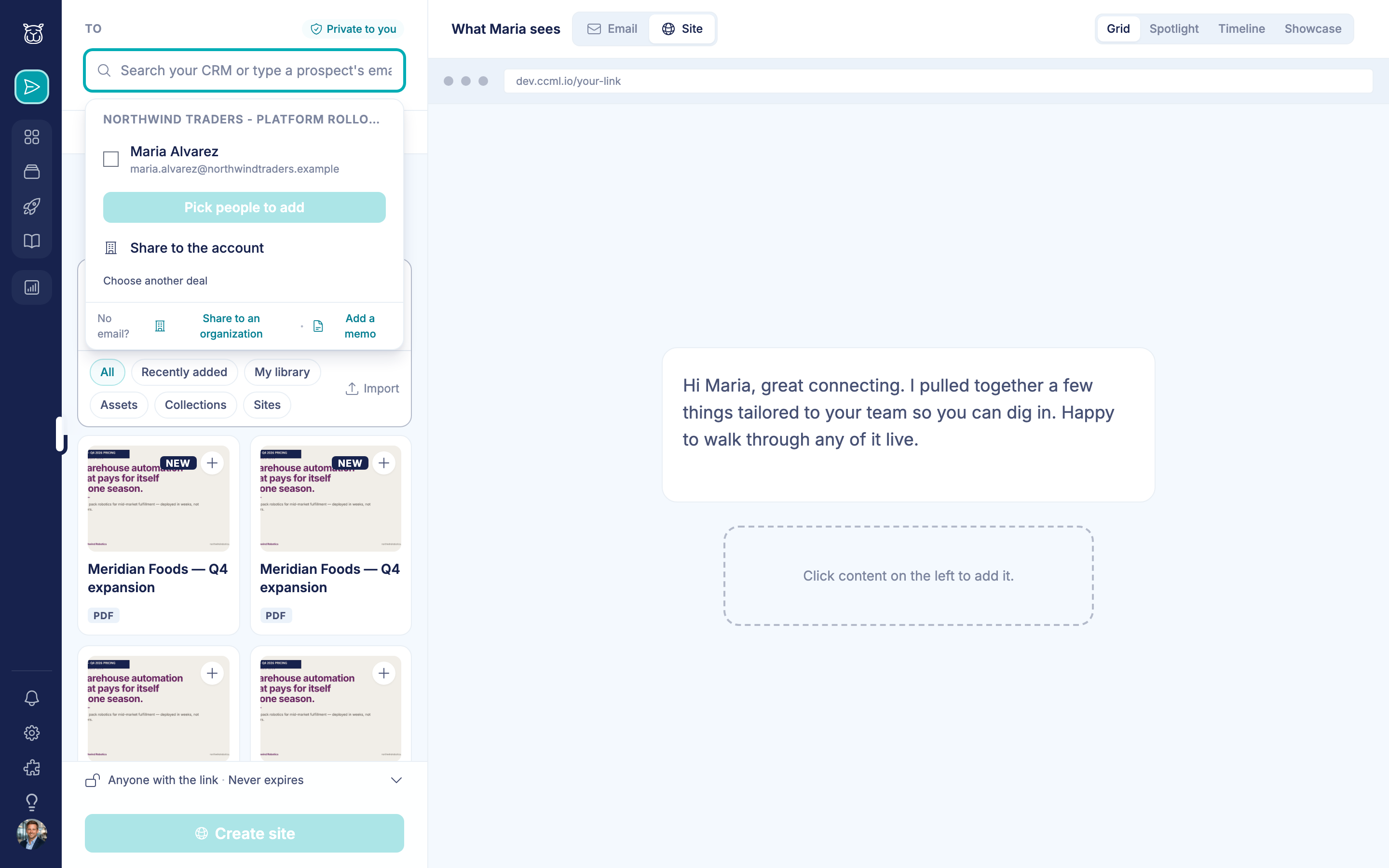
Open the recipient again and the picker shows that deal's contacts as a checklist. Tick the people you want and click Add N people. Contacts with no email address are listed but can't be ticked. Choose another deal takes you back to the full list.
Step 4: Add content and create the site
Add content, set any options, and click Create site, exactly as in How to share content with the Share composer.
What shows up on the deal in your CRM
When Create site makes a new link for a deal, Content Camel adds one note to that deal in your CRM. It reads:
> Shared [asset name] with [email] via Content Camel · [link]
If you shared to an account or used a memo, the organization or memo text stands in for the email. With neither, it says "a buyer".
If the share isn't a single asset, the note uses the link address instead of an asset name.
Long names are cut at 200 characters.
The note is added in the background after the link is made. It never slows down or blocks your share.
Creating the same share again for the same deal, asset and recipient reuses the existing link, so no second note is added.
If the deal or permission is missing
The share itself always works. The note is skipped, with no message to you, when:
your CRM is not connected, or the connection was revoked
the deal was deleted or can't be found in your CRM
the CRM connection is missing the permission to add notes (ask your admin to check the connection)
for Pipedrive, your Content Camel plan doesn't include it (Pipedrive is part of our paid plans; HubSpot works on every plan)
If a note you expected isn't on the deal, check with your admin that your CRM still shows as connected.
FAQ
Does Content Camel email my prospect? No. You copy the link or the email card and send it yourself.
Why don't I see all the deals in my CRM? The picker lists your open deals, matched to you by CRM owner. Closed deals aren't listed.
Can I share to a deal if the contact has no email? Yes. Use Share to the account to attach the share to the deal without a person.
I shared without picking a deal. Can I attach it later? Not from the share. Pick the deal in the recipient picker before you click Create site.
Have questions?
If you have any questions about sharing to a CRM deal, reach out to our support team. We're here to help.